


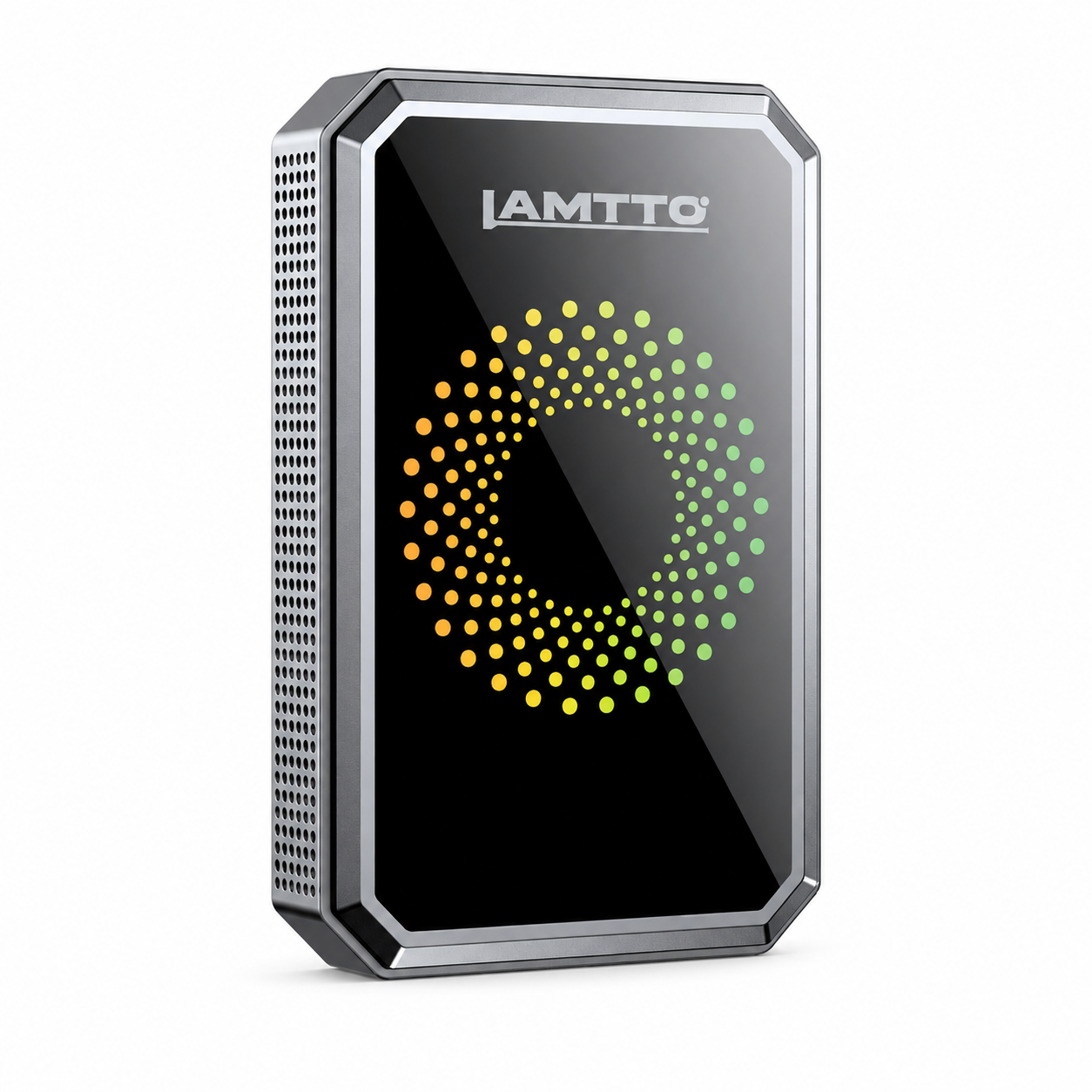


LAMTTO RC series wireless CarPlay screens are designed to deliver a seamless driving experience with Apple CarPlay and Android Auto.
However, like any wireless system, users may occasionally encounter issues such as:
- Bluetooth not connecting
- CarPlay not launching
- Random disconnections
- Android Auto not working
👉 The good news: Most of these problems are easy to fix.
In this complete guide, we’ll walk you through all common RC series connection issues and how to solve them step by step.
🔵 1. Bluetooth Not Connecting / Pairing Failed
Problem
Your phone cannot find the device, or pairing fails.
Solutions
- Delete all saved Bluetooth devices on your phone (especially “CarPlay” or “SmartBox”)
- Restart both your phone and the RC device
- Reset the RC device to factory settings
- Turn off other Bluetooth devices (earbuds, smartwatches, etc.)
- Try another phone to identify if the issue is device-specific
📱 2. CarPlay / Android Auto Not Connecting
Problem
Bluetooth connects, but CarPlay or Android Auto does not launch.
✅ For iPhone (CarPlay)
- Ensure your iPhone runs iOS 7.1 or later
- Go to Settings → General → CarPlay → Forget This Car, then reconnect
- Turn off VPN and Personal Hotspot
- Disable Voice Control & Sound Recognition
- Reset network settings (this clears Wi-Fi passwords)
- Check Screen Time restrictions (CarPlay must be allowed)
✅ For Android (Android Auto)
- Pixel phones: Android 8.0+
- Other brands: Android 11+
- ⚠️ Huawei devices are generally not supported
Steps:
- Turn on Wi-Fi (required for wireless connection)
- Clear Bluetooth records and reconnect
- Restart your phone
- Test with another Android device
🔁 3. Random Disconnections
Problem
CarPlay disconnects randomly during use.
Solutions
- Re-pair Bluetooth connection
- Reset the RC device
- Restart your phone
- Check your car charger (use original charger)
- Keep phone at least 30cm away from power source
- For Android users: consider switching to wired mode if unstable
⚡ 4. CarPlay Not Auto-Connecting
Problem
You must manually reconnect every time you enter the car.
Solutions
- Clear all Bluetooth records
- Reset the RC device
- Restart your phone
- Update firmware if available
- Only connect one phone at a time (important)
🤖 5. Android Phone Not Connecting
Problem
iPhone works fine, but Android does not connect.
Requirements
- Pixel: Android 8+
- Other brands: Android 11+
- ❌ Huawei not supported
Fix Steps
- Turn on Wi-Fi
- Delete old Bluetooth connections
- Restart phone
- Avoid connecting to other Wi-Fi networks
- Test with a different Android phone
⚠️ 6. Huawei Compatibility Issue
Most Huawei devices are not fully compatible.
Possible Workarounds:
- Enable Developer Mode
- Enable wireless Android Auto manually
- Set network to “Always On”
- Reset Wi-Fi and reconnect
👉 If it still fails, contact support for refund or alternatives.
🌐 7. Connection Drops Due to Wi-Fi Switching
Problem
CarPlay disconnects when your phone switches Wi-Fi.
Why It Happens
CarPlay uses a local Wi-Fi network (no internet).
Your phone may switch to another Wi-Fi with internet access.
Solutions
- Use Airplane Mode trick (recommended):
- Turn on Airplane Mode
- Enable Bluetooth + Wi-Fi manually
- Forget other Wi-Fi networks
- Disable VPN
📡 8. Android Cast / Tclink Not Connecting
Problem
Screen mirroring keeps searching.
Solutions
- Turn on Location Services
- Turn OFF Bluetooth
- Allow all app permissions
- Reset RC device
- Restart phone
- Disable VPN
👥 9. Cannot Connect Two Phones
CarPlay only supports one phone at a time.
How to switch:
- Turn off Wi-Fi & Bluetooth on current phone
- Connect the second phone
- System will remember the last connected device
🔄 10. Cannot Switch Between Phones Easily
CarPlay automatically connects to the last used phone.
👉 To switch:
- Disable current phone connection
- Reconnect with another phone manually
📲 11. Do You Need an App for CarPlay?
No. You do NOT need any app.
Correct steps:
- Turn on Bluetooth & Wi-Fi
- Pair with device
- CarPlay launches automatically
📺 12. AirPlay / Screen Mirroring Not Working
Problem
Mirroring fails or keeps loading.
Solutions
- Turn OFF Bluetooth before using AirPlay
- Disconnect CarPlay first
- Then enter screen mirroring mode
👉 CarPlay and AirPlay cannot run simultaneously
🎬 13. Video Features Missing After Update
Problem
Online video apps disappeared.
Explanation
👉 This feature has been removed in system updates and is no longer supported.
🔍 14. Common Causes of Connection Issues (Summary)
Most issues are caused by:
- Weak power supply (non-original charger)
- Outdated phone system
- Too many background apps
- Wi-Fi interference
- Bluetooth conflicts
- Phone connected to multiple devices
- Vehicle system issues
🚀 Final Thoughts
Most LAMTTO RC connection issues are not hardware problems.
They are usually caused by:
- Incorrect settings
- Network interference
- Compatibility limitations
👉 With the steps above, you can solve 90% of connection issues.
💡 Pro Tip
Always use the original car charger.
It includes an FM transmission antenna, which is essential for stable performance.
Need More Help?
If your issue still isn’t resolved:
👉 Contact our support team for free replacement or technical assistance



Dejar un comentario
Todos los comentarios se revisan antes de su publicación.
Este sitio está protegido por hCaptcha y se aplican la Política de privacidad de hCaptcha y los Términos del servicio.