


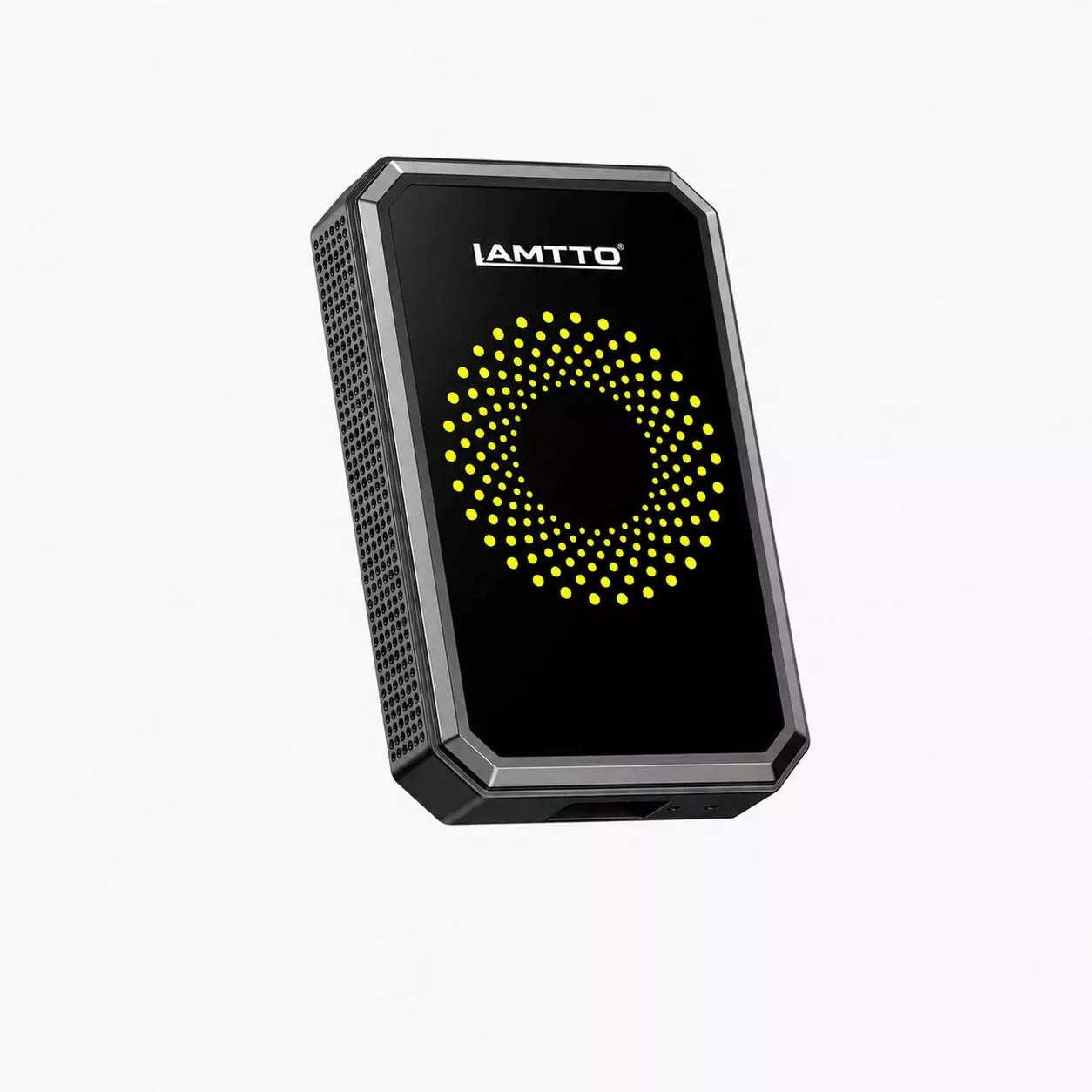


RC25 CarPlay AI Box Support: Setup Guide, Firmware & FAQs
📥 Quick Resources & Firmware Downloads
1. User Guides & Manuals (PDF)
📄 Download English User Manual (US/UK) →
2. Official Firmware & System Updates
Keep your AI Box running smoothly with the latest system optimizations and compatibility patches:
⚙️ Latest System Firmware Update: Follow on-screen OTA (Over-The-Air) update prompts when connected to Wi-Fi, or download the recovery firmware pack to a FAT32-formatted MicroSD card for manual flashing.
❓ Frequently Asked Questions & Solutions
⚡ Category 1: Device Boot, Power & Initial Connection
Q1: The RC25 does not power on or the car screen fails to recognize it. What should I check?
- Check Factory CarPlay Compatibility: Confirm that your vehicle comes equipped with built-in OEM wired Apple CarPlay. The RC25 connects via the original vehicle CarPlay data port.
- Cable & Port Verification: Use the original USB-A to Type-C or Type-C to Type-C cable provided in the box. Plug directly into the designated data transfer port (avoid purely charging-only ports or third-party USB hubs).
- Power Supply Stability: Ensure the vehicle engine is running to provide stable voltage during initialization.
Q2: The device disconnects randomly or restarts while driving.
- Clear the device memory cache from the Android Settings menu.
- Test with an alternate high-speed USB data cable to rule out wire fatigue or loose car port connections.
- Ensure the device is placed in a well-ventilated area inside the cabin to prevent thermal throttling.
🌐 Category 2: Wireless CarPlay, Android Auto & Networking
Q3: How do I switch between the internal Android system and Wireless CarPlay / Android Auto?
- Standalone Android OS: Access YouTube, Netflix, Google Play Store, and navigation apps directly from the main launcher interface using a Wi-Fi hotspot or SIM data.
- Phone Mirroring / Wireless Link: Open the pre-installed auto-connect app (such as SpeedPlay / AutoKit) on the home screen and pair your phone's Bluetooth and Wi-Fi to establish a wireless CarPlay or Android Auto session.
Q4: How do I connect the RC25 to the internet?
-
Mobile Hotspot: Turn on the Personal Hotspot feature on your smartphone (enable 5GHz/Max Compatibility mode), go to
Settings > Network & Internet > Wi-Fion the RC25 screen, find your hotspot, and enter the password. - In-Car Wi-Fi: Connect directly to your vehicle's integrated 4G/5G Wi-Fi hotspot network.
Q5: What should I do if wireless audio and video are out of sync or lagging?
- Disconnect other unused Bluetooth accessories paired with your smartphone.
- Navigate to the connection app settings and switch the Wi-Fi frequency band setting to 5.0 GHz for lower latency and reduced interference.
- Restart both the car infotainment system and your mobile device.
📱 Category 3: App Downloads & Media Streaming
Q6: Can I download streaming apps like Netflix, YouTube, and Disney+?
- Yes. The RC25 runs an open smart operating system. Log into your Google Account via the built-in Google Play Store to download compatible streaming platforms, GPS mapping apps, and entertainment utilities.
- For applications requiring custom permissions, use the preloaded application manager or download verified APK installation files onto a MicroSD card.
Q7: Video apps report playback errors or require mouse/touchpad navigation.
- Some media apps are optimized for tablet touch gestures. Toggle the Floating Ball / Virtual Mouse utility on the side of the screen to navigate menus that do not respond to standard car knob controls.
- Keep streaming apps updated to their latest stable releases via the Google Play Store.
🛠️ Category 4: System Reset & Technical Recovery
Q8: How do I perform a complete factory reset on the RC25?
- From the main home screen, open Settings.
- Scroll down to System > Reset Options.
- Select Erase all data (factory reset) and confirm.
- Allow the device 2–3 minutes to reboot and reinitialize its default settings.
📬 Need Dedicated Assistance? Contact Support
If your vehicle model requires specific compatibility testing or you experience any software glitches:
📧 Customer Support Email: Contact our after-sales service team through your purchase platform or official support email.
📝 Please Include:
- Your Vehicle Make, Model, and Manufacture Year.
- Original Order ID / Purchase Invoice.
- A short video or detailed description illustrating the issue.