




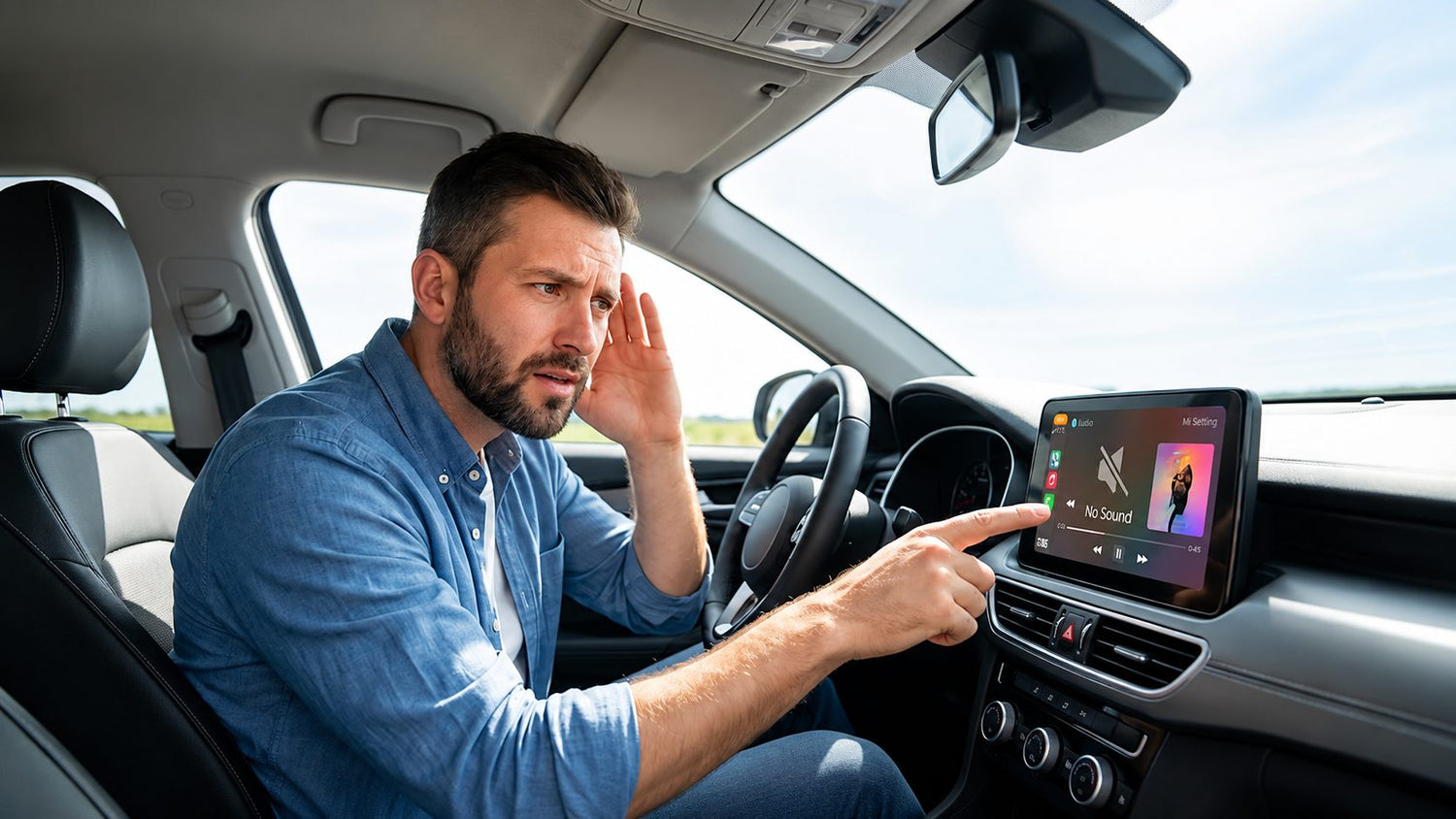
Whether you're using Apple CarPlay or Android Auto Screen issues can quickly turn an enjoyable drive into a frustrating experience. You might hear buzzing through the AUX connection, lose call audio, experience echo during conversations, or notice that video and audio are out of sync while screen mirroring.
The good news is that most of these problems are not caused by hardware failure. In many cases, they result from connection settings, Bluetooth priorities, audio output configurations, or software conflicts.
This guide explains the most common CarPlay Screen problems, why they happen, and the steps you can take before assuming your device needs to be replaced.
Why Do CarPlay Screen Problems Happen?
Unlike a traditional Bluetooth speaker, CarPlay relies on several different communication methods working together.
A typical connection involves:
- Your smartphone
- Bluetooth
- Wi-Fi (for wireless CarPlay or AirPlay)
- The CarPlay device
- Your vehicle's audio system
- AUX, Bluetooth, FM transmitter, or USB audio output
Because several devices communicate simultaneously, a small configuration issue can affect phone calls, music, navigation voice prompts, or screen mirroring.
Understanding where the audio travels is often the key to solving the problem.

Problem 1: Buzzing or Humming Noise When Using AUX
Symptoms
- Buzzing sound through the speakers
- Constant humming noise
- Static noise only when using AUX
Possible Causes
The most common causes include:
- AUX cable is not fully inserted.
- AUX cable is connected to the wrong input.
- Damaged AUX cable.
- Faulty AUX port on the CarPlay device.
How to Fix It
Step 1
Check that both ends of the AUX cable are fully inserted.
Even a slightly loose connection may introduce electrical noise.
Step 2
Confirm that the cable is connected to the correct AUX input on your vehicle.
Step 3
Try another AUX cable.
A damaged or low-quality cable is one of the most common causes of background noise.
Step 4
If replacing the cable doesn't solve the issue, switch to another audio output method such as Bluetooth audio or FM transmission.
When to Contact Support
If multiple AUX cables produce the same buzzing noise while Bluetooth audio works normally, the AUX output port may require further inspection.
Problem 2: I Can't Hear the Other Person During Phone Calls
Symptoms
- The other person can hear you.
- You cannot hear their voice.
- Music plays normally.
- Calls have no audio.
For iPhone Users
Check where call audio is being routed.
During the phone call:
- Tap the Audio button.
- Verify whether the call is using:
- Bluetooth
- iPhone
- CarPlay
Selecting the wrong output device may result in no call audio.
For Android Users
Step 1
Make sure the microphone is not muted during the call.
Step 2
Test whether voice commands work.
If voice commands cannot hear your voice either, the microphone or related hardware may need further inspection.
Step 3
If supported, switch to Bluetooth audio output so your vehicle's original microphone handles the call.
Problem 3: Music Plays Normally, But Phone Calls Have No Audio
Why This Happens
This issue is usually related to Bluetooth phone-audio priority rather than a hardware failure.
Many factory Bluetooth systems—especially in older vehicles—can maintain only one active Hands-Free Profile (HFP) connection at a time.
As a result:
- Music is routed correctly.
- Phone calls are routed somewhere else.
How to Fix It
Remove Duplicate Bluetooth Connections
Delete the direct phone-to-car Bluetooth pairing.
Instead, keep only:
Phone → CarPlay Device
CarPlay Device → Vehicle Bluetooth
This prevents the vehicle from taking over the phone call audio.
Check Bluetooth Permissions
Ensure both of these are enabled:
- Phone Audio
- Media Audio
Sometimes only media audio is enabled, allowing music playback but blocking phone calls.
Try AUX Audio (If Available)
If your device supports AUX output:
- Connect the CarPlay device to the vehicle through AUX.
- Use Bluetooth only between the phone and the CarPlay device.
Older factory Bluetooth systems often perform more reliably with this configuration.
Problem 4: Echo During Phone Calls
Symptoms
- The other caller hears their own voice.
- Echo occurs only while using CarPlay.
- Music playback is unaffected.
Why It Happens
Echo is usually caused when the microphone picks up sound from the vehicle speakers.
This may happen if the call volume is too high or if Bluetooth routing isn't configured correctly.
Try These Solutions
- Lower the call volume.
- Restart both your phone and the CarPlay device.
- Update your phone to the latest software version.
- Try Bluetooth audio output instead of another audio mode.
- Make a phone call without using CarPlay.
If the echo disappears without CarPlay, the issue is likely related to the connection configuration rather than the phone itself.
Problem 5: Audio Delay During Calls or Music Playback
Symptoms
- Voices arrive slightly late.
- Music seems delayed.
- Navigation prompts lag behind.
Recommended Troubleshooting
- Restart both your smartphone and the CarPlay device.
- Close background apps.
- Clear available memory.
- Remove and re-pair the Bluetooth connection.
- Test with another smartphone.
If another phone works normally, the issue is likely device-specific.

Problem 6: Video and Audio Are Out of Sync During Screen Mirroring
Why It Happens
Screen mirroring sends both video and audio wirelessly.
Network interference, processing load, or unstable power can all introduce additional latency.
Try These Steps
- Restart both your phone and the CarPlay device.
- Forget the CarPlay Wi-Fi network and reconnect.
- Keep the phone close to the CarPlay device.
- Use the original power cable and a stable power source.
- Update your phone's operating system.
- Lower video resolution from 1080p to 720p.
- Try another streaming app.
- Download videos before casting instead of streaming online.
- Test with another phone
Problem 7: Bluetooth Audio Disconnects After Starting AirPlay
Is This Normal?
Yes.
AirPlay and Bluetooth audio operate at the same system level.
Most devices cannot use both audio paths simultaneously.
Once AirPlay becomes the active audio output, Bluetooth audio is automatically disconnected.
This behavior is expected and does not indicate a hardware fault.
Tips to Prevent Future Audio Problems
Many audio issues can be avoided with a few simple habits.
Use high-quality USB and AUX cables.
- Keep your phone updated.
- Restart your phone occasionally.
- Remove unused Bluetooth pairings.
- Avoid running too many background apps while using wireless CarPlay.
- Keep your phone within a stable wireless range of the CarPlay device.
Frequently Asked Questions
Why does my music work but phone calls don't?
This is usually caused by Bluetooth phone-audio routing. Check which device is handling call audio and remove duplicate Bluetooth pairings if necessary.
Why does AUX have a buzzing sound?
Loose connections, damaged AUX cables, incorrect AUX ports, or a faulty AUX output are the most common causes.
Is audio delay normal with wireless CarPlay?
A small amount of latency is expected with wireless connections. Significant delays are often caused by Wi-Fi interference, heavy background processing, or unstable power.
Can AirPlay and Bluetooth audio work together?
In most cases, no. When AirPlay becomes the active audio output, Bluetooth audio is automatically disconnected.
Final Thoughts
Most CarPlay Screen problems are caused by connection settings rather than hardware failures. Before replacing your device, it's worth checking Bluetooth routing, audio output methods, connection priorities, and your phone's software configuration.
Working through these troubleshooting steps can resolve many common issues in just a few minutes. If the problem persists after completing all the recommendations above, contact your device manufacturer with your vehicle model, phone model, operating system version, and a description of the issue. Providing these details can help support teams diagnose the problem more efficiently.


Commenta
Nota che i commenti devono essere approvati prima di essere pubblicati.
Questo sito è protetto da hCaptcha e applica le Norme sulla privacy e i Termini di servizio di hCaptcha.