




Why Does Your Dash Cam Stop Recording? 7 Common Causes and Easy Fixes
Imagine this.
You're driving home after a long day. Traffic is moving slowly, and suddenly, another driver cuts right in front of you.
You hit the brakes. Thankfully, nothing happens.
But later, when you check your dash cam footage, something feels wrong.
The video isn't there.
Your dash cam was powered on. The screen looked normal. You assumed everything was being recorded.
So what happened?
The truth is, a dash cam can stop recording for several reasons, and it doesn't always mean the camera is broken.
Sometimes it's a memory card issue. Sometimes it's unstable power. And sometimes it's a setting you didn't even realize was turned off.
Let's walk through the seven most common reasons your dash cam stops recording, how to fix them, and what you can do to prevent the same problem from happening again.

Quick Answer: Why Is My Dash Cam Not Recording?
If your dash cam suddenly stops recording, start with three things: the microSD card, the power connection, and the recording settings.
These are often the easiest problems to identify and fix.
Here's a quick troubleshooting guide to help you narrow things down.
| What You're Experiencing | Possible Cause | What to Try First |
|---|---|---|
| Dash cam says "SD Card Error" | Damaged or incompatible card | Check or replace the microSD card |
| Camera randomly shuts off | Unstable power supply | Check the cable and adapter |
| Recording stops when storage is full | Loop recording or locked files | Check recording settings |
| Camera stops on hot days | Overheating | Let the camera cool down |
| No footage while parked | Parking mode or power issue | Check parking power settings |
| Videos missing from the app | App or connection issue | Check recordings directly on the camera |
| Camera keeps restarting | Power or hardware issue | Test the power supply |
If you're not sure which problem you're dealing with, don't worry. We'll go through each one below.
1. Your MicroSD Card Is Full, Damaged, or Incompatible
Let's start with one of the most common causes: the memory card.
Your dash cam writes video to its microSD card every time you drive. Unlike the memory card in a regular camera, it's constantly recording, deleting, and recording again.
Over time, that repeated writing can wear out the card.
You might notice:
- An "SD Card Error" message.
- Missing or corrupted video files.
- Recording that stops after a few minutes.
- A camera that repeatedly asks you to format the card.
Sometimes the card simply isn't compatible with your dash cam.
How to Fix It
First, check the type and capacity of microSD card recommended by your dash cam manufacturer.
For cameras that record continuously, a high-endurance microSD card is often a better choice because it's designed for repeated video recording.
Then try these steps:
- Turn off your dash cam and remove the memory card.
- Back up any important footage.
- Check the card for visible damage.
- Format the card according to your camera's instructions.
- Insert it again and test a short recording.
If the problem continues, try another compatible memory card.
One important reminder: Formatting deletes existing recordings. If your dash cam captured an accident or another important event, save that footage before formatting anything.

2. Your Dash Cam Isn't Getting Stable Power
Have you ever noticed your dash cam restarting when you start the engine?
Or maybe it suddenly turns off while you're driving, even though everything seemed fine a moment earlier.
That could be a power problem.
Dash cams need a stable power supply to record properly. A loose USB cable, damaged adapter, or unreliable power outlet can interrupt recording without much warning.
What to Check
Start with the simplest things.
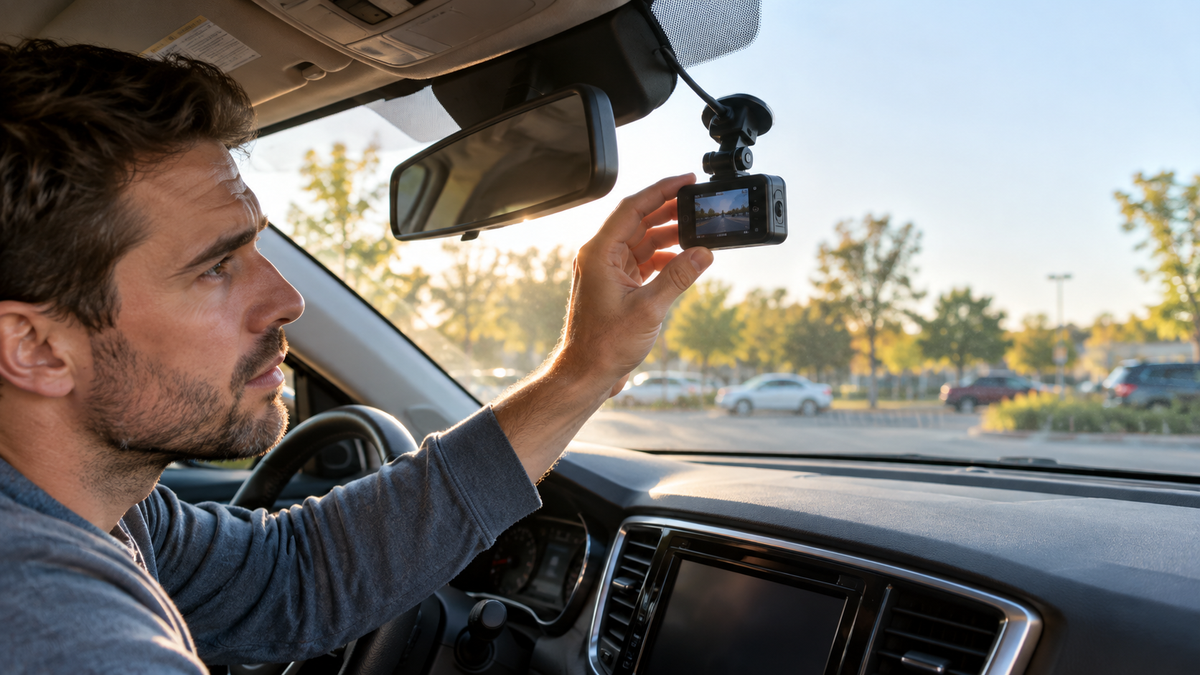
Make sure the power cable is firmly connected to both the camera and the vehicle's power source.
Look for damaged cables, loose connectors, or worn-out adapters.
If possible, test the camera using the original power adapter recommended by the manufacturer.
Remember, not every USB port in a car provides the same amount of power.
Some are designed mainly for charging phones or transferring data, and they may not supply enough power for certain dash cams.
If your camera is hardwired, the installation may also need to be checked.
A stable power connection matters even more for dash cams that record from multiple cameras at once.
3. Loop Recording Isn't Working Properly
Here's something many drivers don't realize.
Most dash cams don't save one giant video file for an entire trip.
Instead, they divide footage into shorter clips, often one, three, or five minutes long.
This is called loop recording.
When the memory card becomes full, the dash cam normally overwrites eligible older recordings to make room for new footage.
But what happens when loop recording isn't working properly?
The camera may stop saving new videos.
Why Locked Videos Can Cause Problems
Many dash cams have a G-sensor that detects sudden impacts.
When the sensor detects a strong bump or collision, the camera may automatically protect the related footage from being overwritten.
That's useful when something important happens.
But if the G-sensor is too sensitive, even ordinary road bumps may trigger protected recordings.
Over time, too many locked files can fill up your memory card.
How to Fix It
Check whether loop recording is enabled in your dash cam settings.
Then look for protected or emergency recordings taking up storage space.
Back up anything important before deleting files.
If your dash cam allows it, consider adjusting the G-sensor sensitivity.
Finally, test whether the camera continues creating new video clips.
A useful habit is to check your saved recordings occasionally rather than assuming loop recording is always working.
4. Your Dash Cam Is Overheating
Picture this.
It's a sunny afternoon in Arizona. Your car has been parked outside for several hours, and when you open the door, the interior feels like an oven.
Now imagine how hot a small electronic device mounted near the windshield can become.
That's the environment your dash cam may be dealing with.
Excessive heat can cause some dash cams to freeze, shut down, or temporarily stop recording to protect their internal components.
How to Fix It
Start by checking your dash cam's recommended operating temperature range.
If the device has been exposed to extreme heat, allow it to cool before restarting.
When possible, park in the shade or use a windshield sunshade while the camera is not operating.
Also, make sure the camera's heat-dissipation areas aren't blocked.
If overheating happens repeatedly under normal conditions, contact the manufacturer.
Remember: A dash cam designed for everyday driving still has operating temperature limits. No camera should be assumed to work reliably under every extreme weather condition.

5. Your Dash Cam Stops Recording When the Car Is Parked
This is one of the most misunderstood dash cam problems.
You park your car outside a grocery store, turn off the engine, and walk away.
An hour later, you return to find a new scratch on the door.
You check your dash cam, hoping to see what happened.
But there's no recording.
Why?
Because many dash cams stop receiving power when the car is turned off.
Does a Dash Cam Record When the Car Is Off?
Not necessarily.
A regular dash cam usually records while the vehicle is running.
To monitor a parked vehicle, the camera needs to support parking mode and have a suitable power source.
Depending on the model, parking mode may use motion detection, impact detection, time-lapse recording, or other recording methods.
Some cameras require a compatible hardwire kit, while others may support an OBD power connection or an external battery.
Without the proper power setup, even a dash cam with parking mode may stop working after the engine is switched off.
How to Fix Parking Mode Problems
Before assuming your camera is defective, check the following:
- Does your dash cam support parking mode?
- Is parking mode enabled in the settings?
- Does the camera still receive power when the engine is off?
- Is the required power accessory installed correctly?
- Are there enough storage space and working recording settings?
If your camera uses a hardwire kit with low-voltage protection, also check its cutoff settings.
These settings help reduce the risk of draining your vehicle's battery.
What If You Want to Check Your Car While You're Away?
Traditional parking mode is useful, but it has one limitation.
In many cases, you still need to return to the car or access the memory card to review what happened.
That's where a cellular dash cam can offer something different.
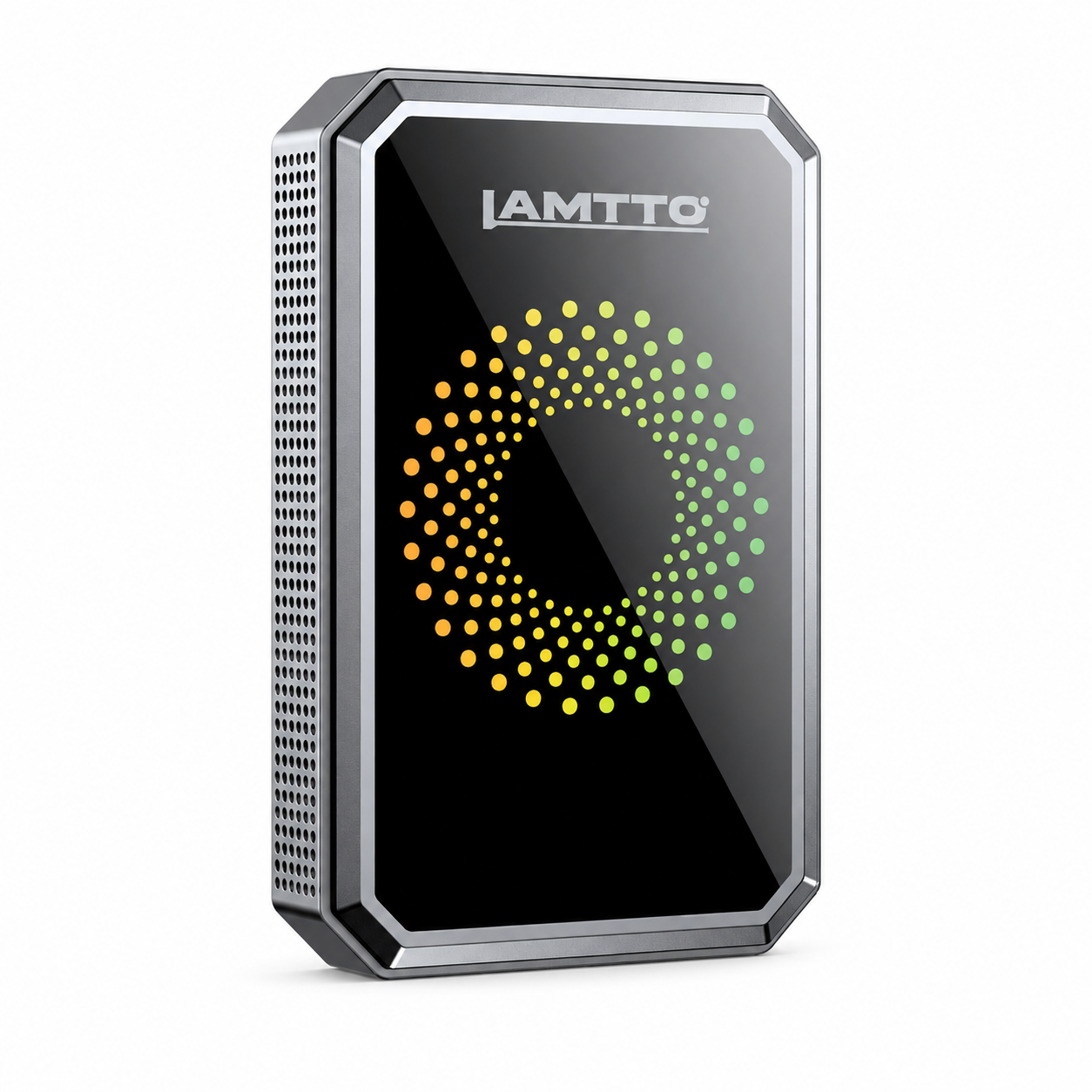
For example, the LAMTTO DC22 4G LTE Dash Cam is designed for drivers who want to monitor their vehicles remotely.
With a compatible cellular connection and proper power setup, DC22 supports features such as remote live viewing, event alerts, GPS information, and parking monitoring through the UBoxPro app.
Imagine leaving your car in an airport parking lot while you're away for a weekend.
Instead of waiting until you return to check what happened, a connected dash cam can let you check on your vehicle remotely when the required connections are available.
That's a meaningful difference for drivers who regularly park outdoors, travel frequently, or leave their vehicles unattended for long periods.
But there's something important to understand.
4G connectivity and local video recording are not the same thing.
If a cellular signal becomes unavailable, it doesn't automatically mean the camera has stopped recording locally.
A properly powered and configured camera may still save footage to its memory card.
Similarly, having a 4G connection doesn't guarantee continuous parking recording if the camera loses power.
Remote viewing and alerts also require compatible cellular service and an active data plan.
If remote parking monitoring is something you're looking for, you can explore the LAMTTO DC22 4G LTE Dash Cam to learn more about its features and installation requirements.
6. Your Dash Cam Firmware or App Has a Problem
Sometimes the problem isn't the recording itself.
It's how you're trying to access the video.
For example, you open your dash cam's phone app, but the latest recordings don't appear.
You assume the camera stopped recording.
However, the videos might still be stored on the memory card.
A connection issue, app error, or software problem could be preventing you from viewing them.
How to Fix It
Before changing settings or resetting the camera, check whether the footage exists locally.
If your dash cam has a screen, try playing back the videos directly.
Otherwise, turn off the camera and use a compatible card reader to check the memory card.
If the recordings are there, focus on the app connection.
You can also:
- Restart the dash cam and your phone.
- Check app permissions.
- Reconnect the camera to the app.
- Check for official firmware updates.
- Contact the manufacturer if the issue continues.
Only install firmware intended for your exact dash cam model.
And remember to back up important recordings before performing a factory reset.

7. Your Dash Cam May Have a Hardware Problem
What if you've already checked everything?
The memory card works.
The power cable is fine.
Loop recording is enabled.
The camera isn't overheating.
But it still stops recording.
At this point, there may be a hardware problem.
Like other electronic devices, dash cams can develop faults over time.
A damaged connector, failing internal component, or previous exposure to heat or moisture may affect performance.
What Should You Do?
Before replacing the camera, try to identify exactly when the problem happens.
Does it stop recording after a certain amount of time?
Does it restart whenever the car starts?
Does it fail to recognize multiple compatible memory cards?
These details can help customer support identify the issue more quickly.
If you're using a LAMTTO dash cam, you can visit the LAMTTO Help Center for troubleshooting guidance or contact support@lamtto.com.
You may not need a replacement. Sometimes the issue can be resolved with the correct settings, accessories, or manufacturer guidance.
Still Not Sure Why Your Dash Cam Stops Recording?
Here's a simple troubleshooting path you can follow.
START: Your dash cam isn't recording.
Step 1: Does the camera turn on?
- No → Check the power cable, adapter, and vehicle power source.
- Yes → Continue to Step 2.
Step 2: Is the camera saving new video files?
- No → Check the microSD card, available storage, and loop recording settings.
- Yes → Continue to Step 3.
Step 3: Are the videos missing only from your phone app?
- Yes → Check the app connection, permissions, and local playback.
- No → Continue to Step 4.
Step 4: Does recording stop only when the car is parked?
- Yes → Check parking mode settings and continuous power requirements.
- No → Continue to Step 5.
Step 5: Does the camera stop after getting hot or repeatedly restart?
- Yes → Check the operating temperature, power supply, and firmware.
- No → Contact manufacturer support for further diagnosis.
A quick reminder: Before formatting a memory card or resetting your dash cam, always save any important footage.

How to Prevent Dash Cam Recording Problems
Fixing a dash cam problem is one thing.
Making sure it doesn't happen again is even better.
Fortunately, you don't need to be a technology expert to keep your camera working properly.
A few simple habits can make a difference.
Check your recordings regularly.
Don't wait until an accident happens to find out your dash cam wasn't saving footage. Open a recent video occasionally to confirm everything is working.
Use a compatible, high-quality memory card.
A reliable high-endurance microSD card can help reduce problems caused by repeated recording.
Keep your power connection secure.
A loose cable may seem harmless, but it can interrupt recording at the worst possible moment.
Review your parking mode setup.
If you rely on your dash cam while your vehicle is parked, make sure the camera has the required power source and that parking mode is configured correctly.
Pay attention to unusual behavior.
Unexpected restarts, repeated error messages, or missing files are signs worth investigating.
And if you're choosing a new dash cam, don't focus on video resolution alone.
Think about how the camera records, how it manages storage, whether it supports parking monitoring, and how easily you can access footage when you need it.
A dependable recording system matters more than an impressive specification that doesn't match your actual driving needs.
Frequently Asked Questions
1. Why does my dash cam stop recording after a few minutes?
This can happen because of an incompatible microSD card, unstable power, overheating, or recording settings. Start by checking the memory card and power connection. Then confirm whether the camera is saving new clips.
2. Why is my dash cam on but not recording?
A powered-on screen doesn't always mean the camera is recording. Check for recording indicators, error messages, and saved video files. A memory card issue or disabled recording setting could be responsible.
3. Does a dash cam automatically delete old footage?
Most dash cams with loop recording automatically overwrite eligible older footage when storage becomes full. However, protected emergency recordings may not be overwritten automatically, depending on the camera.
4. Why does my dash cam stop recording when I turn off the car?
Many vehicles stop supplying power to USB ports or 12V outlets when the engine is off. Parking mode may require a compatible hardwire kit, OBD connection, or another approved power solution.
5. Can a bad SD card cause a dash cam to stop recording?
Yes. A damaged, worn-out, or incompatible microSD card can cause recording errors, corrupted footage, or missing files. Try a compatible replacement card if troubleshooting doesn't resolve the issue.
6. Why can't I see my dash cam videos in the phone app?
The videos may still be stored locally even if they don't appear in the app. Check the camera's playback feature or memory card first. Then troubleshoot the app connection, permissions, and supported file formats.
7. Why does my dash cam stop recording after 30 seconds?
Some dash cams save footage in short clips as part of loop recording. A 30-second video doesn't necessarily mean the camera stopped recording. Check whether additional clips are being created. If not, inspect the memory card, power connection, and recording settings.
8. Why is my dash cam not recording even though the red light is on?
The meaning of a red indicator light varies by camera model. It might indicate power, recording, or another status. Check your camera's manual and confirm whether new video files are actually being saved.
Final Thoughts: A Dash Cam Is Only Useful If It's Recording
Think about why you installed a dash cam in the first place.
Maybe you wanted extra peace of mind during your daily commute.
Maybe you've had a close call on the highway.
Or maybe you simply wanted to know what happens around your car when you're not there.
Whatever the reason, the goal is the same: to have reliable footage when something unexpected happens.
The good news is that many recording problems have relatively simple solutions.
Start with the microSD card. Check the power connection. Review your recording settings. And if you depend on parking mode, make sure the camera has the power it needs after the engine is turned off.
Most importantly, don't wait until you need an important video to discover that your dash cam stopped recording.
Take a minute today to check your latest footage.
It could save you a lot of frustration later.
Still having trouble with your dash cam?
Visit the LAMTTO Help Center for setup guides, troubleshooting information, and product support.
Want to keep an eye on your car even when you're away?
Explore the LAMTTO DC22 4G LTE Dash Cam and discover how connected parking monitoring can help you stay informed about your vehicle.

Commenta
Nota che i commenti devono essere approvati prima di essere pubblicati.
Questo sito è protetto da hCaptcha e applica le Norme sulla privacy e i Termini di servizio di hCaptcha.