


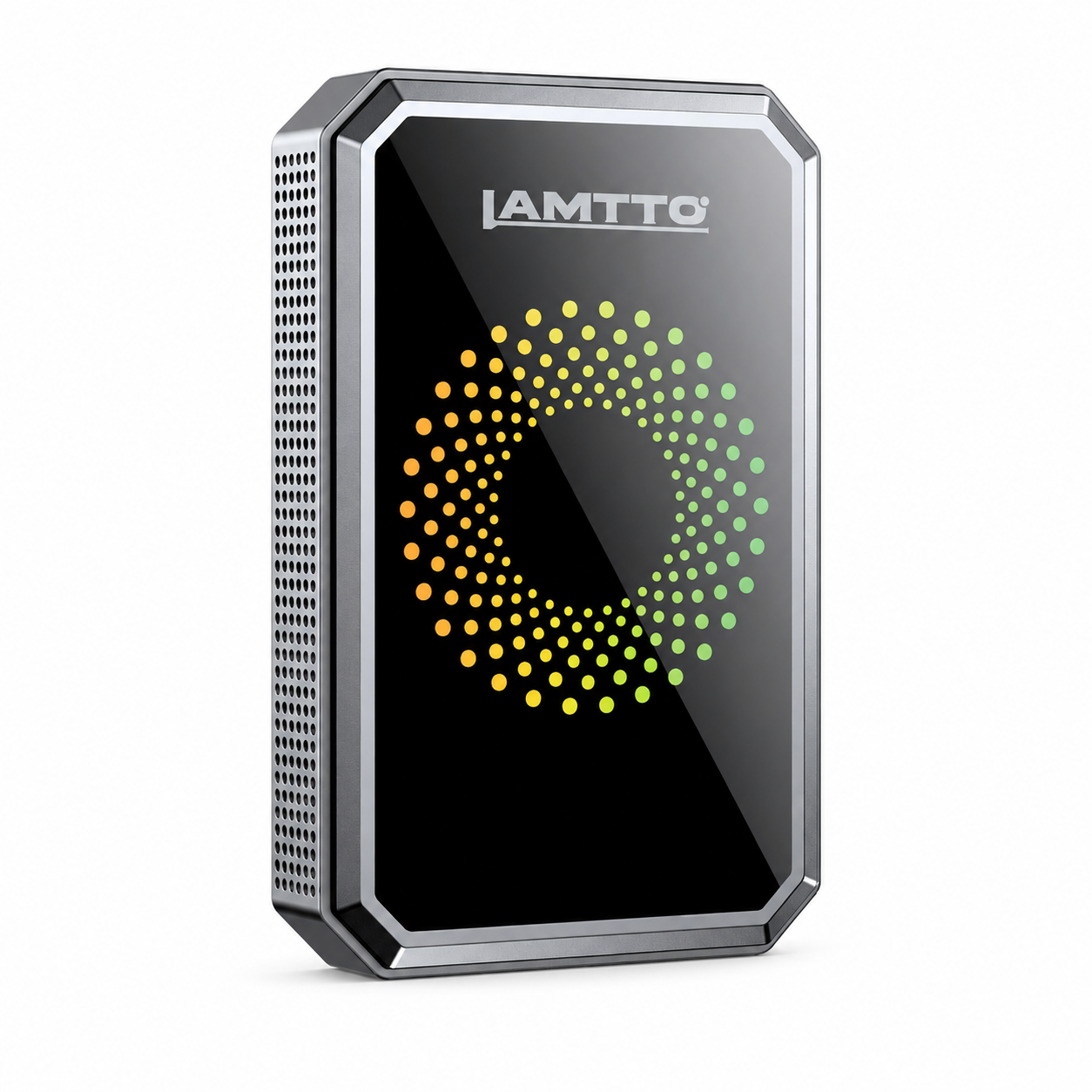


RC37 Wireless CarPlay Screen Support: Setup, Video Guides & FAQs
Reference & Tutorial Videos
Watch step-by-step video guides to quickly complete your in-car installation:
🎬 How to connect the Android phone
🎬How to connect the iPhone
🎬How to connect the airplay play videos
🎬How to connect the car's FM
🎬How to install the rear camera(Only for reference)
🎬How to set the rear camera
❓ Frequently Asked Questions & Troubleshooting
⚡ Category 1: Power, Mounting & Hardware Setup
Q1: How do I power on the RC37, and what power source should I use?
- Connect the provided 12V/24V cigarette lighter power cable directly to your vehicle's power socket.
- Ensure the power connector is securely plugged into the DC/Type-C power input port on the side of the display unit.
- Avoid using low-voltage USB ports (such as standard computer USBs or low-amp phone chargers), as the large screen requires stable 5V/3A or 12V automotive power.
Q2: How do I securely install the dash mount?
- Thoroughly clean and dry the dashboard surface before applying the adhesive suction base.
- Press down firmly on the base and lock the suction lever into place. Allow the adhesive pad to settle for several hours before attaching the full weight of the screen.
- Adjust the 360° rotating ball head to achieve the best glare-free viewing angle.
📱 Category 2: Wireless CarPlay & Android Auto Connection
Q3: How do I connect Wireless CarPlay (iPhone) or Android Auto (Android Phone)?
- Turn on Bluetooth and Wi-Fi on your smartphone.
- In your phone's Bluetooth menu, search for the RC37 device ID and tap to pair.
- Confirm the pairing prompt on both your phone and the screen.
- Allow CarPlay / Android Auto permissions when prompted on your mobile screen. The wireless connection will establish automatically within a few seconds.
Q4: What should I do if the wireless connection drops or fails to pair automatically?
- Forget the RC37 device pairing record in both your phone's Bluetooth and Wi-Fi settings.
- Restart both the RC37 display unit and your smartphone.
- Make sure your phone is not connected to another vehicle Bluetooth network or hotspot simultaneously.
- Re-pair following the initial pairing steps.
🔊 Category 3: Audio Output & Sound Sync
Q5: How can I play sound through the car’s original speakers? The RC37 supports multiple flexible audio transmission modes:
FM Transmitter: Set the RC37 and your car's factory FM radio to the exact same unused/empty radio frequency (e.g., 88.5 MHz).
AUX Cable Connection (Recommended): Use the included 3.5mm AUX audio cable to connect the RC37 AUX output directly to your car’s AUX input jack for clean, zero-interference stereo sound.
Built-in Speaker: Use the device's internal speakers directly without any extra cables.
Dual Bluetooth Audio (if supported by phone): Route audio output from your smartphone straight to your factory car stereo via Bluetooth while running display navigation on the RC37.
📹 Category 4: Backup Camera & Display Settings
Q6: How does the backup camera activate?
- When the rear camera extension cable is properly routed and connected to the AV-IN port, the display will show the rear view.
- Connect the red trigger wire to your vehicle's reverse light positive terminal to trigger the automatic full-screen backup display with parking guidelines when shifting into reverse gear.
Q7: How do I reset the screen to factory defaults?
- Navigate to
Settings>System Settings>Factory Reseton the display menu. - Confirm the prompt to restore all factory default parameters.
📬 Need More Help? Contact Customer Care
If you need further technical assistance or have questions regarding compatibility:
📧 Email Support: Reach out to our dedicated technical team via your order platform or official support email.
📝 Information to Include:
- Your Vehicle Make, Model, and Year.
- Your Original Order Number.
-
A short photo or video showing the setup or issue for quick resolution.