


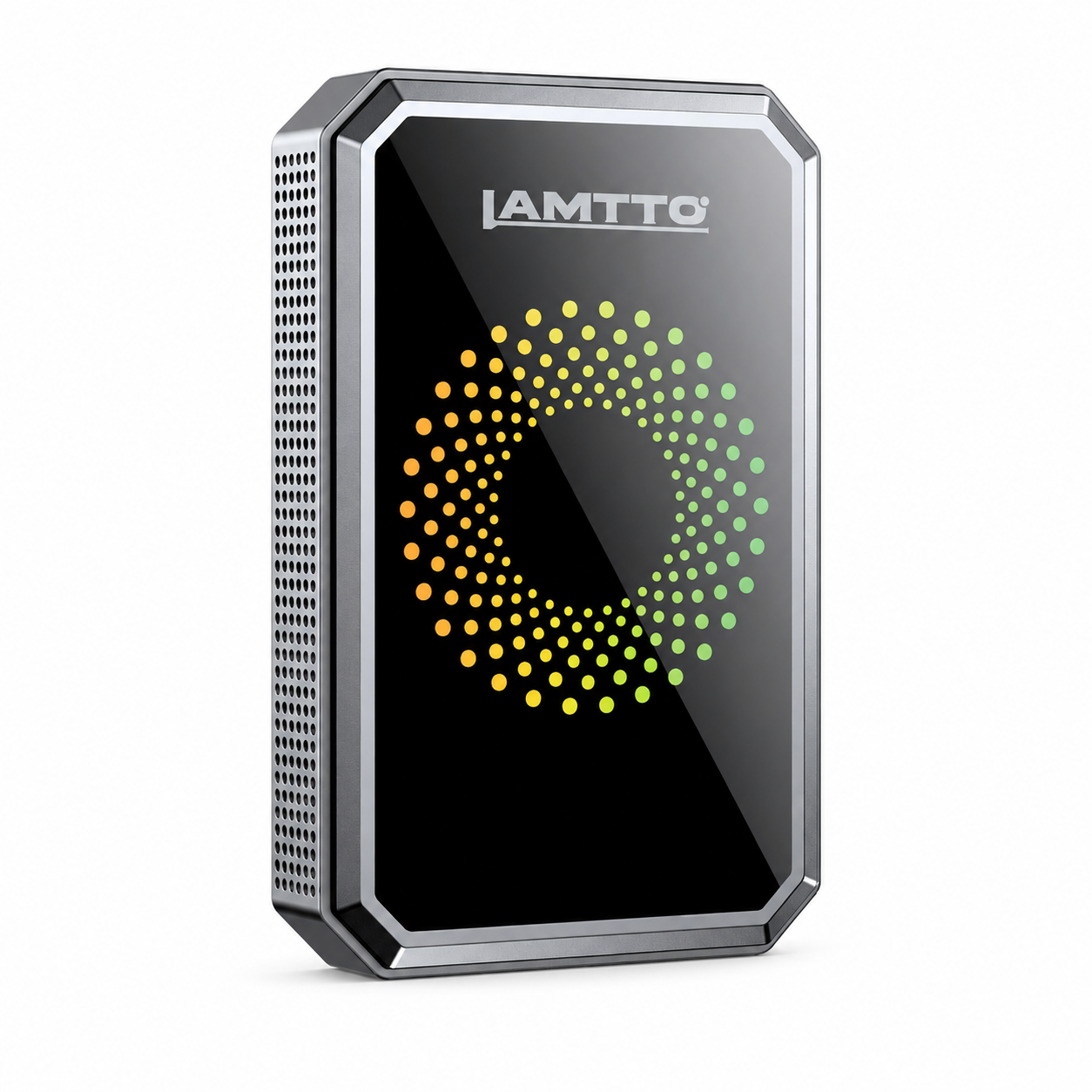


Lamtto RC24 Setup & Firmware Update
🎬 Video Tutorials
These videos feature a different model, but the connection steps and menu navigation are the same across all LAMTTO adapters.
🔌 How to Connect
- Insert the RC24 into your car's data-capable USB port (not a charge-only port). If unsure which port is which, try both — if the adapter doesn't light up or the car screen shows no reaction, switch ports.
- Start the car. The adapter takes a few seconds to boot. Once ready, you'll see a pairing screen on your car's display.
-
For iPhone users: Open Settings → Bluetooth, find the adapter, and pair. Tap "Allow" when CarPlay asks for permissions. The connection starts automatically.
For Android users: Make sure your car's infotainment system is set to Android Auto mode (not Apple CarPlay) before you begin. Then pair via Bluetooth from your Android phone. If the car doesn't recognize the adapter, first pair any Android phone to the box via Bluetooth to trigger Android Auto mode, then connect the phone you actually want to use. - No password is needed during pairing — just confirm the prompts on both the phone and car screen.
📘 User Manuals
🔄 Firmware Update
Keeping the adapter's firmware up to date resolves many connection and performance issues. The update process takes about 3–5 minutes. Do not unplug the adapter while it's updating.
🍎 Update via iPhone
- Plug the adapter into your car's data USB port and power it on.
- On your iPhone, go to Settings → Wi-Fi. Connect to the adapter's Wi-Fi network using the password: 88888888.
- Open Safari and type 192.168.1.101 in the address bar, then press Go.
- Scroll down and tap the Update button. Wait for completion — do not disconnect.
- Unplug the adapter, wait 10 seconds, then plug it back in. Re-pair with your phone.
🤖 Update via Android
- Plug the adapter into your car's data USB port and power it on.
- Turn off Bluetooth and Wi-Fi on your Android phone first, then turn Wi-Fi back on.
- Connect to the adapter's Wi-Fi network. Password: 88888888.
- Open Chrome and go to 192.168.1.101. Tap Switch P2P — the screen will confirm "switch P2P OK".
- Go to Settings → Wi-Fi → Wi-Fi Direct, find the adapter's name, and connect.
- Return to Chrome at 192.168.1.101, tap Update, and wait for completion.
- Unplug the adapter, wait 10 seconds, then plug it back in. Re-pair with your phone.
✅ Compatibility
| What You Need | Requirement | Notes |
|---|---|---|
| Your Vehicle | Factory wired CarPlay or wired Android Auto | Works with ~98% of compatible vehicles. BMW and Tesla are not supported. |
| iPhone | iOS 7.1 or newer | Wireless CarPlay connection via 5 GHz Wi-Fi |
| Android Phone | Android 11.0 or newer | Huawei devices are not supported. Requires 5 GHz Wi-Fi capability. |
🛠 Troubleshooting
Frequent dropouts usually come down to one of three things:
- Wrong USB port. Make sure you're plugged into a data port, not a power-only charging port. Data ports can transmit information between the car and the adapter; power-only ports can't.
- Loose connection. Check that the plug is firmly seated. A worn or wobbly USB socket in the car can cause intermittent disconnections.
- Firmware out of date. Run the firmware update (see Firmware Update section above). Outdated software is the most common cause of instability.
First, confirm your car supports wired CarPlay or Android Auto. A quick test: plug your phone directly into the car's USB port with a cable. If CarPlay or Android Auto appears on the screen, the RC24 is compatible. If nothing happens, your car may not have wired support — contact your dealership to confirm.
For Android users specifically: Most vehicles default to Apple CarPlay. Go into your car's system settings and switch the mode to Android Auto before connecting the adapter. Then pair an Android phone to the adapter via Bluetooth first — this tells the adapter to enter Android Auto mode. After that, the phone you want to use can connect normally.
- Confirm your car supports wired CarPlay/Android Auto.
- Double-check you're in the data port, not the power port.
- Unplug the adapter and plug it back in firmly.
- Update the firmware to the latest version, then try connecting again.
- If you need to switch between CarPlay and Android Auto, unplug the adapter first, change the mode in your car's settings, then reconnect.