


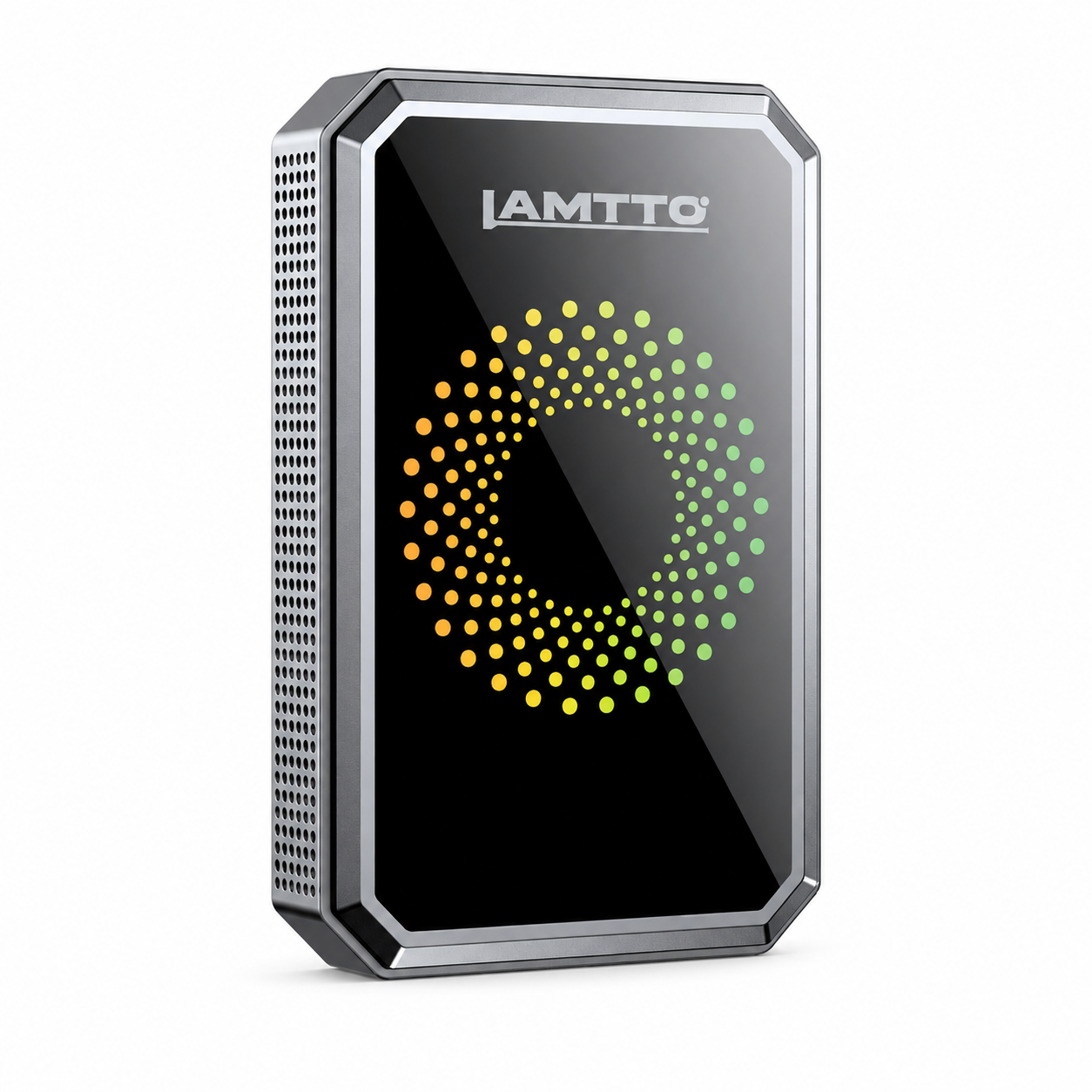


When using the Lamtto RC23 CarPlay AI Box, you may occasionally encounter display or system-related issues. Most of these are not hardware defects, but rather related to system adaptation, settings, or connectivity.
This guide summarizes the most common problems and provides simple, practical solutions.
📺 Display & Screen Issues
1. Screen Adaptation Issues
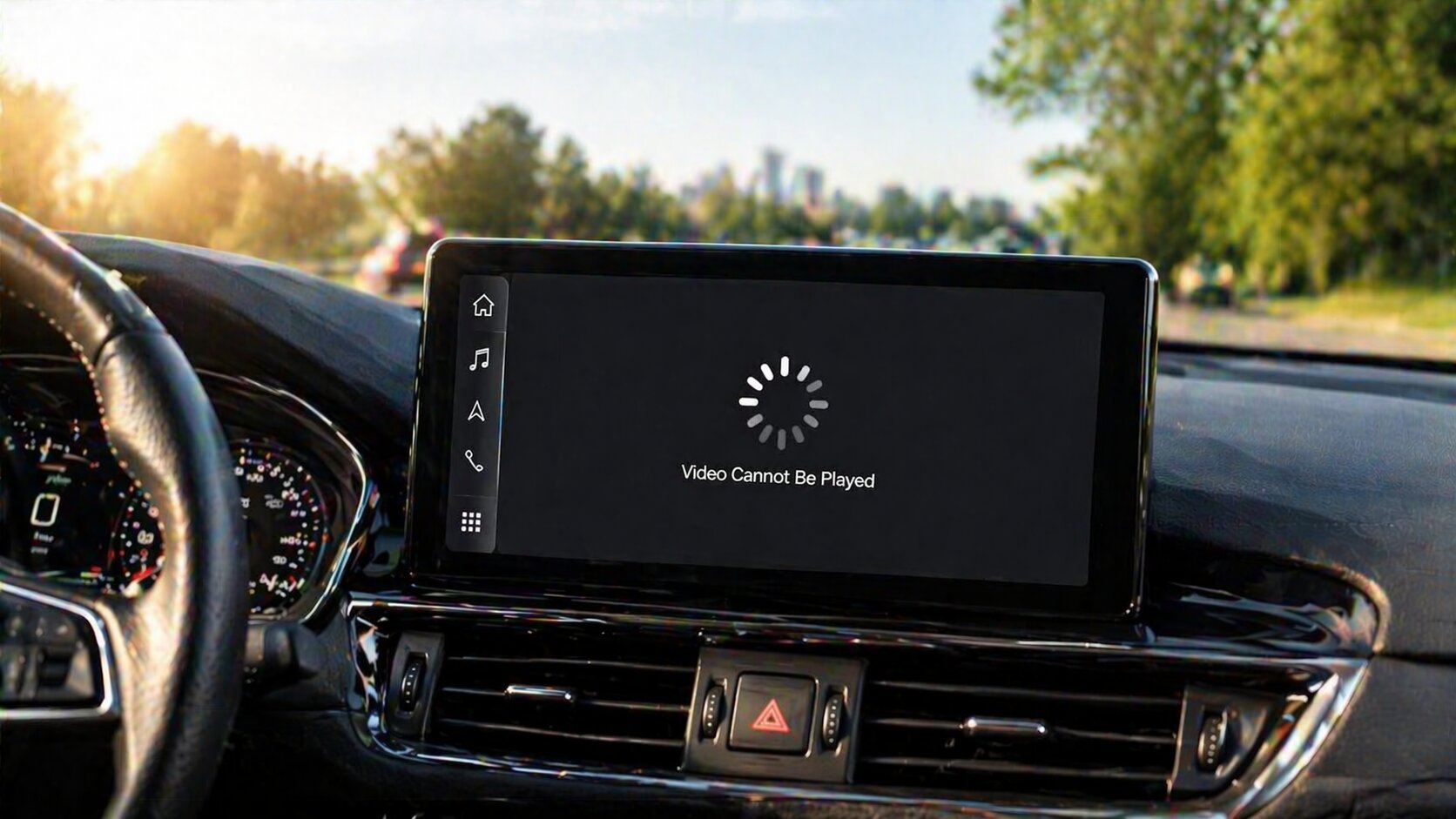
The RC23 is designed as an adaptive system, meaning its display depends on your vehicle’s infotainment screen.
What to Check:
- Ensure your car’s main interface is displaying properly
- Open a video and tap the screen to bring up the playback controls
👉 If the progress bar and UI elements appear in full screen,
the issue is not caused by the RC23 device
2. Blurry Video Playback
If video quality appears unclear:
👉 This is also related to screen adaptation and depends on your car’s display resolution.
Recommendation:
- Test the RC23 in another vehicle if possible
- Compare display clarity across different infotainment systems
3. Floating Icon (Overlay) Issue
Some users may notice a floating icon on the screen.
How to Disable:
- Go to Factory Settings
- Enter password: 4545
- Tap Other
- Turn OFF the floating icon
- Save settings
4. Lag or Slow Interface
If the system feels slow or unresponsive:
Try the following:
- Check your phone’s network connection
- Clear cache on your phone
- Restart CarPlay connection
- Try using a different phone
⚙️ System Settings & Function Issues
1. How to Change Language
If the system language is incorrect:
Steps:
- Scroll down the language list
- Find Italiano
- Press and hold it
- Drag it to the top
👉 The system will switch language accordingly
2. How to Reset the Device
If you encounter system errors or app issues:
Steps:
- Go to Settings
- Tap More
- Select System
- Tap Reset Options
⚠️ Important:
Do NOT enter Factory Settings, as the password is not publicly available.
3. Slow Response or System Delay
If the device reacts slowly:
Steps:
- Go to Settings → Other → Feedback
- Enter your issue (or leave it blank)
- Tap Confirm
- Copy the Case ID or take a screenshot
- Send it to support for further analysis
👉 The system will start compressing log files
4. Unable to Update Apps
If apps show update prompts but cannot update:
Steps:
- Open App Store or Google Play Store
- Search for the app manually
- Tap Install or Update
5. TikTok Not Found in App Store
If TikTok is missing:
Steps:
- Go to Settings → More → System → Reset Options
- After reset, open the App Store
- Search and download TikTok again
🧠 Final Thoughts
Most issues with the Lamtto RC23 are related to:
- System adaptation with different car screens
- App or cache conflicts
- Network or device connection
These problems can usually be resolved with simple adjustments or resets.
📩 Need Help?
If you’re still experiencing issues, feel free to contact our support team:


Leave a comment
All comments are moderated before being published.
Este site está protegido pela Política de privacidade da hCaptcha e da hCaptcha e aplicam-se os Termos de serviço das mesmas.