


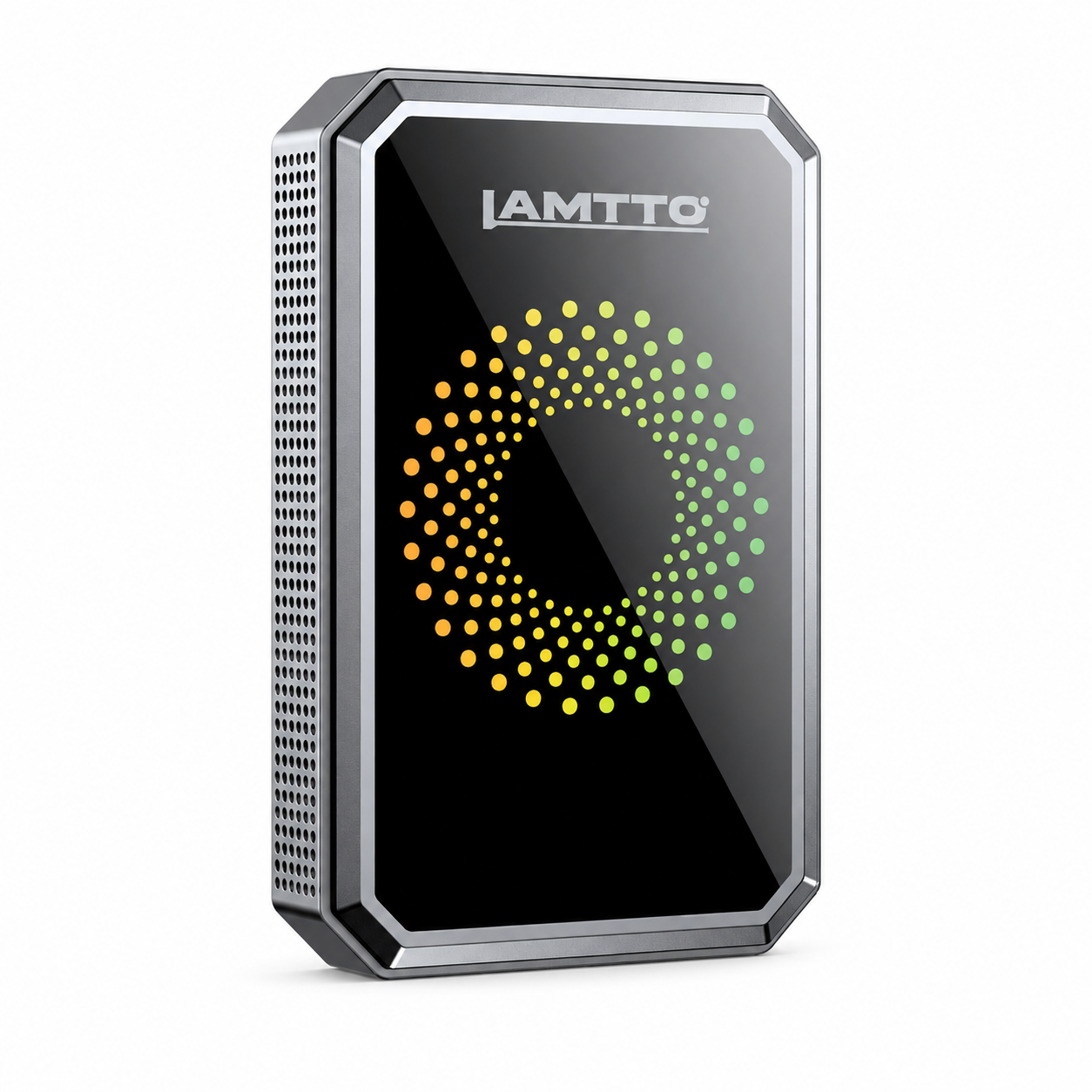



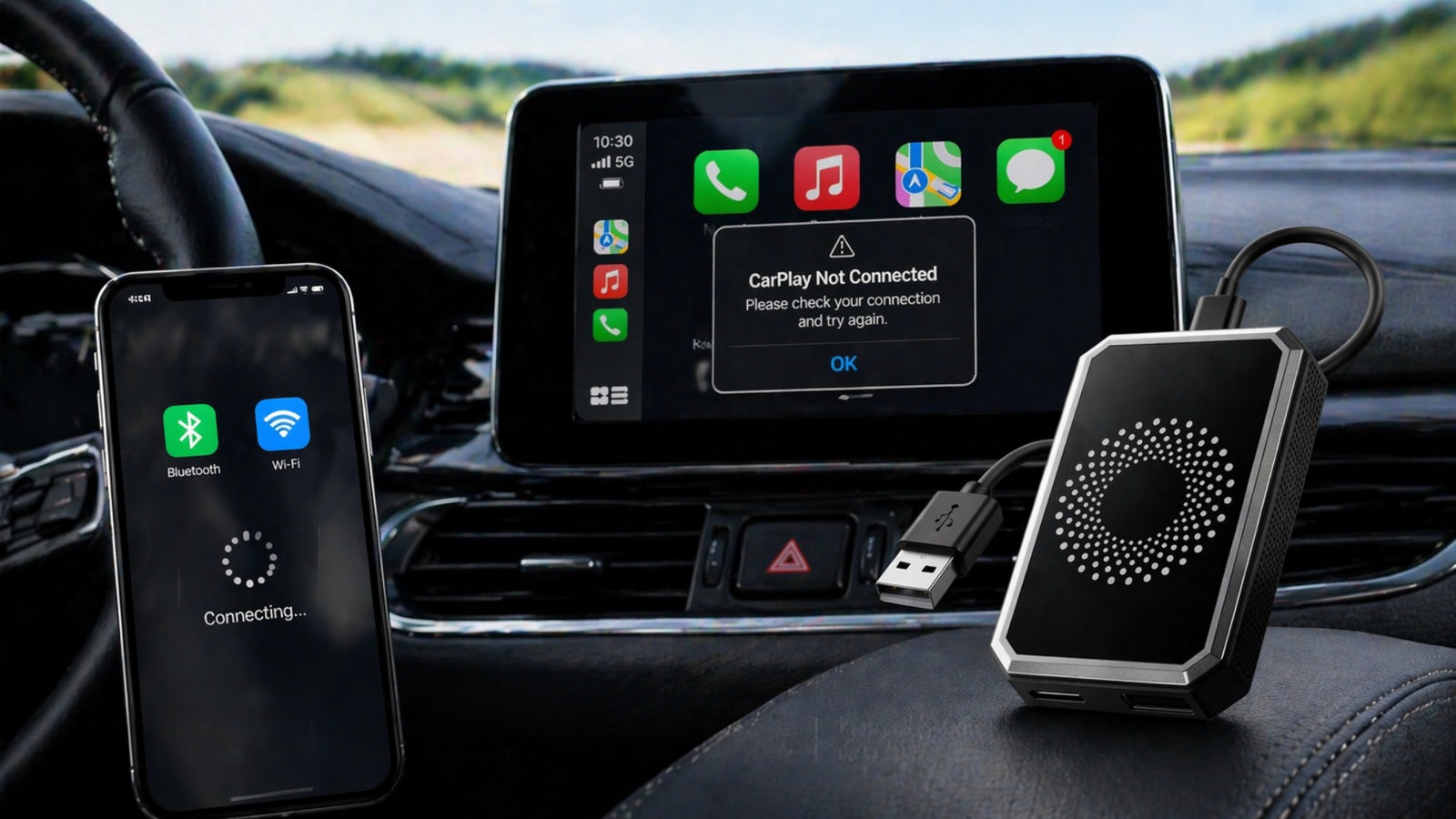
If you're experiencing issues with RC23 Wireless Adapter activation or firmware updates, you're not alone.
Many users encounter problems such as:
- Activation code required
- Firmware update failure
- Update interruption
- Unable to check for updates
👉 The good news: most of these issues can be resolved quickly with the right steps.
In this guide, we’ll walk you through common RC23 activation and firmware problems — and how to fix them easily.
🔑 RC23 Wireless Adapter Activation Issues
Problem: Activation Code Required
Some users may see a prompt asking for an activation code when using the device.
✅ Solution:
- First, connect your RC23 to a stable WiFi network
- Check if the device has already been activated automatically
- If the device is still not activated:
- Scan or locate the QR code on your device
- Send the QR code to our support team
- Our technical team will assist with activation
👉 In most cases, activation is completed automatically once connected to the internet.
RC23 Firmware Update Issues & Fixes
Firmware updates are important to ensure:
- Stable connection
- Better compatibility
- Improved performance
However, update issues may sometimes occur.
Problem 1: Firmware Update Failed
🔍 Possible Cause:
The system encountered an error during the update process.
✅ Solution:
- Insert a USB flash drive into the device
- Go to:
👉 Settings → Other → Copy Logo - Wait until you see:
👉 “Capturing logs…” - After completion:
- Remove the USB drive
- Compress the log files
- Send them to our support team
👉 This helps identify the issue quickly and provide a fix.
Problem 2: Firmware Update Interrupted
Possible Cause:
The update process was stopped due to system cache or connection issues.
Solution:
- Clear the device cache
- Restart the device
- Retry the firmware update
Problem 3: Unsure Whether Firmware Needs Updating
How to Check:
- Open device settings
- Check the firmware version section
- Look for a red notification dot
✅ Result:
🔴 Red dot → Update available
⚪ No red dot → Already on the latest version
👉 No need to update if your system is up to date.
Problem 4: Update Requires Personal Information
Important Notice:
During firmware updates:
- WiFi network must remain stable
- Do NOT disconnect power
- Avoid using the network for other tasks
👉 Interruptions during updates may cause system errors.
💡 Tips for Successful RC23 Updates
To ensure a smooth update process:
- Use a stable WiFi connection
- Do not unplug the device during updates
- Avoid switching networks
- Keep the device powered throughout
🚀 Final Thoughts
Most RC23 activation and firmware issues are temporary and easy to fix.
They are usually caused by:
- Network instability
- Interrupted updates
- Missing activation steps
Once properly set up and updated, RC23 delivers a stable and seamless wireless CarPlay experience.


Napsat komentář
Všechny komentáře jsou před zveřejněním moderovány.
Tento web je chráněn službou hCaptcha a vztahují se na něj Zásady ochrany osobních údajů a Podmínky služby společnosti hCaptcha.