
Power
Use the included power lead and a suitable vehicle power source.

2 in 1 AI box Adapter

Wireless Adapter
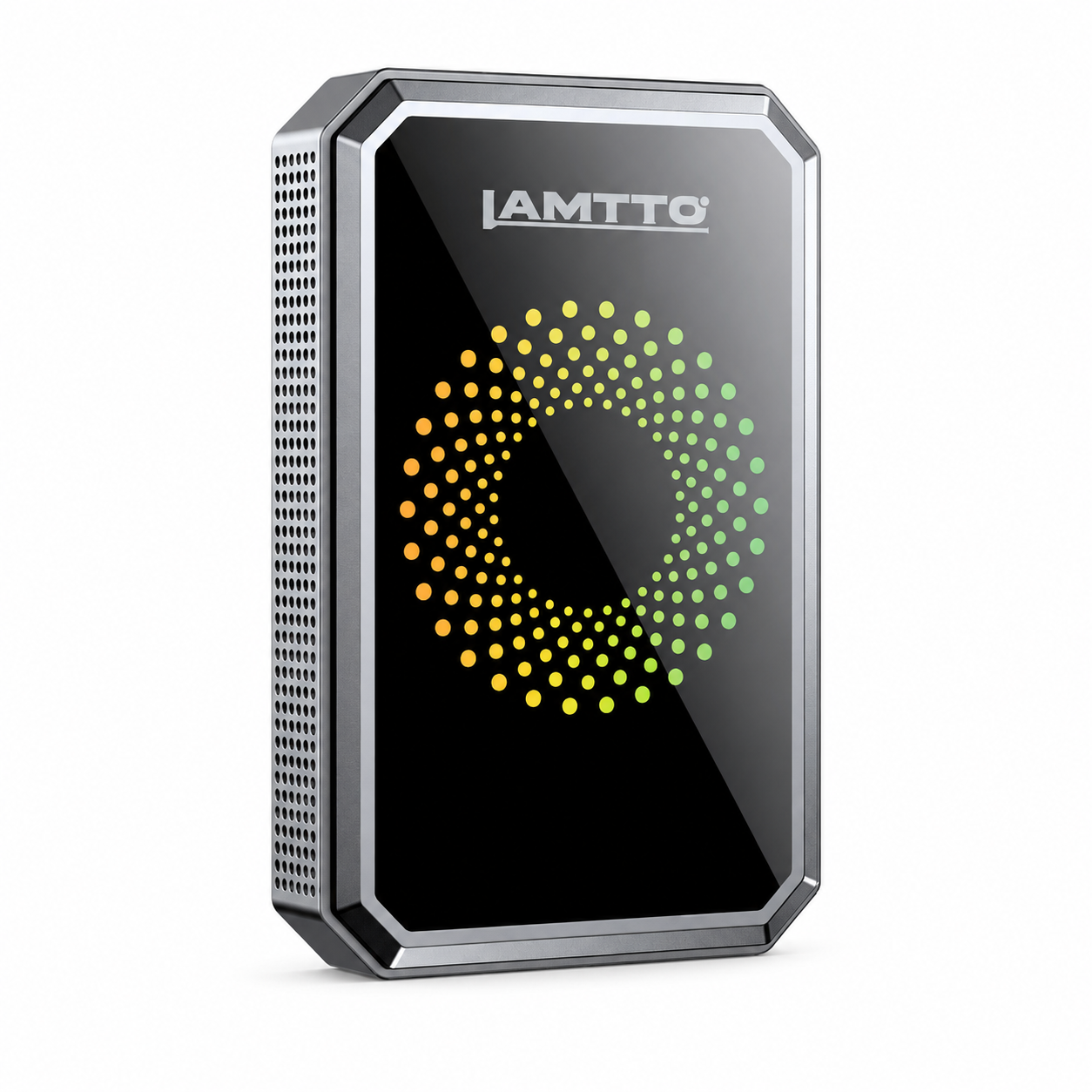


Cellular Dash Cam

4 Channel Dash Cam

YOUR RC16. ONE STEP AT A TIME.
Choose a guide. Follow one step at a time.
Set up while parked. No registration needed for help.
Register your RC16 for 24 months total coverage.
Feel free to share your honest feedback by leaving a review!
We are a small family business, so your product review would mean the world to us!
Follow these steps for your model, then choose a tutorial below for a closer look.
Use the included power lead and a suitable vehicle power source.
Choose CarPlay or Android Auto, then follow the on-screen prompts.
Select a supported sound path and match the car's audio input.
Test navigation, music, a hands-free call and any included reversing camera.
Choose the tutorial that matches what you want to do. Follow along at your own pace.
Connect your iPhone and confirm the CarPlay home screen.
These product-specific requirements help prevent incorrect installation and false compatibility assumptions.
RC16 is a separate portable display. Your vehicle does not need a factory CarPlay system.
Use a compatible iPhone or Android phone through CarPlay or Android Auto. RC16 is not an independent navigation device.
Some RC16 versions include a reversing camera; other versions do not. Check your ordered configuration.
Secure the screen without blocking the road, airbag areas, controls or required driver visibility.
Find answers about setup, phone connections, audio, screen mirroring and reversing cameras. Select a question to see the answer.
No. RC16 is a portable screen that adds a separate CarPlay/Android Auto display. You need a compatible phone and appropriate power; the car itself does not need a factory CarPlay head unit.
Yes. RC16 uses a 9.26-inch IPS display with a wide 16:9 viewing format.
Power RC16, select the CarPlay entry, turn on Bluetooth and Wi-Fi on the iPhone, and follow the pairing instructions shown on RC16. Remove an old RC16 pairing before attempting a fresh setup.
Select Android Auto on RC16 and follow the on-screen setup. Ensure that your phone supports Android Auto and that Bluetooth/Wi-Fi are available for the connection.
Delete the old RC16 Bluetooth/Wi-Fi connection records, restart the phone and RC16, then start pairing from the correct CarPlay or Android Auto entry on the screen. If the issue remains, send support a photo of the current interface.
First determine whether RC16 loses power or only the wireless phone connection drops. Check the power lead, restart both devices and re-pair the phone. Persistent disconnections need a short video and phone/vehicle details for support.
No independent navigation is confirmed for RC16. Maps and navigation are provided by the connected phone through CarPlay or Android Auto.
Choose an audio output that your specific RC16 version supports, and make sure your car stereo is set to the corresponding input. For AUX, check the cable and switch the vehicle stereo to AUX.
Reconnect the AUX cable firmly, inspect the plug, and try another supported sound route if available. If the noise remains, share an audio sample and the vehicle model with support.
While parked, make a test call and check the phone’s active call-audio route and the audio mode selected on RC16 and the vehicle. If only call audio fails, send these details to support.
Automatic reconnection can work after successful first pairing, but it depends on phone settings, available wireless connections and power conditions. It is not guaranteed in every situation.
No. RC16 is sold in different configurations. Check your order details and the actual package contents. Camera instructions apply only to a camera-equipped version.
The optional reversing camera is for reversing assistance. Do not treat it as a continuous driving recorder or assume that it saves footage.
On a camera-equipped RC16, inspect the camera cable and connection points while safely parked, and check the exact reverse-trigger wiring in your included manual. If needed, send photos of the connections to support.
Use only the mirroring methods actually shown in your RC16 interface and manual. Content compatibility depends on the phone/app, and protected video may be restricted. No built-in streaming-app system is promised.
The display shape follows the source content and phone orientation. A portrait-only video cannot always be stretched to full-screen landscape.
Do not drive until the mount is secure. Check that the surface is clean and dry, that the bracket is fully installed and that no part is damaged. Contact support with photos if it will not stay fixed.
Compare the package with the contents listed for your exact RC16 order, then email support with your order number and a photo of everything received.
Contact our official support email: support@lamtto.com