
Position & power
Choose a safe position and connect the supplied power lead.

2 in 1 AI box Adapter

Wireless Adapter
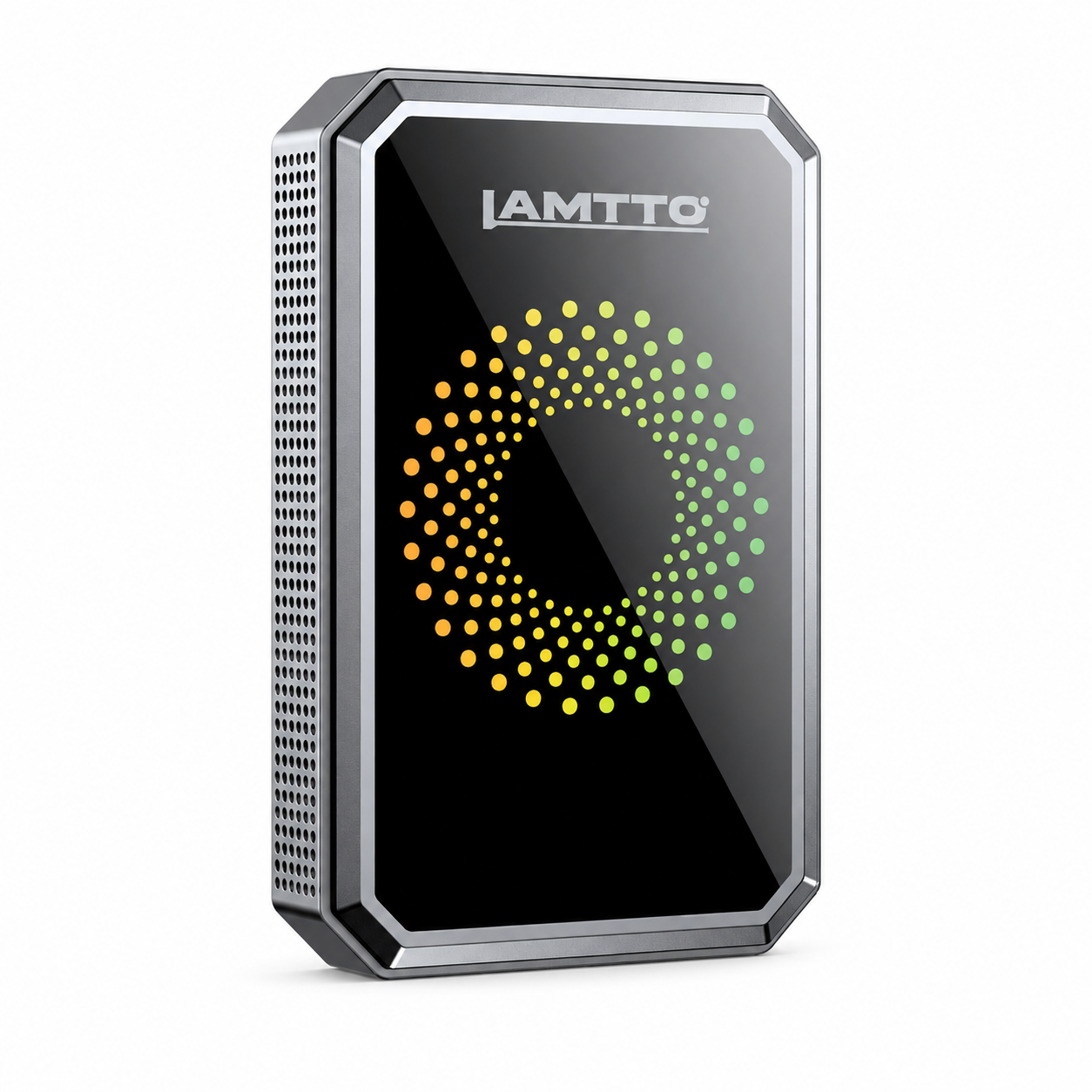


Cellular Dash Cam

4 Channel Dash Cam

YOUR RC40. ONE STEP AT A TIME.
Choose a guide. Follow one step at a time.
Set up while parked. No registration needed for help.
Register your RC40 for 24 months total coverage.
Feel free to share your honest feedback by leaving a review!
We are a small family business, so your product review would mean the world to us!
Follow these steps for your model, then choose a tutorial below for a closer look.
Choose a safe position and connect the supplied power lead.
Open CarPlay for iPhone or Android Auto for a compatible Android phone.
Enable Bluetooth and Wi-Fi, then follow the screen prompts.
Choose a supported Bluetooth/FM/AUX audio path and verify music and calls.
Choose the tutorial that matches what you want to do. Follow along at your own pace.
Follow power connection, iPhone pairing and the switch to AirPlay in one complete guide.
These product-specific requirements help prevent incorrect installation and false compatibility assumptions.
RC40 is a separate portable screen, so your car does not need factory wired or wireless CarPlay.
Maps work through a connected compatible phone using CarPlay or Android Auto; an independent Android/GPS-app system is not claimed.
RC40 does not include a rear reversing camera; do not follow camera-installation guides intended for other models.
The In-Cell design is intended to provide a brighter, less reflective, thinner, more responsive screen. It is not an OLED screen or a guarantee of visibility in every condition.
Search questions, expand any answer, or copy the exact English Q&A for customer messages and site editing.
No. RC40 is a portable display for compatible phones. Your car does not need a built-in wired or wireless CarPlay system.
RC40 has a 10.25-inch In-Cell display designed for a brighter image, reduced glare, a slimmer structure and responsive touch compared with conventional constructions. It is not described as an OLED screen.
Power RC40, open CarPlay, turn on Bluetooth and Wi-Fi on your iPhone, then follow the pairing prompts on RC40. Remove an old RC40 pairing if setup was previously interrupted.
Choose Android Auto on RC40, ensure the phone supports the function, and follow the Bluetooth/Wi-Fi setup instructions displayed on the screen.
Navigation is provided by the connected phone through CarPlay or Android Auto. Independent navigation apps or built-in Android app installation are not promised.
RC40 supports Bluetooth, FM and AUX audio paths. Choose a path supported by your car and match the vehicle radio/audio setting to the selected RC40 output.
CarPlay connection and vehicle sound routing are separate steps. Check RC40’s selected audio path and the matching Bluetooth, FM or AUX setting on the vehicle stereo.
Set RC40 and your car radio to the same unused FM frequency. If there is interference, try another free frequency; radio congestion differs by area.
Reconnect the AUX cable and check that the car stereo is using AUX input. Try a different supported sound path if available, and contact support with a recording if the noise continues.
Automatic reconnection depends on a completed first pairing, the phone’s Bluetooth/Wi-Fi settings and reliable power. If it stops reconnecting, delete the old pairing and set up the connection again.
No. This RC40 version does not include a rear reversing camera. Camera instructions for other screen models do not apply.
No built-in open Android entertainment-app system is confirmed for RC40. Supported apps are accessed through compatible phone projection or mirroring functions, subject to their limitations.
RC40 supports AirPlay and Miracast for compatible phones and content. Exact app behavior can vary, and protected video may not mirror.
Some services use content protection that restricts external mirroring. Try a non-protected phone screen first; an app-specific black picture does not necessarily mean the screen has failed.
In-Cell reduces glare and improves brightness relative to the intended comparison, but direct sun, mounting angle and reflections can still affect visibility. Adjust the angle safely while parked.
Check the supplied power connection and compatible outlet, restart safely once and contact support if the problem repeats. Stop using it if you notice unusual heat, smell or damage.
Use a stable mount without covering your view, controls, airbags or instruments. Check stability before driving and do not watch video content while operating the vehicle.
No matching questions found. Try another keyword such as CarPlay, Android Auto, sound, AirPlay or camera.
Contact our official support email: support@lamtto.com