


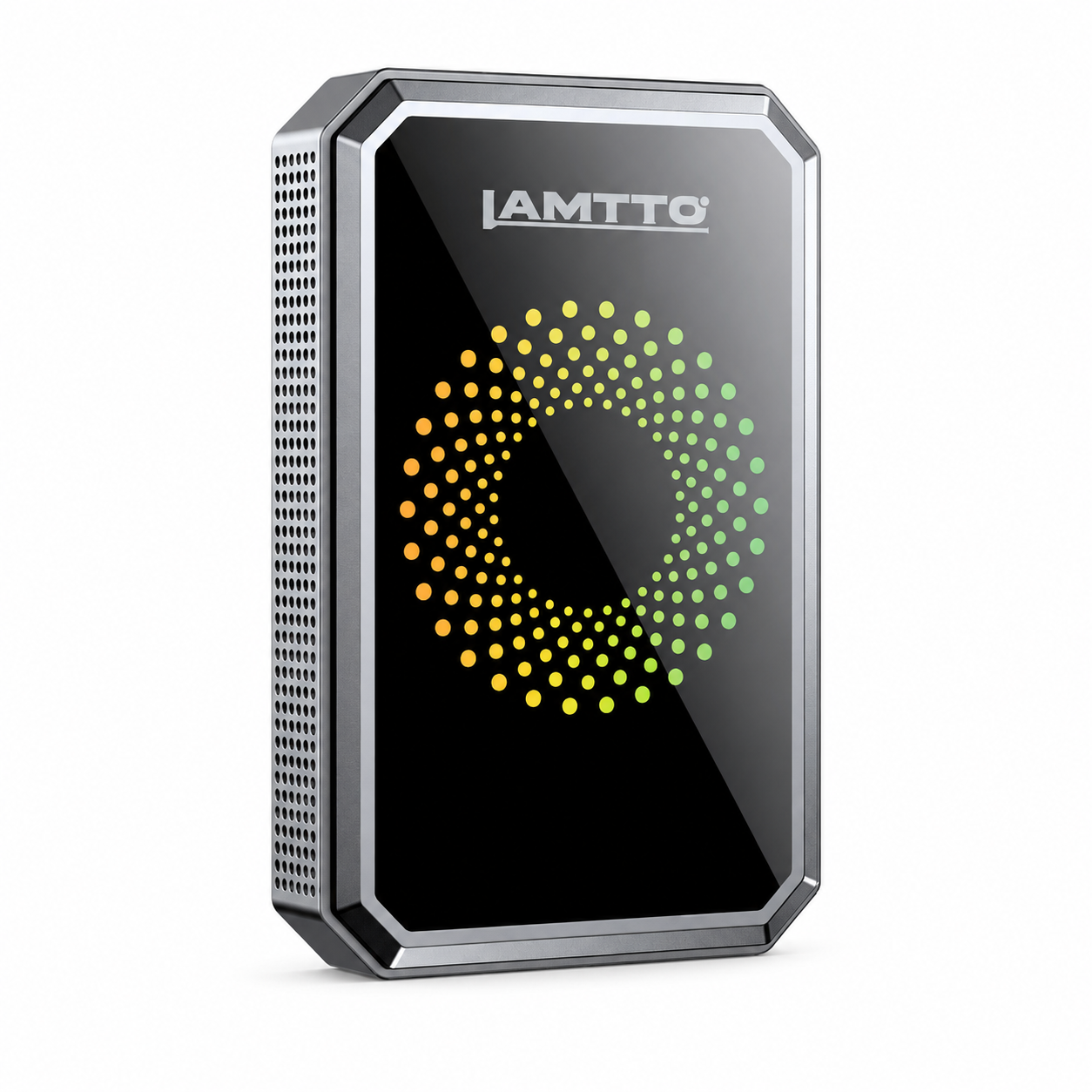


Your iPhone connects to CarPlay. Google Maps appears on the display. You can open Spotify, answer calls, and navigate through the menus.
But there's one problem: no sound is coming from your car speakers.
If your wireless CarPlay screen connects but has no audio, the problem may not be CarPlay itself. The screen can be connected to your phone while its audio output is set to the wrong destination.
This is especially common with portable CarPlay screens, which add a separate display to an existing vehicle rather than replacing the factory stereo.
The good news? Many CarPlay sound problems can be resolved without buying new equipment.
In this guide, we'll explain seven practical fixes, how Bluetooth, AUX, and FM audio connections differ, and what to check on a portable screen such as the LAMTTO RC32.
Quick Answer: Why Is CarPlay Connected but There Is No Sound?
If CarPlay is connected but you cannot hear anything, first check where the audio is being sent.
For portable CarPlay screens, the solution usually depends on how audio is routed from the display to your vehicle. Common options include Bluetooth audio, an AUX connection, FM transmission, or the screen's built-in speaker, depending on the device and vehicle.
Start by checking the selected audio output and your car stereo's input source. If Bluetooth pairing fails, confirm that your factory stereo supports music streaming rather than hands-free calling only.
Depending on the device and vehicle, this may involve Bluetooth audio, an AUX cable, or an FM transmitter.
Before resetting CarPlay, check the screen's audio output setting, your car stereo's selected source, and the volume on all connected devices.
1. Check Where Your CarPlay Audio Is Going
The first step is to understand the difference between connecting your phone and connecting your car speakers.
A portable CarPlay setup may involve three devices:
- Your iPhone, which provides CarPlay navigation, calls, and supported apps.
- Your portable CarPlay screen, which displays the interface.
- Your car stereo, which plays sound through the vehicle speakers.
These connections do not always use the same wireless channel.
For example, your iPhone may connect successfully to a portable screen through Bluetooth and Wi-Fi, but the screen may still be configured to use an AUX output that is not connected.
Try this:
- Park your vehicle safely.
- Open the audio settings on your portable CarPlay display.
- Identify the selected output mode.
- Check whether your car stereo is set to the corresponding input.
- Play a short audio track and adjust the volume.
If the sound starts working after changing the output, the issue was likely an audio-routing mismatch.

2. Fix Bluetooth Audio That Won't Play Through Your Car
Bluetooth is often a convenient way to send sound from a portable CarPlay screen to an existing car stereo.
However, not every factory Bluetooth system supports music streaming.
Not every factory Bluetooth system supports music streaming.
Some vehicles have Bluetooth modules designed primarily for hands-free phone calls. These systems may not support the Bluetooth audio streaming required to send music from a portable CarPlay screen to the car speakers.
This is an important distinction: successful phone pairing does not always mean your vehicle supports Bluetooth media playback.
Before troubleshooting the CarPlay connection, check whether your factory stereo has a dedicated Bluetooth Audio or Media Audio source. If you're unsure, consult your vehicle's owner's manual or contact your dealer.
How to check
- Open your car stereo's Bluetooth settings.
- Look for a Bluetooth Audio, Media Audio, or similar source.
- Confirm that the stereo supports music streaming, not only hands-free calls.
- Put the stereo into pairing mode.
- Follow your portable screen's instructions to pair its audio output with the car.
- Select Bluetooth Audio as the source on your stereo.
If your vehicle supports phone calls but not Bluetooth music, repeatedly pairing the devices may not solve the problem.
Instead, consider another supported audio output, such as AUX or FM.
Real-world scenario: A driver with an older factory stereo can make hands-free calls through Bluetooth, but cannot select Bluetooth Audio as a music source. In that situation, checking the stereo's audio capabilities is more useful than repeatedly resetting the iPhone.
3. Check Your AUX Cable and Audio Input
If you're using an AUX cable, the CarPlay screen and car stereo must be connected to the correct audio ports.
A loose cable or incorrect source selection can cause silence, weak sound, or intermittent audio.
Troubleshooting steps
- Check that your vehicle has a working AUX input.
- Connect the cable firmly to the supported output on your CarPlay screen.
- Connect the other end to your vehicle's AUX input.
- Select AUX on your car stereo.
- Increase the volume gradually.
- Test another compatible cable if the sound remains unavailable.
If you hear a buzzing or humming noise instead of clean audio, the issue may involve a ground loop or electromagnetic interference.
A compatible ground-loop isolator can sometimes reduce this type of noise.
However, it won't fix every problem. Damaged cables, loose connectors, or incorrect input settings should be ruled out first.
4. Fix FM Transmitter Audio Problems
Some portable CarPlay screens include an FM transmitter that sends audio to your car's FM radio.
This can be helpful when a vehicle lacks Bluetooth music streaming or an AUX input.
But FM transmission requires both devices to use the same frequency.
Try these steps
- Select FM audio output on the portable CarPlay screen.
- Choose an available FM frequency according to the device instructions.
- Tune your car radio to the same frequency.
- Check that both devices are using the exact same setting.
- Adjust the volume and test playback.
If the sound is distorted or interrupted, nearby radio stations may be interfering with the signal.
Try another locally available frequency.
FM audio quality can also vary depending on the vehicle's radio reception, antenna, and the portable screen's power configuration.
For supported systems, Bluetooth or a direct AUX connection may provide more consistent audio quality.
5. Check Your iPhone's Volume and Audio Settings
Sometimes the car stereo is configured correctly, but the phone is sending sound somewhere unexpected.
For example, an iPhone may still have another Bluetooth audio device connected.
This can happen when switching between wireless earbuds, a home speaker, and a car.
What to do
- Disconnect wireless earbuds or other audio devices temporarily.
- Check the active audio destination in the iPhone's playback controls.
- Confirm that the relevant app is not muted.
- Raise the media volume to a comfortable level.
- Test more than one app to determine whether the problem affects all audio.
If music works but phone calls do not, investigate the call audio route separately.
Phone calls and media playback can use different audio settings, so a successful music test does not automatically confirm that call audio is configured correctly.
6. Reconnect Wireless CarPlay From Scratch
If the audio output appears correct but the problem continues, try reconnecting the phone and screen.
Wireless CarPlay generally uses Bluetooth for initial discovery and Wi-Fi for the ongoing connection.
An incomplete or outdated pairing record can sometimes interfere with normal operation.
Reconnection checklist
- Stop the vehicle and keep it parked.
- Turn off the portable screen and restart your iPhone.
- Open Settings → General → CarPlay on your iPhone.
- Select the relevant device and choose Forget This Car, if available.
- Remove the old phone pairing from the portable screen.
- Turn on Bluetooth and Wi-Fi on your iPhone.
- Restart the screen and begin pairing again.
- Approve the CarPlay connection prompts.
For the LAMTTO RC32, the official setup guide instructs users to select Apple CarPlay on the screen, enable Bluetooth and Wi-Fi on the phone, pair the devices, and confirm the CarPlay request.
The guide indicates that a normal connection may complete within approximately 5–10 seconds, although actual timing can vary.
After reconnecting, check the audio output separately. Re-pairing the phone does not necessarily change the stereo's audio source.
7. Check the Power Supply and Restart the Screen
An unstable power connection can sometimes cause a portable CarPlay screen to restart, disconnect, or behave unexpectedly.
If your screen frequently reboots or stops responding, inspect its power connection before assuming the wireless system is defective.
For example, the LAMTTO RC32 troubleshooting guide recommends checking that the original power cable is securely connected and avoiding a 2-in-1 car charger.
What to check
- Is the power cable fully inserted?
- Is the power adapter compatible with the screen's requirements?
- Does the screen restart when another accessory is connected?
- Does the problem disappear when using the supplied power equipment?
For the LAMTTO RC32, use the original Type-C power cable and included car charger. Make sure the connections are secure and avoid using a 2-in-1 car charger, as recommended in the official troubleshooting guide.
If the screen continues to restart, test it with the original power accessories before investigating other possible causes.
Using an unsuitable power source may cause problems unrelated to the phone's CarPlay settings.
If the screen remains unstable after checking the power supply, follow the manufacturer's troubleshooting instructions before attempting firmware changes or a factory reset.
8. Bluetooth vs. AUX vs. FM: Which Audio Connection Should You Use?
There isn't one audio method that's best for every vehicle.
The right choice depends on your factory stereo and the connections supported by your portable display.
| Audio Method | Best For | Common Issue |
|---|---|---|
| Bluetooth audio | Vehicles supporting Bluetooth music streaming | Some factory systems support calls only |
| AUX cable | Vehicles with a working AUX input | Possible buzzing or ground-loop noise |
| FM transmitter | Vehicles without a suitable Bluetooth or AUX connection | Radio interference and static |
| Built-in screen speaker | Drivers who prefer audio directly from the portable display | Sound does not play through the vehicle speakers |
For the LAMTTO RC32, available audio options depend on the vehicle and the included device outputs. The product supports Bluetooth audio connection, AUX, FM transmission, and the display's built-in speaker. Choose the method that works best with your factory stereo.
For a vehicle with reliable Bluetooth music streaming, Bluetooth may be the most convenient choice.
If Bluetooth isn't available but AUX works, a wired connection may provide a practical alternative.
FM transmission is worth considering when other options are unavailable.
The important point is to match your audio setup to the vehicle you actually drive.
9. A Practical Example: Troubleshooting Audio on the LAMTTO RC32
The LAMTTO RC32 is an 11-inch portable CarPlay screen that supports wireless Apple CarPlay and Android Auto.
It is designed to work as an additional dashboard display rather than requiring replacement of the factory stereo.
Its supported audio output methods include Bluetooth, AUX, and FM transmission.
Consider this illustrative scenario:
Situation: An iPhone connects to the RC32 and displays Apple Maps correctly, but Spotify audio cannot be heard through the car speakers.
Check 1 — CarPlay connection: Since the interface is displayed, the phone-to-screen connection is functioning at least partially.
Check 2 — Audio output: The driver checks whether the RC32 is configured for Bluetooth, AUX, or FM.
Check 3 — Factory stereo: The driver confirms whether the car supports Bluetooth music streaming rather than calls only.
Check 4 — Alternative output: If Bluetooth music is unsupported, the driver tests a compatible AUX connection or the FM transmitter.
Check 5 — Power: If the display also restarts unexpectedly, the driver checks the original power cable and compatible power adapter.
Looking for a larger portable CarPlay display with wireless connectivity and built-in Android apps? Explore the LAMTTO RC32 11-inch Smart CarPlay Screen and see whether its features fit your vehicle and daily driving needs.
For model-specific instructions, visit the LAMTTO RC32 Setup & Troubleshooting Guide.

10. When Should You Contact Support?
If none of these fixes restores audio, the problem may involve vehicle compatibility, a faulty cable, the screen's configuration, or another device-specific issue.
Before contacting support, collect the following information:
- Your portable CarPlay screen's model number.
- Your vehicle's make, model, and year.
- Your phone model and operating system version.
- The audio output method you're using.
- Whether the issue affects music, calls, navigation prompts, or all sound.
- A short video showing the screen and stereo settings, if possible.
These details make it easier to identify whether the issue is related to CarPlay pairing or the vehicle's audio system.
For technical assistance with your LAMTTO RC32, contact our after-sales support team at DC@yooomail.com. Include your vehicle model, phone model, and a short description or video of the audio issue to help our team diagnose the problem.
Frequently Asked Questions
Why is my CarPlay connected but not playing music?
Your phone may be connected to the CarPlay display while the screen's audio output or the car stereo's input is configured incorrectly. Check Bluetooth, AUX, or FM settings first.
Can wireless CarPlay connect without Bluetooth audio in my car?
Yes. A compatible portable CarPlay screen can connect wirelessly to your phone while using another supported audio method to reach the vehicle speakers.
Why does CarPlay have sound for calls but not music?
Phone calls and music playback may use different Bluetooth profiles or audio routes. Check whether the car supports Bluetooth music streaming and verify the selected media output.
Why does my AUX connection make a buzzing sound?
Ground loops or electromagnetic interference can cause buzzing or humming. Check the cable and connections first; a compatible ground-loop isolator may help.
Can I use an FM transmitter for CarPlay audio?
Yes, if your portable CarPlay screen supports FM transmission. Set the screen and vehicle radio to the same suitable frequency.
Can I use the LAMTTO RC32 speaker if my car has no Bluetooth or AUX?
Yes. The RC32 has a built-in display speaker that can provide audio directly from the screen. If you want sound through your vehicle speakers, check whether your car supports a compatible Bluetooth, AUX, or FM audio connection.
Does the LAMTTO RC32 require a factory CarPlay system?
No. The RC32 is a standalone portable display that adds supported wireless CarPlay and Android Auto functions without replacing the factory stereo.
Why does my portable CarPlay screen keep restarting?
Check the power cable, adapter, and connection stability. For RC32, use the specified compatible power supply and follow the official troubleshooting guide.
Final Thoughts
When CarPlay connects but produces no sound, don't immediately assume the screen or phone is broken.
Start by checking the audio route between the phone, portable display, and car stereo. Then verify Bluetooth music support, AUX connections, FM settings, phone audio destinations, and the screen's power supply.
For many drivers, identifying the correct audio output is more useful than repeatedly resetting CarPlay.
If you're using the LAMTTO RC32, the official support guide provides model-specific pairing, audio, and power troubleshooting instructions.
Helpful resources:


Dejar un comentario
Todos los comentarios se revisan antes de su publicación.
Este sitio está protegido por hCaptcha y se aplican la Política de privacidad de hCaptcha y los Términos del servicio.