


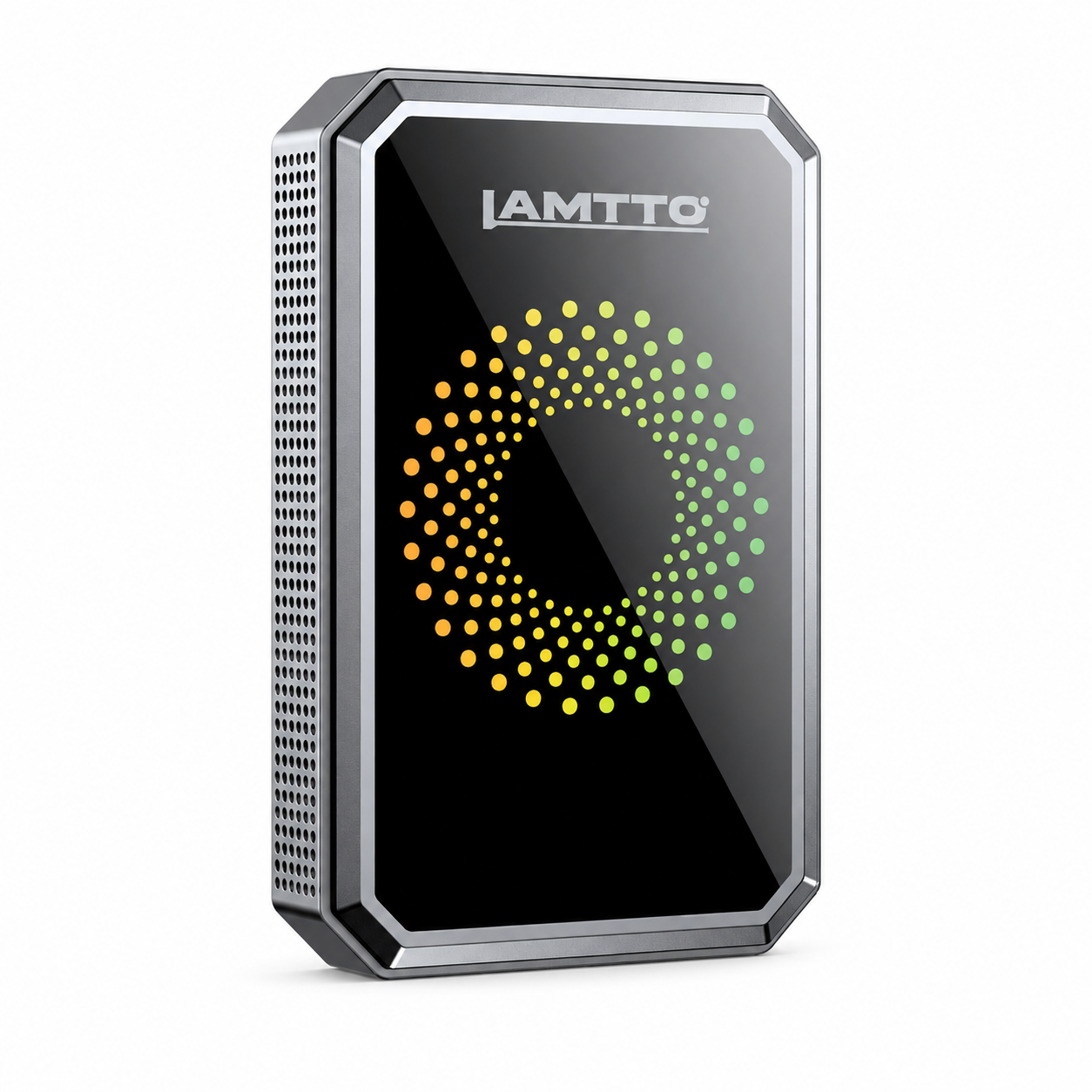


LAMTTO RC series wireless CarPlay screens are designed to deliver a seamless driving experience with Apple CarPlay and Android Auto.
However, like any wireless system, users may occasionally encounter issues such as:
- Bluetooth not connecting
- CarPlay not launching
- Random disconnections
- Android Auto not working
👉 The good news: Most of these problems are easy to fix.
In this complete guide, we’ll walk you through all common RC series connection issues and how to solve them step by step.
🔵 1. Bluetooth Not Connecting / Pairing Failed
Problem
Your phone cannot find the device, or pairing fails.
Solutions
- Delete all saved Bluetooth devices on your phone (especially “CarPlay” or “SmartBox”)
- Restart both your phone and the RC device
- Reset the RC device to factory settings
- Turn off other Bluetooth devices (earbuds, smartwatches, etc.)
- Try another phone to identify if the issue is device-specific
📱 2. CarPlay / Android Auto Not Connecting
Problem
Bluetooth connects, but CarPlay or Android Auto does not launch.
✅ For iPhone (CarPlay)
- Ensure your iPhone runs iOS 7.1 or later
- Go to Settings → General → CarPlay → Forget This Car, then reconnect
- Turn off VPN and Personal Hotspot
- Disable Voice Control & Sound Recognition
- Reset network settings (this clears Wi-Fi passwords)
- Check Screen Time restrictions (CarPlay must be allowed)
✅ For Android (Android Auto)
- Pixel phones: Android 8.0+
- Other brands: Android 11+
- ⚠️ Huawei devices are generally not supported
Steps:
- Turn on Wi-Fi (required for wireless connection)
- Clear Bluetooth records and reconnect
- Restart your phone
- Test with another Android device
🔁 3. Random Disconnections
Problem
CarPlay disconnects randomly during use.
Solutions
- Re-pair Bluetooth connection
- Reset the RC device
- Restart your phone
- Check your car charger (use original charger)
- Keep phone at least 30cm away from power source
- For Android users: consider switching to wired mode if unstable
⚡ 4. CarPlay Not Auto-Connecting
Problem
You must manually reconnect every time you enter the car.
Solutions
- Clear all Bluetooth records
- Reset the RC device
- Restart your phone
- Update firmware if available
- Only connect one phone at a time (important)
🤖 5. Android Phone Not Connecting
Problem
iPhone works fine, but Android does not connect.
Requirements
- Pixel: Android 8+
- Other brands: Android 11+
- ❌ Huawei not supported
Fix Steps
- Turn on Wi-Fi
- Delete old Bluetooth connections
- Restart phone
- Avoid connecting to other Wi-Fi networks
- Test with a different Android phone
⚠️ 6. Huawei Compatibility Issue
Most Huawei devices are not fully compatible.
Possible Workarounds:
- Enable Developer Mode
- Enable wireless Android Auto manually
- Set network to “Always On”
- Reset Wi-Fi and reconnect
👉 If it still fails, contact support for refund or alternatives.
🌐 7. Connection Drops Due to Wi-Fi Switching
Problem
CarPlay disconnects when your phone switches Wi-Fi.
Why It Happens
CarPlay uses a local Wi-Fi network (no internet).
Your phone may switch to another Wi-Fi with internet access.
Solutions
- Use Airplane Mode trick (recommended):
- Turn on Airplane Mode
- Enable Bluetooth + Wi-Fi manually
- Forget other Wi-Fi networks
- Disable VPN
📡 8. Android Cast / Tclink Not Connecting
Problem
Screen mirroring keeps searching.
Solutions
- Turn on Location Services
- Turn OFF Bluetooth
- Allow all app permissions
- Reset RC device
- Restart phone
- Disable VPN
👥 9. Cannot Connect Two Phones
CarPlay only supports one phone at a time.
How to switch:
- Turn off Wi-Fi & Bluetooth on current phone
- Connect the second phone
- System will remember the last connected device
🔄 10. Cannot Switch Between Phones Easily
CarPlay automatically connects to the last used phone.
👉 To switch:
- Disable current phone connection
- Reconnect with another phone manually
📲 11. Do You Need an App for CarPlay?
No. You do NOT need any app.
Correct steps:
- Turn on Bluetooth & Wi-Fi
- Pair with device
- CarPlay launches automatically
📺 12. AirPlay / Screen Mirroring Not Working
Problem
Mirroring fails or keeps loading.
Solutions
- Turn OFF Bluetooth before using AirPlay
- Disconnect CarPlay first
- Then enter screen mirroring mode
👉 CarPlay and AirPlay cannot run simultaneously
🎬 13. Video Features Missing After Update
Problem
Online video apps disappeared.
Explanation
👉 This feature has been removed in system updates and is no longer supported.
🔍 14. Common Causes of Connection Issues (Summary)
Most issues are caused by:
- Weak power supply (non-original charger)
- Outdated phone system
- Too many background apps
- Wi-Fi interference
- Bluetooth conflicts
- Phone connected to multiple devices
- Vehicle system issues
🚀 Final Thoughts
Most LAMTTO RC connection issues are not hardware problems.
They are usually caused by:
- Incorrect settings
- Network interference
- Compatibility limitations
👉 With the steps above, you can solve 90% of connection issues.
💡 Pro Tip
Always use the original car charger.
It includes an FM transmission antenna, which is essential for stable performance.
Need More Help?
If your issue still isn’t resolved:
👉 Contact our support team for free replacement or technical assistance



Laat een reactie achter
Alle reacties worden gemodereerd voordat ze worden gepubliceerd.
Deze site wordt beschermd door hCaptcha en het privacybeleid en de servicevoorwaarden van hCaptcha zijn van toepassing.