





LAMTTO DC22 vs. DC22A
| Feature | DC22 | DC22A |
|---|---|---|
| Image quality | Previous-generation image performance | Improved daytime and nighttime image performance |
| Parking recording | Records when radar or the G-sensor detects a supported event | Adds low-power AOV recording between detected events |
| Nearby Camera Wi-Fi | No camera Wi-Fi hotspot | Built-in 5.8 GHz Camera Wi-Fi hotspot for nearby access |
| How to check recordings | Check the microSD card on a computer or access eligible cloud videos with an active cloud service | Use Camera Wi-Fi nearby, check the microSD card, or access eligible cloud videos |
| SIM setup | Physical SIM card | Built-in eSIM plus a physical SIM slot |
| Using your own SIM | Use a compatible physical SIM | Use a compatible physical SIM. When inserted, it takes priority over the built-in eSIM |
| Physical button | Used to manually lock a video | Changed to turn the Camera Wi-Fi hotspot on or off |
| Parking power | Requires a compatible power setup after the engine is off | Requires a compatible power setup and includes an adjustable low-voltage cutoff |
Important Information
- Parking monitoring requires power after the vehicle is turned off. If the power setup cuts off, recording and remote monitoring stop until power returns.
- Remote features require an active 4G connection. Cloud storage is a separate service from 4G data.
- A compatible microSD card is needed to save ordinary local driving and parking recordings.
- The DC22A’s 7-day trial applies to built-in eSIM data. Actual parking-monitoring time depends on the vehicle’s power supply and battery conditions.
- For the DC22A, the 30 FPS event clip begins after the camera wakes and does not include full-frame-rate pre-event footage.
Quick Guide: What Do the File Labels Mean?
| File Label | Recording Type | When It Is Recorded | Where to Look |
|---|---|---|---|
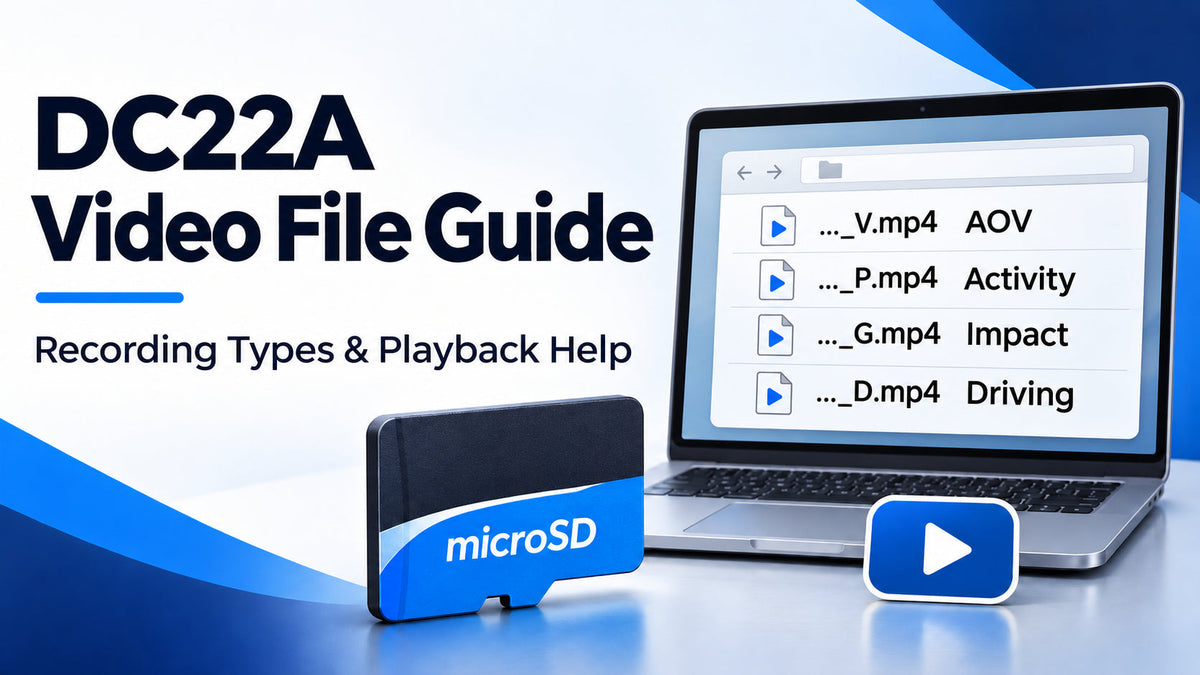
| _V | AOV parking recording | The camera captures low-frame-rate footage in AOV mode | microSD card |
| _P | Activity event | Supported activity is detected while the camera is in AOV mode | microSD card or eligible Cloud Video |
| _G | Impact or vibration event | The G-sensor detects a qualifying impact or vibration | microSD card or eligible Cloud Video |
| _B / _C | Start-related event | A supported start-related event is detected | microSD card or eligible Cloud Video |
| _D | Driving recording | The vehicle is driving | microSD card |
| _T / _N | Full-time recording | The camera records while it remains awake under supported conditions | Check available local files |
For example, a filename ending in _V.mp4 is an AOV recording. A filename ending in _G.mp4 identifies an impact or vibration event.
Important: Local recording requires a compatible microSD card. Cloud event upload requires camera power, working 4G, and an eligible active cloud service.
1. How Do I Find the Recording I Need?
Start with the time of the event, then use the file label to narrow your search.
| What You Want to Check | File to Look For | What to Do |
|---|---|---|
| Someone approached your parked car | _P | Check the activity event closest to the relevant time |
| Your vehicle was bumped or shaken | _G | Check the impact event and nearby _V footage |
| What happened while the car was parked | _V | Review the AOV parking footage |
| A normal trip or driving incident | _D | Check the driving recording for the relevant time |
| A start-related event | _B / _C | Check the start-related file and its timestamp |
| A recording while Camera Wi-Fi was on | _T / _N | Check the available full-time recordings |
Tip: After an incident, copy the original files to your computer and keep the originals on the microSD card while troubleshooting.
2. Understanding AOV Parking Recordings
AOV is the DC22A’s low-frame-rate parking recording mode. When there is no detected event and the camera has power, it captures frames at a set interval.
| AOV Question | What to Know |
|---|---|
| What is the file label? | AOV recordings end in _V |
| What is the default recording interval? | One frame every 3 seconds |
| What is the AOV recording resolution? | The AOV footage described here is 360P |
| Why does playback look choppy? | The recording captures frames at intervals, so playback may look like a time-lapse |
| Where is it saved? | On a compatible microSD card |
| Does it require power? | Yes. Parking recording stops when camera power is cut off |
What Happens When an Event Is Detected?
When a qualifying event is detected, the camera switches to an approximately 10-second event recording at 30 FPS, then returns to AOV.
The event clip starts after the camera wakes. It does not include full-frame-rate footage from before the event, so check the nearby _V AOV footage as well.
3. What Can Trigger a Parking Event?
| Event | File Label | How It May Be Triggered | What You Should Know |
|---|---|---|---|
| Activity | _P | Rear radar or supported front-camera detection identifies activity | The training material lists approximate default distances of 3 m in front and 5 m behind, measured from the device position |
| Impact or vibration | _G | The G-sensor detects a qualifying vibration or impact | Results depend on impact force, settings, installation, and operating conditions |
| Start-related event | _B / _C | The G-sensor detects movement associated with the vehicle starting | Check the file label and timestamp |
Detection distances are approximate. Installation position, vehicle layout, obstructions, and surroundings can affect detection. Detection sensitivity can be adjusted in UBoxPro’s advanced settings.
Can the Radar Record Video Behind the Vehicle?
Radar detects activity. Video comes from the camera lenses.
An event behind the vehicle may trigger a recording. The recorded clip will show what the front and cabin cameras can see from their installed positions.
4. Why Can I Only See the Cabin Camera View?
Some DC22A recordings can contain more than one video track. A computer’s default player may show only one available view.
| Recording | What You May See on the Computer | How to Check the Front View |
|---|---|---|
| _V — AOV | The player may initially show the cabin view | Check another available video track in a compatible player, or view or download the available front AOV footage in UBoxPro |
| _P — Activity event | The local file may show the cabin view | Check the available front-camera AOV footage through UBoxPro |
Tip: Check both the event clip and the surrounding AOV footage when reviewing a parking incident.
5. Where Are My Videos Saved?
The DC22A can save recordings locally and upload eligible event clips to the cloud.
| Storage Location | What You May Find | What Is Required |
|---|---|---|
| microSD card / Local Video | Driving, AOV, and supported event recordings | Camera power and a compatible, recognized microSD card |
| Cloud Video | Eligible activity, impact, and start-related event clips | Camera power, working 4G, and an eligible active cloud service |
Can I Use the Camera Without a microSD Card?
Nearby live preview may still work without a card. Eligible cloud event uploads may also work when the camera has the required 4G and cloud service.
A compatible microSD card is needed to save ordinary local driving and AOV footage.
6. What Does “AP” Mean in UBoxPro?
A blue AP label indicates that your phone is using the camera’s nearby Wi-Fi hotspot.
| Connection | What It Is Used For | Where You Need to Be |
|---|---|---|
| Camera Wi-Fi / AP | Nearby preview and access to available local files | Near the vehicle |
| 4G connection | Supported remote live view, alerts, and online features | The camera must have power and cellular coverage |
A nearby AP preview does not complete 4G account binding. To use supported remote features, add and bind the camera in UBoxPro and make sure it has an active 4G connection.
What Happens When Camera Wi-Fi Is On While Parked?
| Camera Status | Recording Behavior |
|---|---|
| Camera Wi-Fi is turned on | The camera remains awake and temporarily exits AOV mode |
| No phone has connected to the active hotspot | The camera can still remain awake while the hotspot is on |
| Camera Wi-Fi turns off | The camera can return to AOV under the applicable parking conditions |
7. How to Play DC22A Videos on a Computer
DC22A recordings are saved as MP4 files using H.265/HEVC video encoding. Some computer players may have trouble opening the files or displaying all available video tracks.
Playback Troubleshooting
| Problem | What to Try |
|---|---|
| The video won’t open | Copy the original MP4 file to your computer and open it with a compatible player such as VLC |
| The screen is black | Try the copied file in VLC and check another recording |
| Only the cabin view appears | In VLC, check Video → Video Track and try another available track |
| There is picture but no sound | Check the computer volume, VLC volume, and available audio track |
| The copied file still won’t play | Check that its file size matches the original and try another recording |
How to Check Video Tracks in VLC
- Turn off the DC22A and remove the microSD card.
- Insert the card into your computer using a compatible card reader.
- Copy the original MP4 file to your computer.
- Open the copied file in VLC.
- Select Video → Video Track.
- Try Track 1 or Track 2, if available.
- Check the picture and sound after switching tracks.
The available tracks and menu names may vary by file and VLC version.
8. Common Questions and Quick Answers
| Question | Quick Answer |
|---|---|
| Why does my parking video look like a time-lapse? | Default AOV captures one frame every 3 seconds. Look for a _V file. |
| Which file should I check after an impact? | Check the _G event closest to the incident time, plus nearby _V AOV footage. |
| Which file should I check when someone approaches? | Check the _P activity event and the surrounding _V footage. |
| Why was an event triggered without a person appearing in the video? | The radar may detect activity outside the camera lenses’ visible area. |
| Why can’t I find my normal local driving or AOV footage? | Check that a compatible microSD card is installed, recognized, and working. |
| Why does the camera disappear after Wi-Fi closes? | Nearby AP preview is temporary. For remote access, bind the camera in UBoxPro and connect it through 4G. |
| Why did parking monitoring stop? | Check the OBD power connection and low-voltage cutoff. Recording stops when camera power is cut off. |
| Why is my cloud event missing? | Check camera power, 4G coverage, available data, the event type, and your cloud service. |
Need Help With a Recording?
If a file still will not play, contact support@lamtto.com and include the following information:
- Your computer system, such as Windows or macOS.
- The player you used.
- The file label and recording time.
- Whether the problem affects the picture, sound, or camera view.
- Whether another recording plays correctly.
- A copy of the original MP4 file, if possible.


Hinterlasse einen Kommentar
Alle Kommentare werden vor der Veröffentlichung geprüft.
Diese Website ist durch hCaptcha geschützt und es gelten die allgemeinen Geschäftsbedingungen und Datenschutzbestimmungen von hCaptcha.