


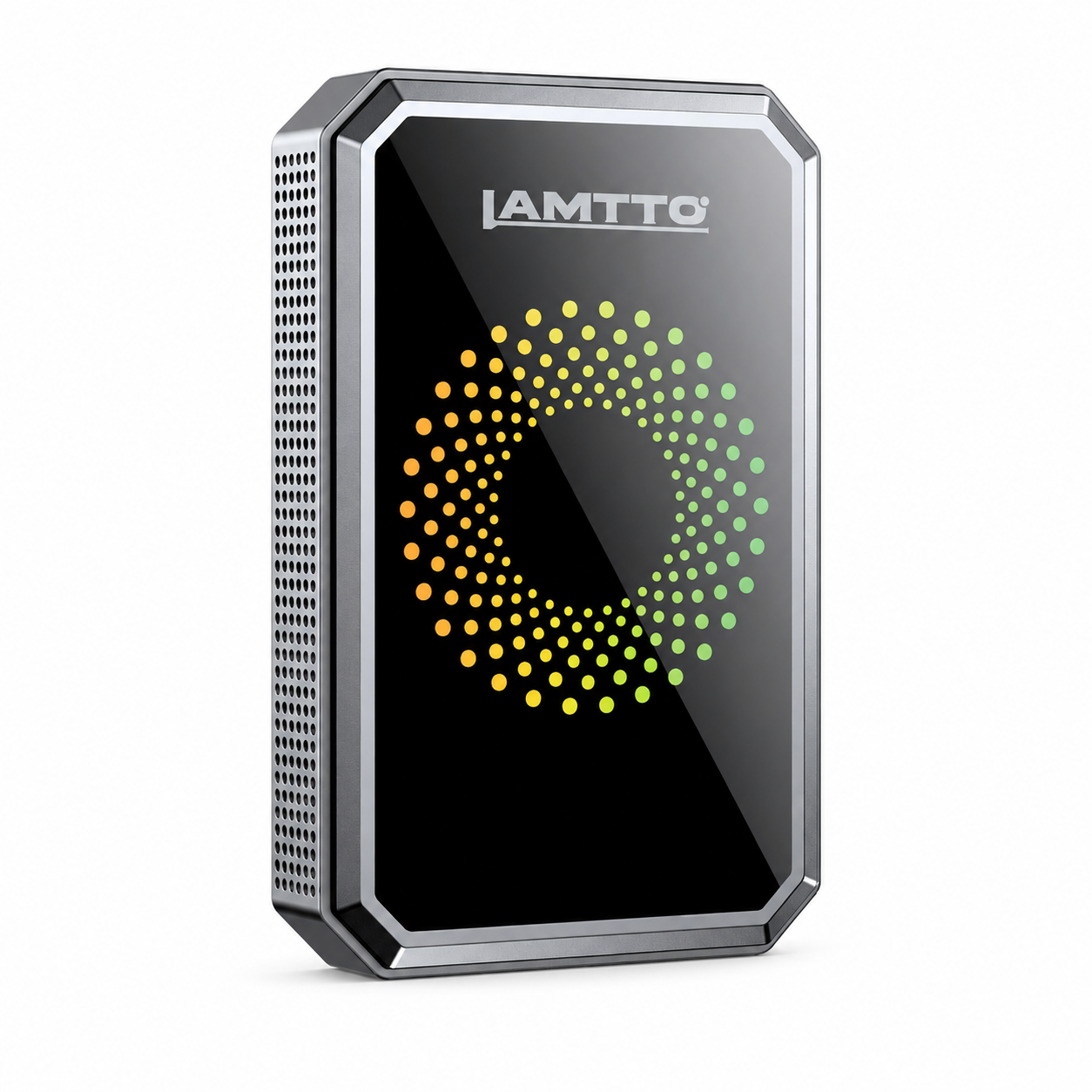



Die drahtlosen CarPlay-Geräte der LAMTTO RC-Serie unterstützen drei Audioausgabe-Methoden:
- FM-Transmitter
- AUX-Kabel
- Bluetooth (beste Klangqualität)
Die Audiostabilität ist entscheidend für Navigationsansagen, Anrufe und Musikwiedergabe.
Allerdings können bei einigen Benutzern Probleme auftreten, wie zum Beispiel:
- Statisches Rauschen
- Kein Ton bei Anrufen
- Bluetooth-Audio funktioniert nicht
- Audioverzögerung
👉 Die gute Nachricht: Die meisten Audioprobleme können in Minuten behoben werden.
Diese Anleitung behandelt alle gängigen Audioprobleme und Schritt-für-Schritt-Lösungen für LAMTTO RC-Geräte.
🎧 1. Erläuterung der Audioausgabe-Methoden
FM-Transmitter
- Stellen Sie eine Frequenz am Gerät ein (z. B. FM 106,0 MHz)
- Stellen Sie Ihr Autoradio auf dieselbe Frequenz ein
- Audio wird über die Autolautsprecher wiedergegeben
⚠️ Wichtig:
Die FM-Antenne ist im Original-Autoladegerät integriert. Verwenden Sie immer das Original-Ladegerät.
AUX-Kabel
- Verbinden Sie den AUX-Anschluss des Geräts mit dem AUX-Eingang Ihres Autos
- Direkte kabelgebundene Audioübertragung
Bluetooth (Empfohlen)
- Wählen Sie den BT-Ausgabemodus am Gerät
- Verbinden Sie Ihr Telefon mit dem Bluetooth des Autos
👉 Dies bietet die beste Klangqualität
📻 2. FM-Rauschen / Störungen
Problem
Summen oder statisches Rauschen bei Verwendung des FM-Modus.
Lösungen
- Verwenden Sie das Original-Autoladegerät (entscheidend)
- Halten Sie Kabel vom Autoradio fern
- Ändern Sie die FM-Frequenz (z. B. 87,5 → 106,0)
- Wechseln Sie zu AUX oder Bluetooth
- Falls das Problem weiterhin besteht, kontaktieren Sie den Support (Kompensation kann zutreffen)
🔌 3. AUX-Rauschen / Brummgeräusch
Problem
Brummen oder Summen über AUX.
Lösungen
- AUX-Kabel sicher wieder einstecken
- Richtigen AUX-Anschluss prüfen
- Anderes AUX-Kabel ausprobieren
- Verwenden Sie einen Masseentkoppler
- Wechseln Sie zu Bluetooth oder FM
👉 Falls das Problem weiterhin besteht, ist der AUX-Anschluss möglicherweise defekt
Warum dies geschieht
- Masse schleifen interferenz
- Elektrische Störungen von der Autoelektronik
📞 4. Anrufer nicht hörbar (iPhone)
Problem
Sie erhalten Anrufe, hören aber die andere Person nicht.
Lösungen
- Audioausgabe prüfen → CarPlay auswählen
- Tippen Sie während des Anrufs auf Lautsprecher (Audioausgabe umschalten)
📞 5. Anrufer nicht hörbar (Android)
Lösungen
- Stummschaltung prüfen
- Sprachassistent testen
- Auf Bluetooth-Audiomodus umschalten
🎤 6. Anrufer hört Sie nicht
Problem
Ihre Stimme wird nicht gehört oder ist zu leise.
Lösungen
- Verwenden Sie den Bluetooth-Ausgang (empfohlen)
- Fenster schließen, um Geräusche zu reduzieren
- Stellen Sie sicher, dass die Spracheingabe aktiviert ist
- Überprüfen Sie die Audioausgabe-Einstellungen des Telefons
👉 Wenn es immer noch nicht funktioniert → möglicherweise ein Hardwareproblem
🔁 7. Echo bei Anrufen
Problem
Echo bei Telefonanrufen.
Lösungen
- Anruflautstärke verringern
- Gerät und Telefon neu starten
- Telefon-System aktualisieren
- Auf Bluetooth-Modus umschalten
- Anruf ohne CarPlay testen
🔊 8. Bluetooth-Audio funktioniert nicht
Problem
Kein Ton im BT-Modus.
Lösungen
- Telefon neu starten
- Richtige Verbindungsreihenfolge sicherstellen:
- BT-Modus am Gerät auswählen
- Dann Telefon mit Auto-Bluetooth verbinden
- Auto-Bluetooth eigenständig testen
- Prüfen, ob das Auto Audio unterstützt (nicht nur Anrufe)
- Lautstärke prüfen
🎙️ 9. Siri funktioniert nicht über Bluetooth
Lösungen
- Bluetooth-Verbindungen zurücksetzen
- Geräte neu verbinden
- Telefon und Gerät neu starten
- Siri direkt über Auto-Bluetooth testen
- System aktualisieren
🔉 10. Gerät gibt weiterhin Ton aus (AUX-Modus)
Problem
Ton kommt sowohl vom Gerät als auch vom Auto.
Lösungen
- Sicherstellen, dass die Ausgabe auf AUX eingestellt ist
- AUX-Kabel wieder einstecken
- Anderes Kabel ausprobieren
⏱️ 11. Audioverzögerung / Anrufverzögerung
Problem
Navigation oder Anrufe sind verzögert.
Lösungen
- Telefon und Gerät neu starten
- Hintergrund-Apps schließen
- Bluetooth zurücksetzen
- Anderes Telefon ausprobieren
🔄 12. Warum sich Bluetooth nach der Verbindung trennt
👉 Dies ist normales Verhalten
Wie es funktioniert:
- Bluetooth wird zum Koppeln verwendet
- Wi-Fi übernimmt die Datenübertragung
- Bluetooth trennt sich danach
Erläuterung des Bluetooth-Ausgabemodus
Bei Verwendung des BT-Modus:
👉 Der Audiopfad wird zu:
Telefon → Auto-Bluetooth → Lautsprecher
📺 13. AirPlay deaktiviert Bluetooth-Audio
Problem
Bluetooth-Audio stoppt während AirPlay.
Erklärung
AirPlay und Bluetooth sind gegenseitig ausschließend.
👉 Verwenden Sie AUX oder FM während der Bildschirmspiegelung
🚗 14. Musik funktioniert, Anrufe nicht
Problem
Musik wird abgespielt, aber Anrufe gehen nicht über die Autolautsprecher.
Warum dies geschieht
Einige Autos unterstützen nur eine aktive Anruf-Audio (HFP)-Verbindung.
Lösungen
- Bluetooth-Kopplung des Telefons löschen
- Sauber neu verbinden
- Sicherstellen, dass keine anderen Geräte verbunden sind
🚀 Abschließende Gedanken
Die meisten LAMTTO RC-Audioprobleme werden verursacht durch:
- Falsche Ausgabeeinstellungen
- Störungen (FM / AUX)
- Bluetooth-Konflikte
- Fahrzeugkompatibilität
👉 Mit den oben genannten Lösungen können Sie fast alle Audioprobleme schnell beheben.
💡 Pro-Tipps
- Verwenden Sie immer das Original-Ladegerät (für FM-Stabilität)
- Verwenden Sie den Bluetooth-Modus für die beste Audioqualität
- Halten Sie Ihr Telefonsystem auf dem neuesten Stand
Brauchen Sie Hilfe?
Wenn das Problem weiterhin besteht:
👉 Kontaktieren Sie unser Support-Team: support@lamtto.com für technische Unterstützung oder Ersatz

Hinterlasse einen Kommentar
Alle Kommentare werden vor der Veröffentlichung geprüft.
Diese Website ist durch hCaptcha geschützt und es gelten die allgemeinen Geschäftsbedingungen und Datenschutzbestimmungen von hCaptcha.