


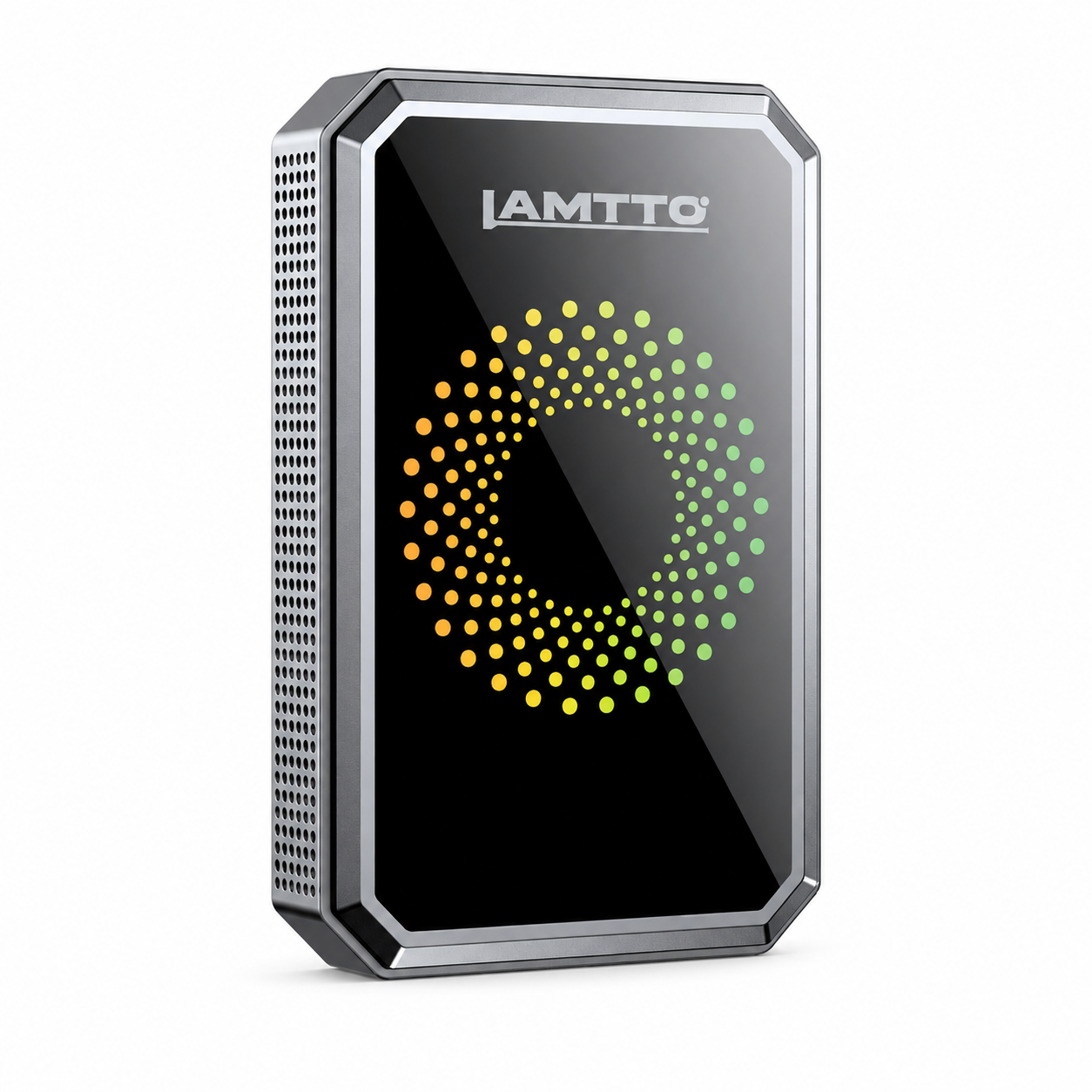



Wenn Sie Probleme mit der Aktivierung oder Firmware-Updates für den RC23 Wireless Adapter haben, sind Sie nicht allein.
Viele Nutzer stoßen auf Probleme wie:
- Aktivierungscode erforderlich
- Firmware-Update fehlgeschlagen
- Update-Unterbrechung
- Kann nicht nach Updates suchen
👉 Die gute Nachricht: Die meisten dieser Probleme lassen sich mit den richtigen Schritten schnell beheben.
In diesem Leitfaden führen wir Sie durch häufige Aktivierungs- und Firmware-Probleme des RC23 – und wie Sie diese einfach beheben können.
🔑 RC23 Wireless Adapter Aktivierungsprobleme
Problem: Aktivierungscode erforderlich
Einige Benutzer sehen möglicherweise eine Aufforderung zur Eingabe eines Aktivierungscodes, wenn sie das Gerät verwenden.
✅ Lösung:
- Verbinden Sie zuerst Ihr RC23 mit einem stabilen WLAN-Netzwerk
- Prüfen Sie, ob das Gerät bereits automatisch aktiviert wurde
- Wenn das Gerät noch nicht aktiviert ist:
- Scannen oder suchen Sie den QR-Code auf Ihrem Gerät
- Senden Sie den QR-Code an unser Support-Team
- Unser technisches Team wird Sie bei der Aktivierung unterstützen
👉 In den meisten Fällen erfolgt die Aktivierung automatisch, sobald eine Verbindung zum Internet hergestellt ist.
RC23 Firmware-Update-Probleme & Lösungen
Firmware-Updates sind wichtig, um Folgendes sicherzustellen:
- Stabile Verbindung
- Bessere Kompatibilität
- Verbesserte Leistung
Manchmal können jedoch Update-Probleme auftreten.
Problem 1: Firmware-Update fehlgeschlagen
🔍 Mögliche Ursache:
Das System ist während des Update-Vorgangs auf einen Fehler gestoßen.
✅ Lösung:
- Stecken Sie einen USB-Stick in das Gerät
- Gehen Sie zu:
👉 Einstellungen → Andere → Logo kopieren - Warten Sie, bis Sie Folgendes sehen:
👉 „Protokolle erfassen…“ - Nach Abschluss:
- Entfernen Sie den USB-Stick
- Komprimieren Sie die Protokolldateien
- Senden Sie diese an unser Support-Team
👉 Dies hilft, das Problem schnell zu identifizieren und eine Lösung zu finden.
Problem 2: Firmware-Update unterbrochen
Mögliche Ursache:
Der Update-Vorgang wurde aufgrund von System-Cache- oder Verbindungsproblemen unterbrochen.
Lösung:
- Geräte-Cache leeren
- Gerät neu starten
- Firmware-Update erneut versuchen
Problem 3: Unsicher, ob die Firmware aktualisiert werden muss
So überprüfen Sie:
- Geräteeinstellungen öffnen
- Den Bereich Firmware-Version überprüfen
- Suchen Sie nach einem roten Benachrichtigungspunkt
✅ Ergebnis:
🔴 Roter Punkt → Update verfügbar
⚪ Kein roter Punkt → Bereits auf der neuesten Version
👉 Keine Aktualisierung erforderlich, wenn Ihr System auf dem neuesten Stand ist.
Problem 4: Update erfordert persönliche Informationen
Wichtiger Hinweis:
Während Firmware-Updates:
- Das WLAN-Netzwerk muss stabil bleiben
- NICHT die Stromversorgung trennen
- Vermeiden Sie die Nutzung des Netzwerks für andere Aufgaben
👉 Unterbrechungen während der Updates können Systemfehler verursachen.
💡 Tipps für erfolgreiche RC23 Updates
Um einen reibungslosen Update-Prozess zu gewährleisten:
- Verwenden Sie eine stabile WLAN-Verbindung
- Ziehen Sie das Gerät während der Updates nicht ab
- Vermeiden Sie Netzwerkwechsel
- Halten Sie das Gerät durchgehend mit Strom versorgt
🚀 Letzte Gedanken
Die meisten RC23 Aktivierungs- und Firmware-Probleme sind vorübergehend und einfach zu beheben.
Sie werden normalerweise verursacht durch:
- Netzwerkinstabilität
- Unterbrochene Updates
- Fehlende Aktivierungsschritte
Nach korrekter Einrichtung und Aktualisierung bietet der RC23 ein stabiles und nahtloses drahtloses CarPlay-Erlebnis.
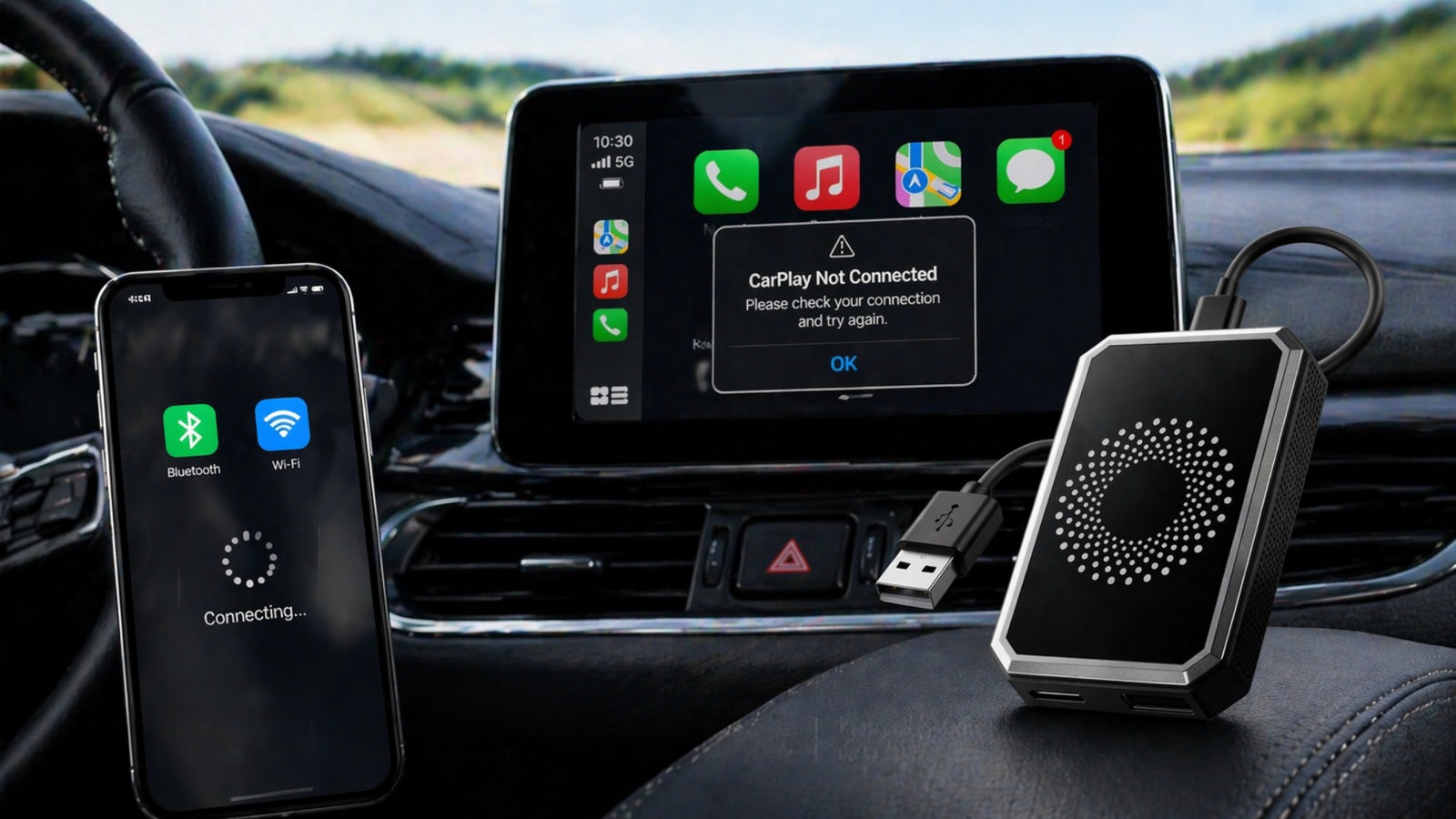


Hinterlasse einen Kommentar
Alle Kommentare werden vor der Veröffentlichung geprüft.
Diese Website ist durch hCaptcha geschützt und es gelten die allgemeinen Geschäftsbedingungen und Datenschutzbestimmungen von hCaptcha.