


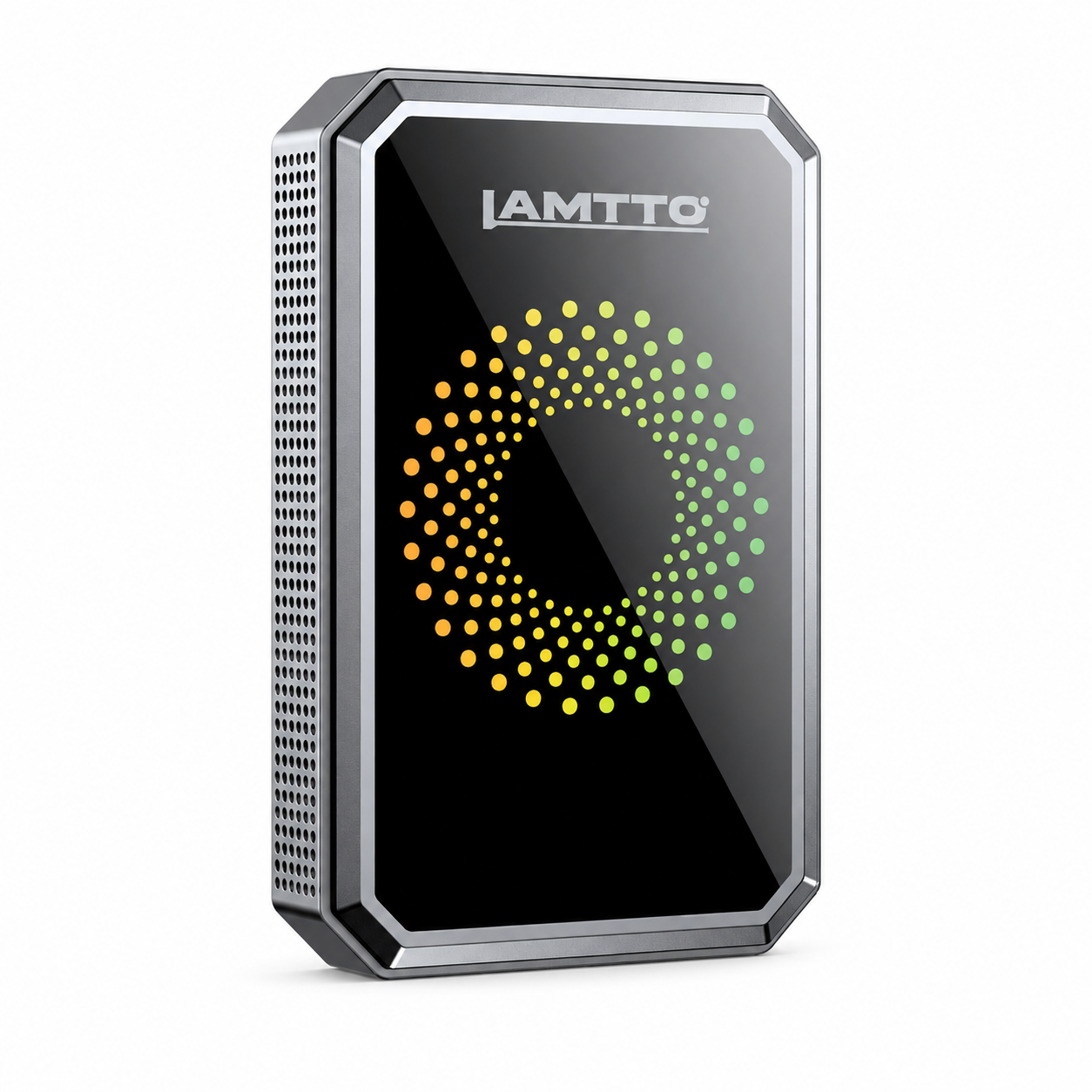


Lamtto RC15 Video-Anleitungen: Einrichtung, Funktionen & FAQs
CarPlay RC15
Hier finden Sie wichtige Informationen zu diesem Produkt, einschließlich Video-Tutorials und Antworten auf häufig gestellte Fragen.
🎥 Referenzvideo
▶️ So installieren Sie es auf einem Motorrad
▶️ Installation und CarPlay iPhone Verbindung
▶️ Einführung und Nutzung wichtiger Funktionen
❓ Häufig gestellte Fragen
🖼️ Wie ändere ich den Startbildschirm?
Bevor wir Änderungen vornehmen, müssen wir prüfen, ob Ihre CarPlay-Firmware ein Update benötigt.
Bitte gehen Sie zu den Einstellungen, suchen Sie „Firmware Version“ unter „Konfiguration“, und senden Sie uns ein Foto dieser Information zusammen mit Ihrer Bestellnummer.
📧 Unsere E-Mail: DC@yooomail.com
Um den Startbildschirm zu ändern:
-
Verwenden Sie ein JPG-Bild (1560×720 Pixel) und benennen Sie es
boot_logo. -
Sie müssen dem Dateinamen nicht
.jpghinzufügen. Halten Sie die Dateigröße für beste Ergebnisse unter 120 KB.
Schritte zum Aktualisieren:
- Bereiten Sie eine TF-Karte und einen Kartenleser vor.
- Formatieren Sie die Karte an Ihrem Computer und kopieren Sie das Bild darauf.
- Stecken Sie die TF-Karte nach dem Starten des Geräts ein.
- Das Update wird automatisch abgeschlossen, sobald das Startlogo erkannt wird.
📺 Video zur Referenz: ▶ Bedienungsvideo zur Referenz
🔄 Woher weiß ich, ob mein CarPlay ein Update benötigt oder die neueste Firmware hat?
In den meisten Fällen ist ein Firmware-Update nicht erforderlich, es sei denn, Sie haben spezifische Probleme.
Wenn Sie Probleme haben oder nach einem Update suchen möchten:
- Gehen Sie zu Ihren CarPlay-Einstellungen.
- Suchen Sie „Konfiguration“ unter „Firmware-Version“.
- Machen Sie ein Foto von diesem Bildschirm und senden Sie es uns zusammen mit Ihrer Bestellnummer.
Wenn ein Update verfügbar ist, stellen wir einen Link bereit mit:
- Referenzvideo
- Installationsdateien für die Kartenscanner-Software
- Firmware-Update-Paket
So aktualisieren Sie (4 einfache Schritte):
- Bereiten Sie eine 16–64 GB SD-Karte, die Kartensoftware und die Firmware-Datei (über die Links) vor.
- Verwenden Sie die PhoenixCard-Software, um die SD-Karte zu brennen – fügen Sie einfach die Dateien hinzu, wie in der Anleitung und im Video gezeigt.
- Stecken Sie die SD-Karte in Ihr CarPlay-Gerät, um die Firmware zu aktualisieren.
- Stellen Sie die Karte mit der Software wieder her, wenn Sie fertig sind.
📧 Unsere E-Mail: DC@yooomail.com
🔄 Woher weiß ich, ob mein CarPlay ein Update benötigt oder hat?
Wenn Sie Probleme haben oder ein Update wünschen, gehen Sie zu den CarPlay-Einstellungen, suchen Sie „Firmware Version“ unter „Konfiguration“, und senden Sie uns ein Foto mit Ihrer Bestellnummer.
📧 Unsere E-Mail: DC@yooomail.com
🔌 Warum verbindet sich mein CarPlay nicht automatisch?
Bitte versuchen Sie die folgenden Schritte:
- Gehen Sie zu den Einstellungen Ihres Telefons und löschen Sie die WLAN- und Bluetooth-Listen.
- Setzen Sie CarPlay zurück.
- Starten Sie Ihr Telefon neu und versuchen Sie es erneut.
Hinweis: Wenn das Gerät zuvor mit einem anderen Telefon verbunden war, müssen Sie es möglicherweise zuerst manuell wieder verbinden.
Wenn das Problem weiterhin besteht, teilen Sie uns mit, was Sie versucht haben, und geben Sie Ihre Bestellnummer an, damit wir Ihnen weiterhelfen können.
📧 Unsere E-Mail: DC@yooomail.com
🔋 Als ich das CarPlay installiert habe, ließ es sich nicht einschalten.
Bitte überprüfen Sie Folgendes:
- Stellen Sie sicher, dass der Typ-C-Anschluss fest eingesteckt ist – versuchen Sie, ihn herauszuziehen und wieder einzustecken.
- Vergewissern Sie sich, dass die B+, ACC und GND Kabel richtig angeschlossen sind.
Sollten die Plus- und Minuskabel während der Installation versehentlich kurzgeschlossen worden sein, ist das Gerät möglicherweise in den Schutzmodus gewechselt. Trennen Sie in diesem Fall die Stromversorgung, schließen Sie die Kabel ordnungsgemäß wieder an und stecken Sie sie wieder ein.
Wenn es sich immer noch nicht einschaltet, versuchen Sie, das Gerät über ein USB-Kabel an ein 5V 2.5A/3A Wandnetzteil anzuschließen, um zu sehen, ob es hochfährt.
Keine Sorge – wenn das Netzkabel defekt ist, senden wir einen Ersatz. Wenn das Gerät selbst defekt ist, ersetzen wir es im Rahmen der Garantie.
📧 Unsere E-Mail: DC@yooomail.com
🔧 Wie schließe ich das dreidrahtige Hardwire-Kit-Kabel (Rot, Schwarz und Gelb) an?
- Rotes Kabel (ACC): Wird an die Zubehörstromversorgung angeschlossen (Lichter, Blinker usw.).
- Gelbes Kabel (B+): Wird an den Pluspol der Batterie angeschlossen.
- Schwarzes Kabel (GND): Wird an einen geeigneten Massepunkt angeschlossen (z. B. ein Metallteil des Fahrzeugs).
🔄 Es startet immer wieder neu.
Bitte versuchen Sie Folgendes:
- Stellen Sie sicher, dass der Typ-C-Anschluss richtig eingesteckt ist – ziehen Sie ihn ab und stecken Sie ihn wieder fest ein.
- Vergewissern Sie sich, dass die ACC-Leitungen richtig und fest angeschlossen sind.
Lassen Sie uns wissen, wie es läuft. Wenn das Produkt defekt ist, ersetzen wir es umgehend im Rahmen der Garantie.
📧 Unsere E-Mail: DC@yooomail.com
Wenn Sie weitere Fragen haben, können Sie uns jederzeit kontaktieren.