


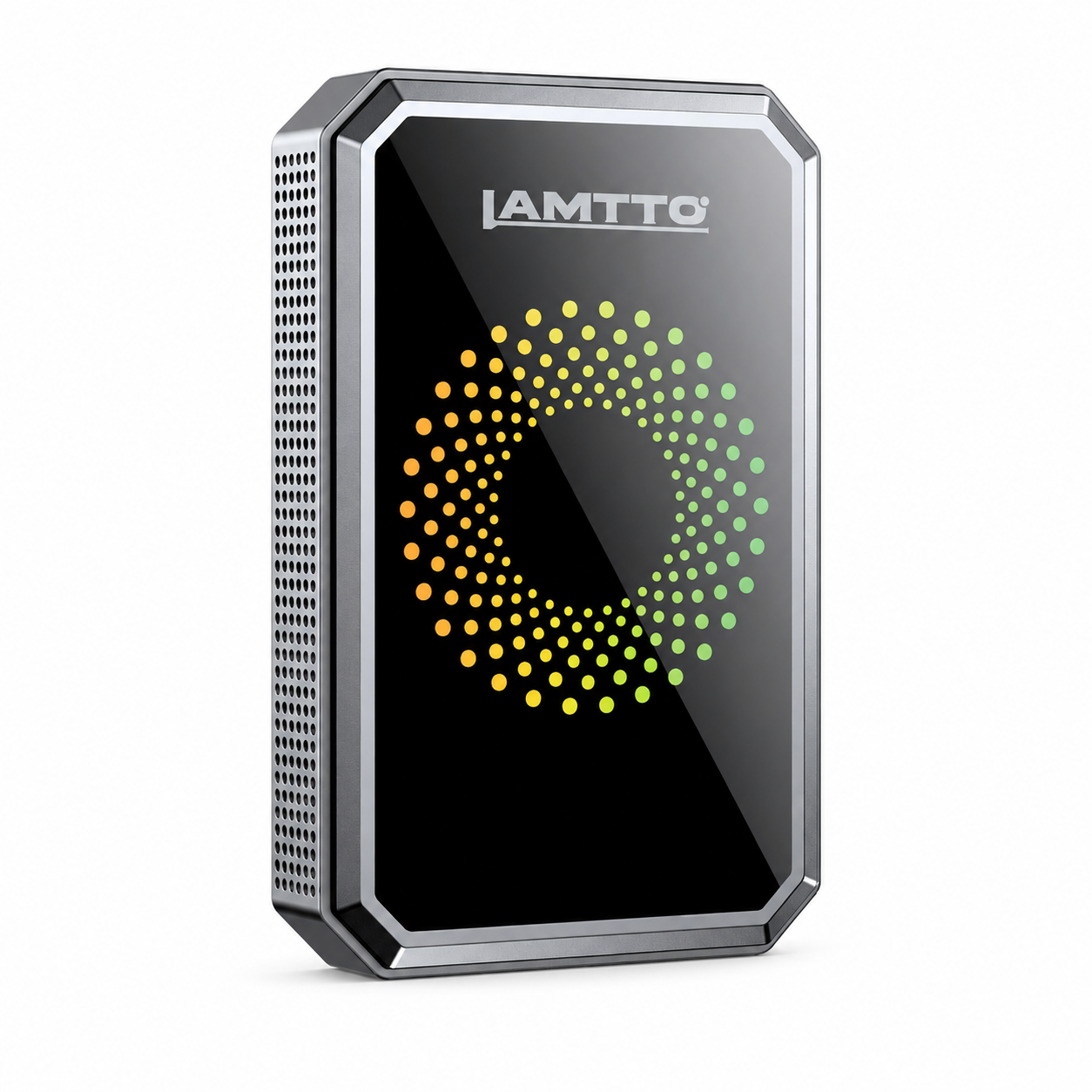



Les appareils CarPlay sans fil de la série LAMTTO RC prennent en charge trois méthodes de sortie audio :
- Émetteur FM
- Câble AUX
- Bluetooth (meilleure qualité sonore)
La stabilité audio est cruciale pour les invites de navigation, les appels et la lecture de musique.
Cependant, certains utilisateurs peuvent rencontrer des problèmes tels que :
- Bruit statique
- Pas de son pendant les appels
- Audio Bluetooth ne fonctionne pas
- Délai audio
👉 La bonne nouvelle : La plupart des problèmes audio peuvent être résolus en quelques minutes.
Ce guide couvre tous les problèmes audio courants et les solutions étape par étape pour les appareils LAMTTO RC.
🎧 1. Explication des méthodes de sortie audio
Émetteur FM
- Définir une fréquence sur l'appareil (ex. FM 106.0 MHz)
- Réglez votre autoradio sur la même fréquence
- L'audio est diffusé via les haut-parleurs de votre voiture
⚠️ Important :
L'antenne FM est intégrée au chargeur de voiture d'origine. Utilisez toujours le chargeur d'origine.
Câble AUX
- Connectez le port AUX de l'appareil à l'entrée AUX de votre voiture
- Transmission audio filaire directe
Bluetooth (Recommandé)
- Sélectionnez le mode de sortie BT sur l'appareil
- Connectez votre téléphone au Bluetooth de la voiture
👉 Cela offre la meilleure qualité sonore
📻 2. Bruit statique / Interférences FM
Problème
Bruit de bourdonnement ou statique en mode FM.
Solutions
- Utilisez le chargeur de voiture d'origine (critique)
- Éloignez les câbles de l'autoradio
- Changez la fréquence FM (ex. 87.5 → 106.0)
- Passez à AUX ou Bluetooth
- Si le problème persiste, contactez le support (une compensation peut s'appliquer)
🔌 3. Bruit / Bourdonnement AUX
Problème
Bruit de bourdonnement ou de ronflement via AUX.
Solutions
- Réinsérez le câble AUX fermement
- Vérifiez le port AUX correct
- Essayez un autre câble AUX
- Utilisez un isolateur de boucle de masse
- Passez au Bluetooth ou à la FM
👉 Si le problème persiste, le port AUX pourrait être défectueux
Pourquoi cela arrive
- Interférence de boucle de masse
- Bruit électrique des composants électroniques de la voiture
📞 4. Impossible d'entendre l'interlocuteur (iPhone)
Problème
Vous recevez des appels mais ne pouvez pas entendre l'autre personne.
Solutions
- Vérifiez la sortie audio → sélectionnez CarPlay
- Appuyez sur Haut-parleur (interrupteur de sortie audio) pendant l'appel
📞 5. Impossible d'entendre l'interlocuteur (Android)
Solutions
- Vérifiez les paramètres de sourdine
- Testez l'assistant vocal
- Passez en mode audio Bluetooth
🎤 6. L'interlocuteur ne vous entend pas
Problème
Votre voix n'est pas entendue ou est trop faible.
Solutions
- Utilisez la sortie Bluetooth (recommandé)
- Fermez les fenêtres pour réduire le bruit
- Assurez-vous que l'entrée vocale est activée
- Vérifiez les paramètres de sortie audio du téléphone
👉 Si cela ne fonctionne toujours pas → problème matériel possible
🔁 7. Écho pendant les appels
Problème
Écho pendant les appels téléphoniques.
Solutions
- Baissez le volume d'appel
- Redémarrez l'appareil et le téléphone
- Mettez à jour le système du téléphone
- Passez en mode Bluetooth
- Testez l'appel sans CarPlay
🔊 8. L'audio Bluetooth ne fonctionne pas
Problème
Pas de son en mode BT.
Solutions
- Redémarrez le téléphone
- Assurez-vous que l'ordre de connexion est correct :
- Sélectionnez le mode BT sur l'appareil
- Puis connectez le téléphone au Bluetooth de la voiture
- Testez le Bluetooth de la voiture indépendamment
- Vérifiez si la voiture prend en charge l'audio (pas seulement les appels)
- Vérifiez les paramètres de volume
🎙️ 9. Siri ne fonctionne pas via Bluetooth
Solutions
- Réinitialisez les connexions Bluetooth
- Reconnectez les appareils
- Redémarrez le téléphone et l'appareil
- Testez Siri directement via le Bluetooth de la voiture
- Mettre à jour le système
🔉 10. L'appareil produit toujours du son (mode AUX)
Problème
Le son provient à la fois de l'appareil et de la voiture.
Solutions
- Assurez-vous que la sortie est réglée sur AUX
- Réinsérez le câble AUX
- Essayez un autre câble
⏱️ 11. Délai audio / Décalage d'appel
Problème
La navigation ou les appels sont retardés.
Solutions
- Redémarrez le téléphone et l'appareil
- Fermez les applications en arrière-plan
- Réinitialisez le Bluetooth
- Essayez un autre téléphone
🔄 12. Pourquoi le Bluetooth se déconnecte après la connexion
👉 C'est un comportement normal
Comment ça marche :
- Le Bluetooth est utilisé pour l'appairage
- Le Wi-Fi gère la transmission des données
- Le Bluetooth se déconnecte ensuite
Explication du mode de sortie Bluetooth
Lors de l'utilisation du mode BT :
👉 Le chemin audio devient :
Téléphone → Bluetooth de la voiture → Haut-parleurs
📺 13. AirPlay désactive l'audio Bluetooth
Problème
L'audio Bluetooth s'arrête pendant AirPlay.
Explication
AirPlay et Bluetooth sont mutuellement exclusifs.
👉 Utilisez AUX ou FM pendant la mise en miroir d'écran
🚗 14. La musique fonctionne mais pas les appels
Problème
La musique est diffusée, mais les appels ne passent pas par les haut-parleurs de la voiture.
Pourquoi cela arrive
Certaines voitures ne prennent en charge qu'une seule connexion audio d'appel (HFP) active.
Solutions
- Supprimez l'appairage Bluetooth du téléphone
- Reconnectez proprement
- Assurez-vous qu'aucun autre appareil n'est connecté
🚀 Dernières réflexions
La plupart des problèmes audio LAMTTO RC sont causés par :
- Paramètres de sortie incorrects
- Interférences (FM / AUX)
- Conflits Bluetooth
- Compatibilité du véhicule
👉 Avec les solutions ci-dessus, vous pouvez résoudre presque tous les problèmes audio rapidement.
💡 Conseils de pro
- Utilisez toujours le chargeur d'origine (pour la stabilité FM)
- Utilisez le mode Bluetooth pour la meilleure qualité audio
- Gardez votre système téléphonique à jour
Besoin d'aide ?
Si le problème persiste :
👉 Contactez notre équipe de support : support@lamtto.com pour une assistance technique ou un remplacement

Laisser un commentaire
Tous les commentaires sont modérés avant d'être publiés.
Ce site est protégé par hCaptcha, et la Politique de confidentialité et les Conditions de service de hCaptcha s’appliquent.