


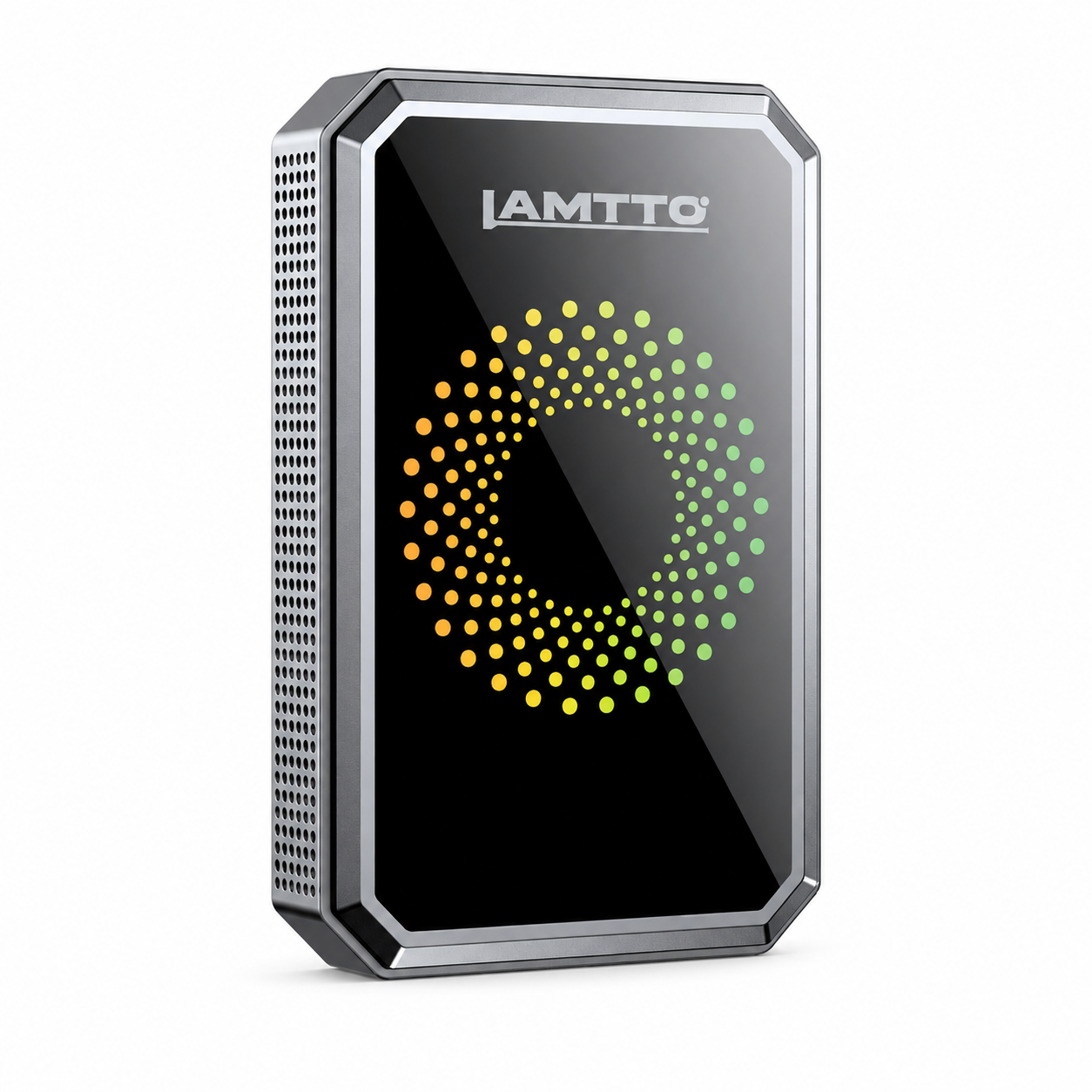


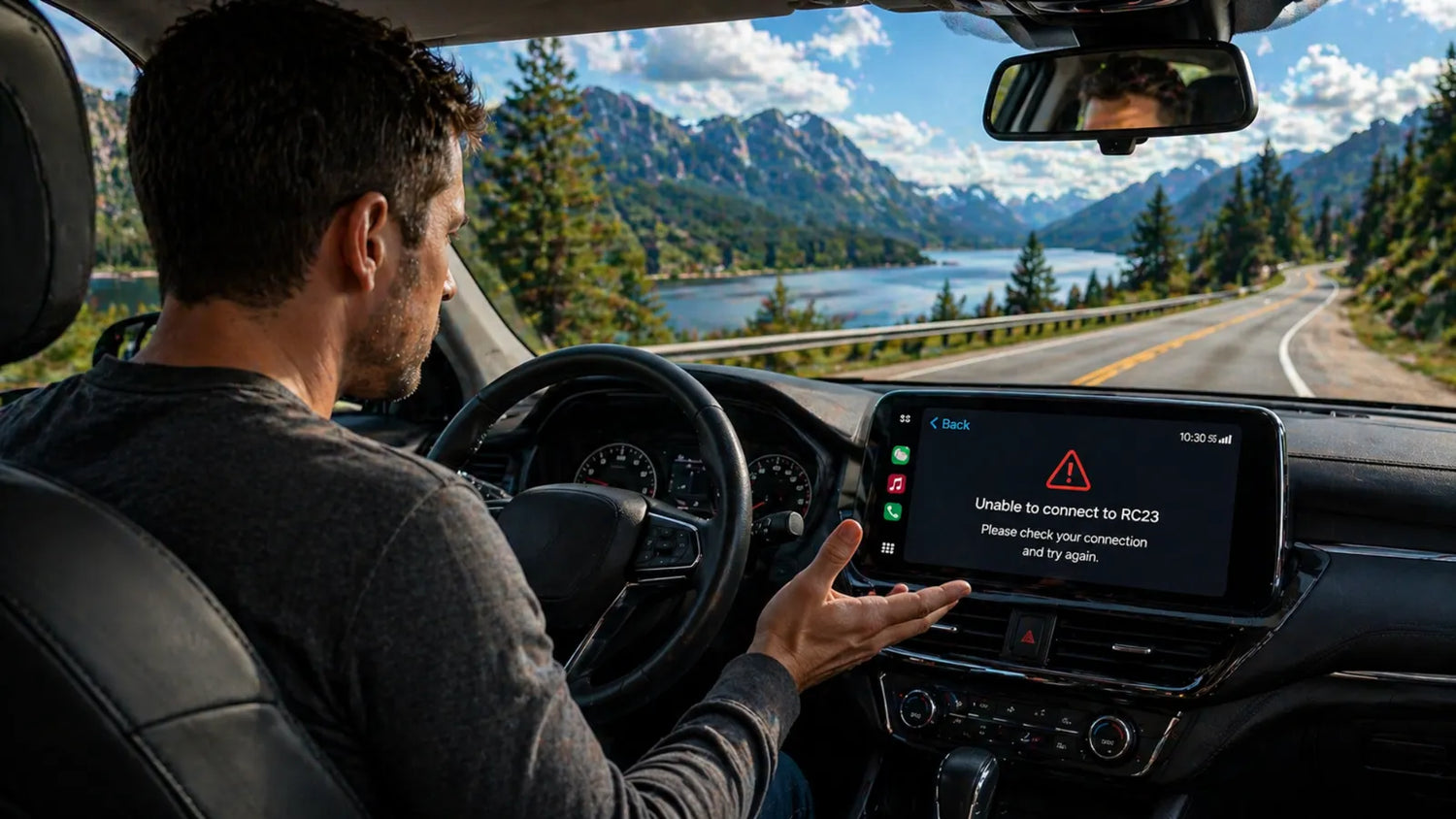
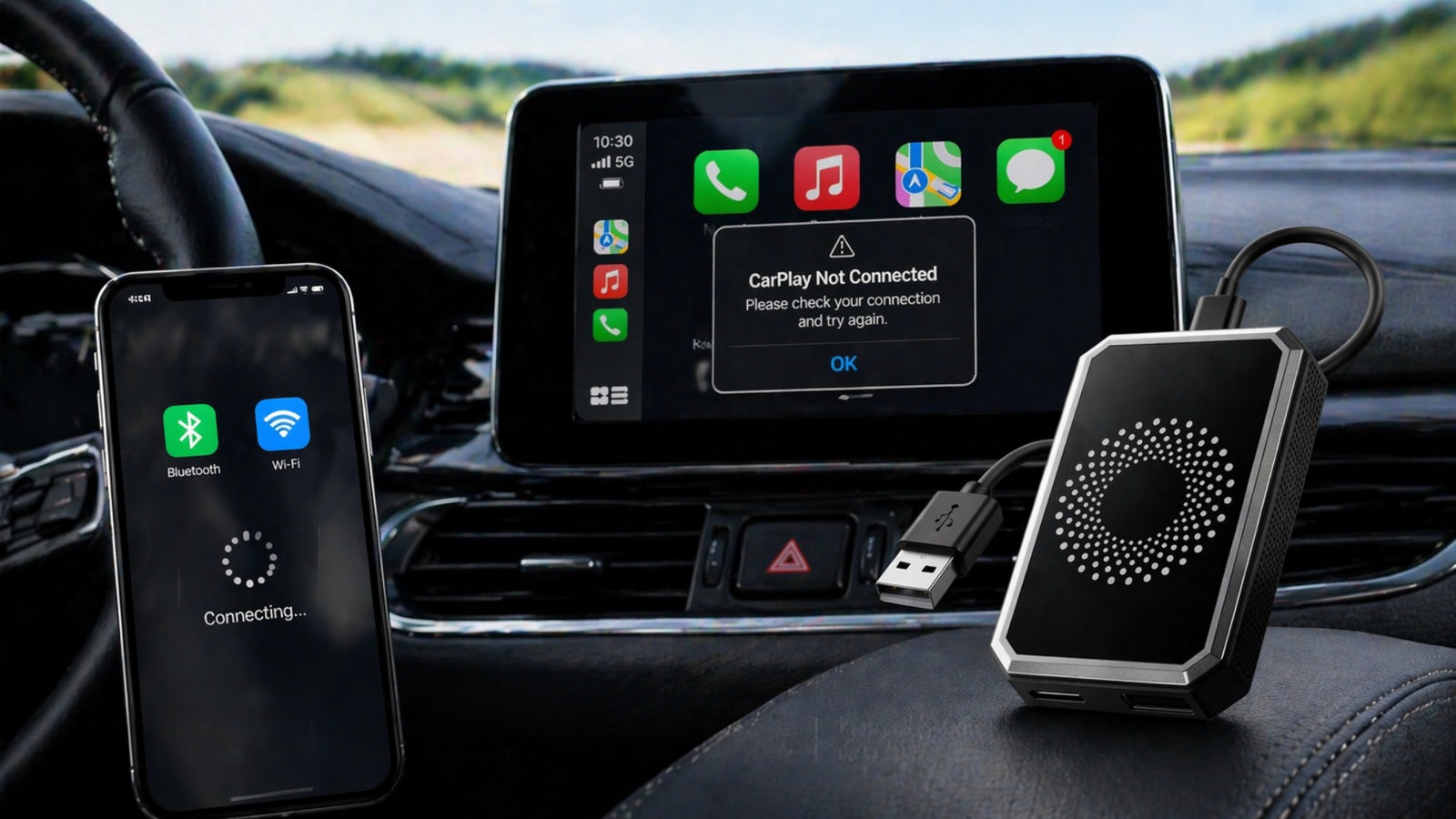
Si vous rencontrez des problèmes d'activation ou de mise à jour du micrologiciel de votre RC23 Wireless Adapter, vous n'êtes pas le seul.
De nombreux utilisateurs rencontrent des problèmes tels que :
- Code d'activation requis
- Échec de la mise à jour du micrologiciel
- Interruption de la mise à jour
- Impossible de vérifier les mises à jour
👉 La bonne nouvelle : la plupart de ces problèmes peuvent être résolus rapidement en suivant les bonnes étapes.
Dans ce guide, nous vous guiderons à travers les problèmes courants d'activation et de micrologiciel du RC23 – et comment les résoudre facilement.
🔑 Problèmes d'activation de l'adaptateur sans fil RC23
Problème : code d'activation requis
Certains utilisateurs peuvent voir une invite demandant un code d'activation lors de l'utilisation de l'appareil.
✅ Solution :
- Connectez d'abord votre RC23 à un réseau Wi-Fi stable
- Vérifiez si l'appareil a déjà été activé automatiquement
- Si l'appareil n'est toujours pas activé :
- Scannez ou localisez le code QR sur votre appareil
- Envoyez le code QR à notre équipe d'assistance
- Notre équipe technique vous aidera à activer l'appareil
👉 Dans la plupart des cas, l'activation est effectuée automatiquement une fois l'appareil connecté à Internet.
Problèmes et correctifs de mise à jour du micrologiciel RC23
Les mises à jour du micrologiciel sont importantes pour garantir :
- Connexion stable
- Meilleure compatibilité
- Performances améliorées
Cependant, des problèmes de mise à jour peuvent parfois survenir.
Problème 1 : Échec de la mise à jour du micrologiciel
🔍 Cause possible :
Le système a rencontré une erreur pendant le processus de mise à jour.
✅ Solution :
- Insérez une clé USB dans l'appareil
- Allez dans :
👉 Paramètres → Autre → Copier le logo - Attendez de voir :
👉 « Capture des journaux… » - Une fois terminé :
- Retirez la clé USB
- Compressez les fichiers journaux
- Envoyez-les à notre équipe d'assistance
👉 Cela permet d'identifier rapidement le problème et d'apporter un correctif.
Problème 2 : Mise à jour du micrologiciel interrompue
Cause possible :
Le processus de mise à jour a été arrêté en raison d'un cache système ou de problèmes de connexion.
Solution :
- Vider le cache de l'appareil
- Redémarrer l'appareil
- Réessayez la mise à jour du micrologiciel
Problème 3 : Incertitude quant à la nécessité de mettre à jour le micrologiciel
Comment vérifier :
- Ouvrez les paramètres de l'appareil
- Vérifiez la section de la version du micrologiciel
- Recherchez un point de notification rouge
✅ Résultat :
🔴 Point rouge → Mise à jour disponible
⚪ Pas de point rouge → Déjà sur la dernière version
👉 Pas besoin de mettre à jour si votre système est à jour.
Problème 4 : La mise à jour demande des informations personnelles
Avis important :
Lors des mises à jour du micrologiciel :
- Le réseau Wi-Fi doit rester stable
- NE PAS débrancher l'alimentation
- Évitez d'utiliser le réseau pour d'autres tâches
👉 Les interruptions pendant les mises à jour peuvent entraîner des erreurs système.
💡 Conseils pour des mises à jour RC23 réussies
Pour assurer un processus de mise à jour fluide :
- Utilisez une connexion Wi-Fi stable
- Ne débranchez pas l'appareil pendant les mises à jour
- Évitez de changer de réseau
- Maintenez l'appareil sous tension tout au long
🚀 Dernières réflexions
La plupart des problèmes d'activation et de micrologiciel du RC23 sont temporaires et faciles à résoudre.
Ils sont généralement causés par :
- Instabilité du réseau
- Mises à jour interrompues
- Étapes d'activation manquantes
Une fois correctement configuré et mis à jour, le RC23 offre une expérience CarPlay sans fil stable et fluide.


Laisser un commentaire
Tous les commentaires sont modérés avant d'être publiés.
Ce site est protégé par hCaptcha, et la Politique de confidentialité et les Conditions de service de hCaptcha s’appliquent.