


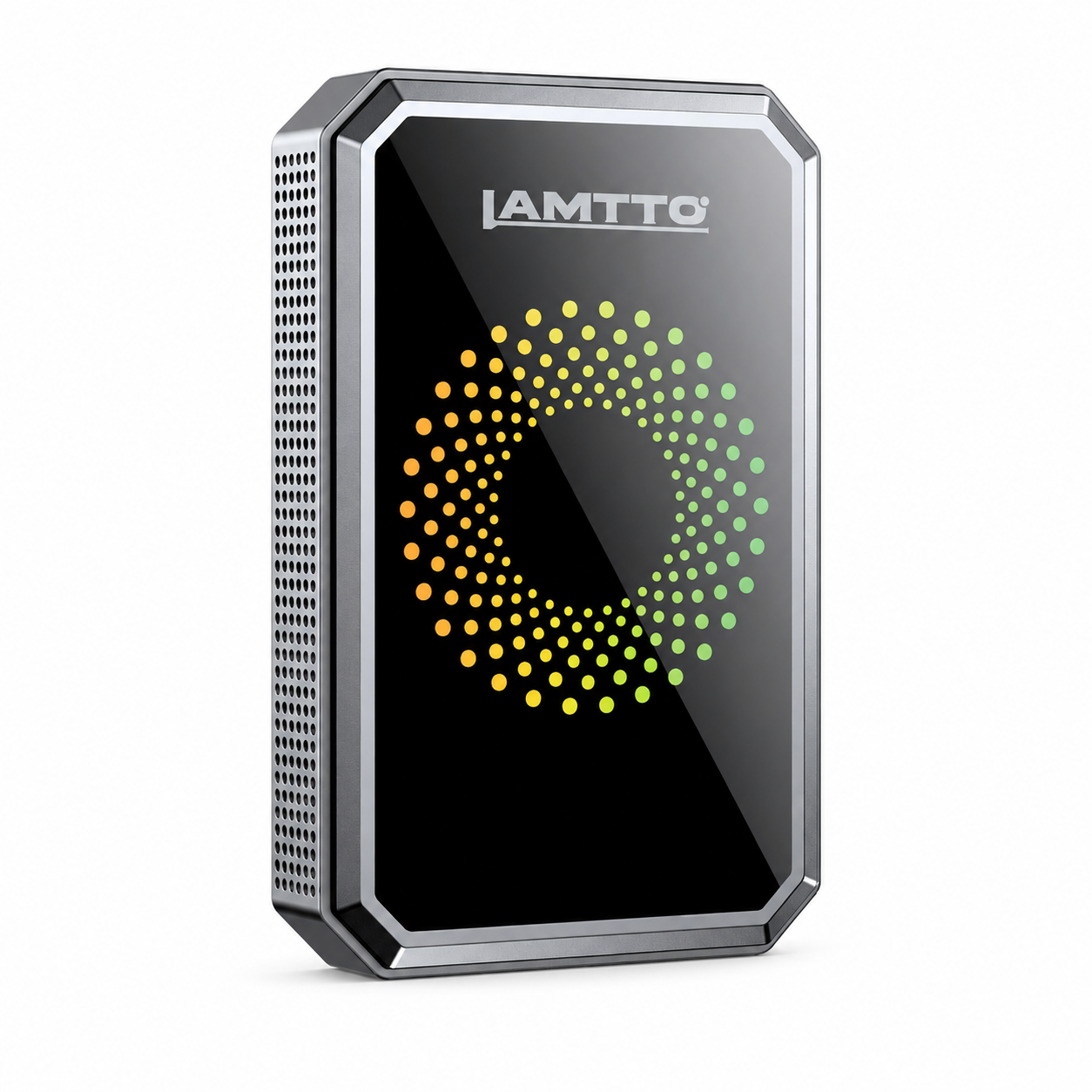


Assistance relative à l'écran CarPlay sans fil RC37 : configuration, didacticiels vidéo et FAQ
Vidéos de référence et tutoriels
Regardez des guides vidéo étape par étape pour compléter rapidement votre installation en voiture :
🎬 Comment connecter le téléphone Android
🎬Comment connecter l'iPhone
🎬Comment connecter les vidéos de lecture Airplay
🎬Comment connecter la radio FM de la voiture
🎬Comment installer la caméra arrière (pour référence seulement)
🎬Comment régler la caméra arrière
❓ Foire aux questions et dépannage
⚡ Catégorie 1 : Alimentation, montage et configuration matérielle
Q1 : Comment allumer le RC37 et quelle source d'alimentation dois-je utiliser ?
- Connectez le câble d'alimentation allume-cigare 12V/24V fourni directement à la prise d'alimentation de votre véhicule.
- Assurez-vous que le connecteur d'alimentation est bien branché dans le port d'entrée d'alimentation DC/Type-C sur le côté de l'unité d'affichage.
- Évitez d'utiliser des ports USB basse tension (tels que les USB d'ordinateur standard ou les chargeurs de téléphone à faible ampérage), car le grand écran nécessite une alimentation automobile stable de 5V/3A ou 12V.
Q2 : Comment installer solidement le support de tableau de bord ?
- Nettoyez et séchez soigneusement la surface du tableau de bord avant d'appliquer la base adhésive à ventouse.
- Appuyez fermement sur la base et verrouillez le levier d'aspiration en place. Laissez le coussinet adhésif se fixer pendant plusieurs heures avant d'attacher le poids total de l'écran.
- Ajustez la rotule rotative à 360° pour obtenir le meilleur angle de vision sans éblouissement.
📱 Catégorie 2 : Connexion sans fil CarPlay et Android Auto
Q3 : Comment connecter Wireless CarPlay (iPhone) ou Android Auto (téléphone Android) ?
- Activez le Bluetooth et le Wi-Fi sur votre smartphone.
- Dans le menu Bluetooth de votre téléphone, recherchez l'ID de l'appareil RC37 et appuyez pour le coupler.
- Confirmez l'invite de jumelage sur votre téléphone et sur l'écran.
- Autorisez les autorisations CarPlay / Android Auto lorsque vous y êtes invité sur l'écran de votre mobile. La connexion sans fil s'établira automatiquement en quelques secondes.
Q4 : Que dois-je faire si la connexion sans fil se coupe ou ne parvient pas à se jumeler automatiquement ?
- Oubliez l'enregistrement de jumelage de l'appareil RC37 dans les paramètres Bluetooth et Wi-Fi de votre téléphone.
- Redémarrez l'unité d'affichage RC37 et votre smartphone.
- Assurez-vous que votre téléphone n'est pas connecté simultanément à un autre réseau Bluetooth de véhicule ou à un point d'accès.
- Reparez en suivant les étapes de jumelage initiales.
🔊 Catégorie 3 : Sortie audio et synchronisation du son
Q5 : Comment puis-je diffuser le son via les haut-parleurs d'origine de la voiture ? Le RC37 prend en charge plusieurs modes de transmission audio flexibles :
Émetteur FM : Réglez le RC37 et la radio FM d'origine de votre voiture sur la même fréquence radio inutilisée/vide (par exemple, 88,5 MHz).
Connexion par câble AUX (recommandé) : Utilisez le câble audio AUX 3,5 mm inclus pour connecter la sortie AUX du RC37 directement à la prise d'entrée AUX de votre voiture pour un son stéréo clair et sans interférences.
Haut-parleur intégré : Utilisez directement les haut-parleurs internes de l'appareil sans câbles supplémentaires.
Audio double Bluetooth (si pris en charge par le téléphone) : Dirigez la sortie audio de votre smartphone directement vers votre autoradio d'origine via Bluetooth tout en exécutant la navigation d'affichage sur le RC37.
📹 Catégorie 4 : Caméra de recul et paramètres d'affichage
Q6 : Comment la caméra de recul s'active-t-elle ?
- Lorsque le câble d'extension de la caméra arrière est correctement acheminé et connecté au port AV-IN, l'écran affichera la vue arrière.
- Connectez le fil de déclenchement rouge à la borne positive du feu de recul de votre véhicule pour déclencher l'affichage automatique de la sauvegarde en plein écran avec des lignes directrices de stationnement lorsque vous passez en marche arrière.
Q7 : Comment réinitialiser l'écran aux paramètres d'usine par défaut ?
- Naviguez vers
Paramètres>Paramètres système>Réinitialisation d'usinedans le menu d'affichage. - Confirmez l'invite pour restaurer tous les paramètres d'usine par défaut.
📬 Besoin d'aide supplémentaire ? Contactez le service clientèle
Si vous avez besoin d'une assistance technique supplémentaire ou si vous avez des questions concernant la compatibilité :
📧 Support par e-mail : Contactez notre équipe technique dédiée via votre plateforme de commande ou l'e-mail de support officiel.
📝 Informations à inclure :
- La marque, le modèle et l'année de votre véhicule.
- Votre numéro de commande original.
-
Une courte photo ou vidéo montrant la configuration ou le problème pour une résolution rapide.