


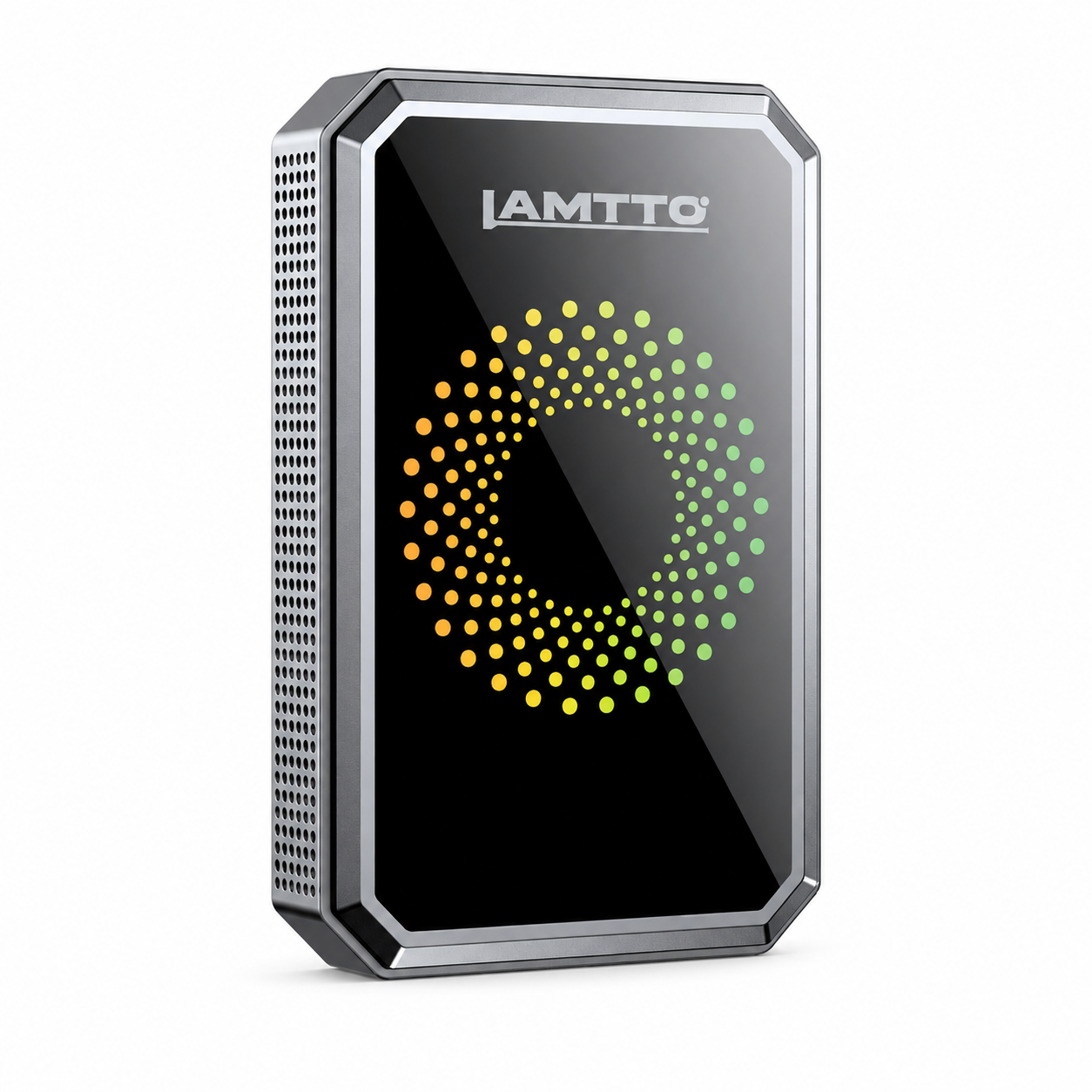



Installing the LAMTTO DC22 is much easier than most drivers expect.
Unlike traditional hardwire dash cams that require fuse taps and professional installation, the DC22 uses an OBD power connection, allowing most users to complete the setup in less than 10 minutes.
In this guide, you'll learn:
-
How to install DC22 using the OBD cable
-
How to activate the SIM card
-
How to connect the UBOX Pro App
-
How to enable Live View
-
Whether OBD parking mode can drain your battery
📌 Quick Navigation
-
How to Install DC22 with OBD
-
Insert and Activate the SIM Card
-
Connect the UBOX Pro App
-
Test Live View and GPS
-
Will OBD Parking Mode Drain My Battery?
-
Frequently Asked Questions
🚗 How to Install DC22 with OBD
The easiest way to power the DC22 is through the included OBD cable.
Step 1: Mount the Camera
Install the camera near the top center of the windshield, ideally behind the rearview mirror.
This location provides:
-
Maximum road coverage
-
Better GPS reception
-
Minimal driver distraction
Recommended Image #1
DC22 mounted behind the rearview mirror.
Step 2: Locate the OBD Port
Most vehicles built after 1996 include an OBD-II port.
The port is usually located:
-
Under the steering wheel
-
Near the driver's knee area
-
Behind a small dashboard cover
Recommended Image #2
OBD port location underneath dashboard.
Step 3: Connect the OBD Cable
Plug the included OBD cable into the vehicle's OBD-II port.
Then route the cable along:
-
Dashboard trim
-
A-pillar
-
Windshield edge
to keep the installation neat and hidden.
Once connected, the camera should automatically power on.
📶 Insert and Activate the SIM Card
DC22 uses a 4G LTE connection for:
-
Remote Live View
-
GPS Tracking
-
Real-Time Alerts
-
Cloud Access
Insert the SIM card into the camera according to the quick start guide.
You can use:
-
The included SIM card
-
Your own compatible 4G SIM card
depending on your carrier preference.
Recommended Image #3
Close-up of SIM card installation.
📱 Connect the UBOX Pro App
After powering on the camera:
Download UBOX Pro
Available on:
-
iPhone App Store
-
Google Play Store
Create an account and log in.
Add Your DC22
Open UBOX Pro.
Tap:
Add Device
Then:
-
Scan the QR code
-
Or manually enter the device ID
Once paired, the camera will appear in your dashboard.
Recommended Image #4
UBOX Pro device pairing screen.
🎥 Enable Live View
Live View allows you to check your vehicle remotely through the app.
After SIM activation:
-
Open UBOX Pro
-
Select your DC22
-
Tap Live View
Within a few seconds, you'll be able to view your vehicle from anywhere with an internet connection.
This is one of the biggest advantages of a 4G car security camera compared to a traditional dash cam.
Recommended Image #5
User viewing vehicle remotely through smartphone.
🔋 Will OBD Parking Mode Drain My Battery?
This is one of the most common questions from new users.
Short Answer:
No, under normal conditions.
DC22 includes battery protection logic designed to prevent excessive battery drain.
The camera monitors vehicle voltage and manages power consumption during parking surveillance.
Why Use OBD Power Instead of Hardwiring?
Benefits include:
✅ Easier installation
✅ No fuse box modifications
✅ Easier vehicle transfer
✅ Continuous parking monitoring
✅ Lower installation cost
For most drivers, OBD power offers the best balance between convenience and vehicle protection.
✅ Test Your Setup
Before finishing installation, confirm that:
-
Camera powers on
-
SIM card is connected
-
GPS location is updating
-
Live View works
-
Push notifications are enabled
Once these functions are working properly, your DC22 is ready for daily use.
❓ Frequently Asked Questions
Does DC22 require professional installation?
No. Most users can complete installation in 5–10 minutes using the included OBD cable.
Can I use my own SIM card?
Yes. DC22 supports compatible 4G LTE SIM cards.
What happens if I don't activate a data plan?
The camera can still record locally, but Live View, GPS updates, cloud access, and real-time alerts will not be available.
Can I move DC22 to another vehicle?
Yes. Simply unplug the OBD cable and reinstall the device in another compatible vehicle.
Does parking mode work when the engine is off?
Yes. OBD power allows DC22 to continue monitoring your vehicle while parked.
Final Thoughts
The LAMTTO DC22 was designed to make vehicle security simple.
With OBD installation, 4G connectivity, GPS tracking, Live View, and real-time alerts, most drivers can complete setup in just a few minutes and immediately begin monitoring their vehicle from anywhere.
Whether you park in an apartment complex, on city streets, or use your vehicle for rideshare work, DC22 provides an easy way to stay connected to your car even when you're not nearby.

Leave a comment
All comments are moderated before being published.
This site is protected by hCaptcha and the hCaptcha Privacy Policy and Terms of Service apply.