


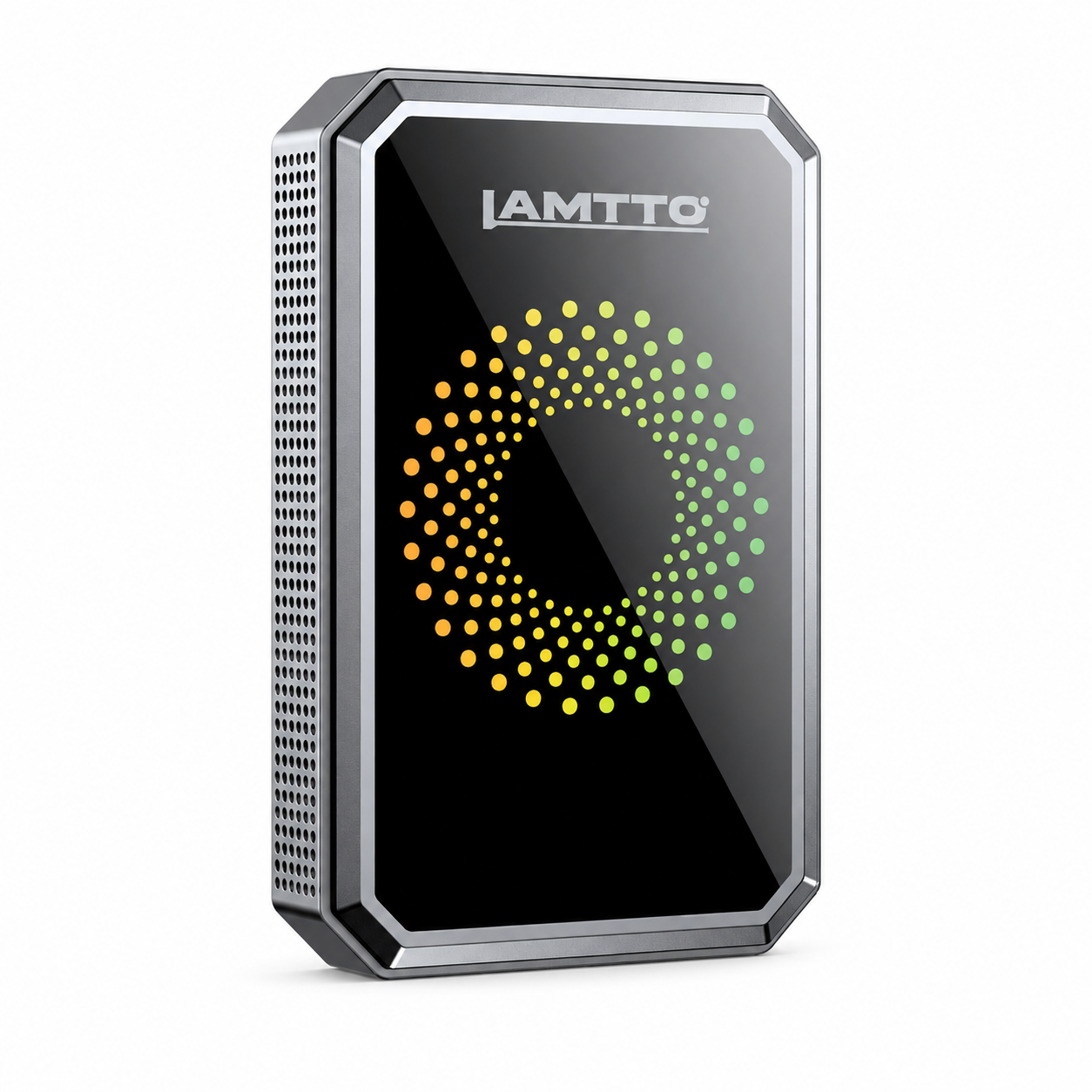


The LAMTTO RC Series CarPlay devices are more than just wireless CarPlay adapters — they are full-featured smart car systems with firmware updates, app support, screen mirroring, SD card recording, and more.
However, many users are unsure how to use these advanced features properly.
In this complete guide, we’ll walk you through everything you need to know about RC Series functionality — including updates, apps, mirroring, storage, and system settings.
1. How to Update Firmware (Step-by-Step)
Keeping your device updated ensures:
- Better performance
- Improved compatibility
- Fewer connection issues
For Android Users
- Connect to CarPlay
- Turn OFF Bluetooth & WiFi
- Turn WiFi back ON → connect to CarPlay WiFi (Carplay-XXXX)
- Password:
88888888 - Open Chrome → enter:
192.168.1.101 - Tap “Switch P2P” → “OK”
- Go to WiFi Direct → connect to device
- Open browser again → click Update
- Wait until finished → reconnect device
For iPhone Users
- Connect to device WiFi (
88888888) - Open Safari → enter:
192.168.1.101 - Tap Switch P2P
- Reconnect WiFi
- Tap Update
- Restart and reconnect
2. App Issues & Compatibility Fixes
Apps Like YouTube Won’t Update?
Solution:
- Go to Settings → Login Google Account
- Sign in
- Update apps via store
Why Can't I See Messages (SMS / WhatsApp)?
This is normal behavior.
- CarPlay blocks text display for safety
- Supports voice reading only
- WhatsApp → send only, no chat list
3. Screen Mirroring (AirPlay / Android Cast)
How to Mirror Screen
- Open Mirror App on device
- Turn on phone WiFi
- Start screen mirroring from phone
Common Mirroring Issues
| Problem | Solution |
|---|---|
| No sound | Use AUX or FM output |
| Bluetooth disconnects | Normal behavior |
| Screen turns off → disconnect | Keep phone screen ON |
4. Can't Download Apps?
👉 Fix:
- Add Google account
- Use built-in App Store
- If needed → install APK manually
5. SD Card Setup & Recording
Format SD Card
- Go to: Settings → Storage → Format
Common SD Issues
- Not detected → reinsert fully
- Error → format in device
- Still not working → format on PC (FAT32)
👉 Recommended:
- Class 10 or higher
- 64GB+ supported
6. Switch Phones / Reset Device
Switch to a New Phone
- Reset CarPlay device
- Delete Bluetooth records
- Restart phone
- Reconnect
Why Doesn't It Auto Connect?
- Only remembers last connected device
- Turn off old phone WiFi + Bluetooth first
7. Remove Mount / Stand (RC06)
Quick steps:
- Pull clip upward
- Remove screws
- Slide base out
👉 Tip: Follow video guide for easier removal
8. Customize Wallpaper / Boot Screen (RC23)
- Save image to TF card
- Go to Settings
- Select wallpaper
- Apply
9. Power On / Off
Some models (e.g. RC04):
👉 No power button
Solution:
- Unplug car charger to turn off
10. Time Settings
| Device Type | Setting |
|---|---|
| With DVR | Manual time setting |
| Without DVR | Auto sync with phone |
11. Enable Night Mode Only
👉 Path:
Settings → Night Mode → Enable
12. Turn Off Voice Prompts
Options:
- Lower volume in settings
- Delete voice file in file manager
13. View Recorded Videos
Open File Manager on device OR Remove SD card → view on PC
14. Split Screen (Multitasking)
Supported on: Some CarPlay / Android Auto apps
How to Enable
- Go to settings → split screen
- Or swipe for more options
👉 Tip: Use Vertical Screen Mode for better layout
15. RC14 Screen Casting Feature
If not working:
- Restart device
- Reconnect WiFi
- Turn OFF Bluetooth
- Try mirror again
16. Watch YouTube on RC Series
Steps:
- Install YouTube
- Enable Vertical Mode
- Adjust display scaling
17. Can RC Series Connect to Factory Car Screen?
❌ No
Currently:
- Works only with built-in screen
- Cannot output to OEM car display
Final Thoughts
The LAMTTO RC Series offers powerful features — but most issues come from:
- Incorrect setup
- Missing account login
- Network conflicts
Once properly configured, you’ll unlock:
✅ Full app ecosystem
✅ Smooth wireless experience
✅ Entertainment on every drive
💡 Pro Tip:
Always perform firmware updates and app installations while parked to ensure safety.


Leave a comment
All comments are moderated before being published.
This site is protected by hCaptcha and the hCaptcha Privacy Policy and Terms of Service apply.