


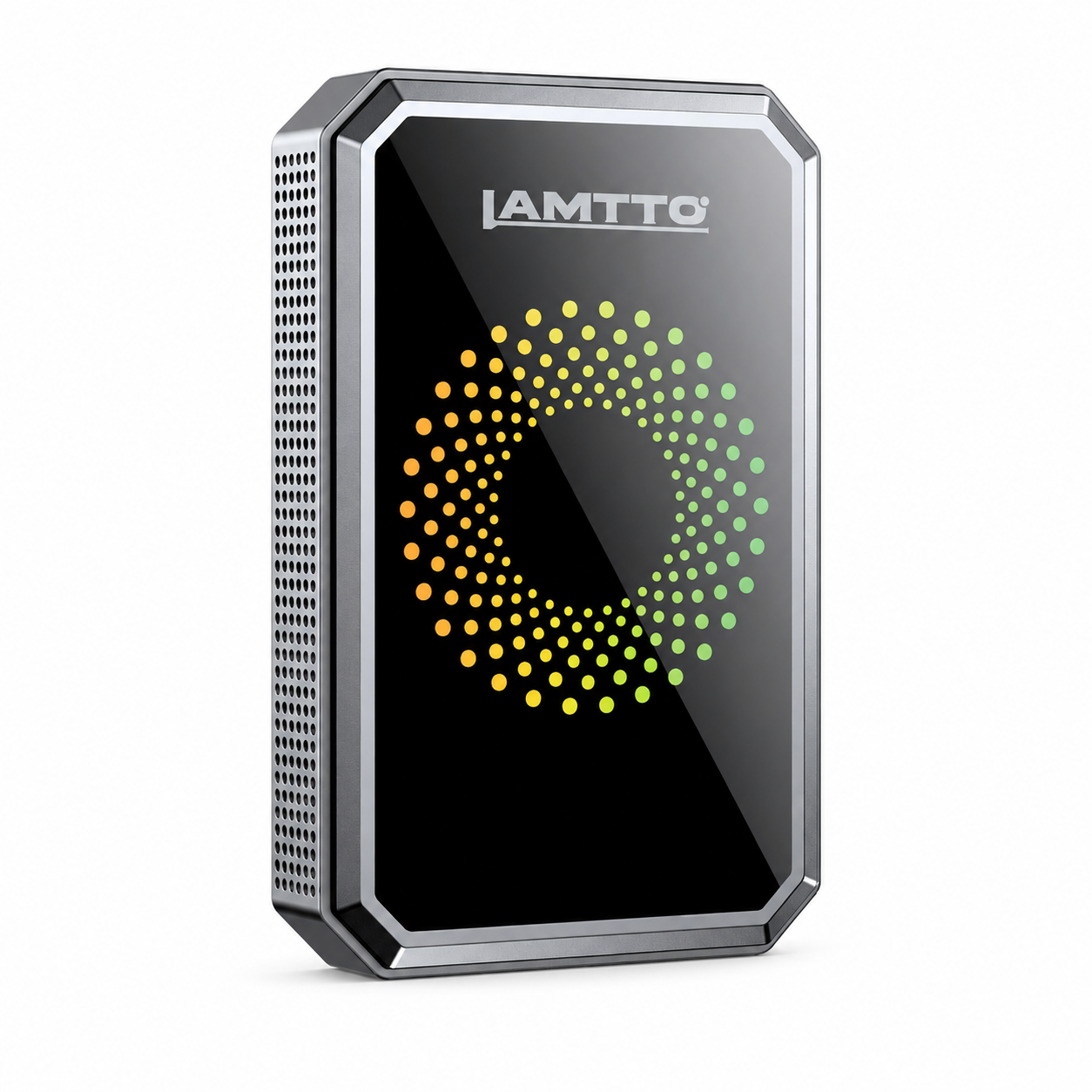


The display is the core interaction interface of LAMTTO RC series CarPlay screens.
Screen clarity, touch responsiveness, brightness, and night mode directly affect your driving experience.
However, some users may encounter issues such as:
- Touchscreen lag or freezing
- Screen flickering
- Poor visibility in sunlight
- Night mode not working
- Navigation lag
👉 The good news: Most screen issues are easy to fix.
This guide covers all common display problems and how to solve them step by step.
⚡ 1. Screen Lag / Slow Response / Freezing
Problem
The screen responds slowly, freezes, or lags during operation.
Solutions
- Close background apps on your phone
- Restart and reset the CarPlay device
- Remove SD card and rear camera (to rule out interference)
- Test with another phone
👉 Note:
Wireless CarPlay devices rely on your phone — some delay is normal.
✋ 2. Touchscreen Not Working
Problem
Touch input does not respond at all.
Solutions
- Perform a factory reset
- Disconnect and reconnect power
- If still unresponsive → possible hardware issue (replacement needed)
⚠️ 3. Screen Flickering / Jumping
Problem
Screen flashes, flickers, or shows abnormal lines.
Solutions
- Use the original car charger (important)
- Plug charger directly into cigarette lighter (no adapters)
- Reset the device
- If unresolved → hardware issue
🔄 4. Flickering After Connection
Problem
Screen becomes unstable after connecting.
Solutions
- Use original charger
- Disconnect rear camera (to test interference)
- Reset device
- Replace if issue persists
🌞 5. Glare / Reflection in Daylight
Problem
Screen is hard to see under sunlight.
Explanation
All screens (including phones) reflect light under strong sunlight.
Solutions
- Set brightness to maximum
- Adjust installation angle
- Use anti-glare screen protector
- Contact support (compensation may apply)
🌙 6. Auto Brightness / Night Mode Not Working
Problem
Day/night mode does not switch automatically.
Important Differences
With DVR models:
- Have built-in time settings
- Must ensure system time is correct
Without DVR models:
- No internal time system
Solutions
For DVR models:
- Check and adjust system time
- Reset device
- Charge device 4–5 hours
For non-DVR models:
- iPhone → supports auto night mode
- Android → no automatic night mode
👉 Limitation of Android system integration
🕶️ 7. Screen Not Visible with Polarized Sunglasses
Problem
Screen appears dark or invisible.
Why It Happens
Both LCD screens and polarized glasses use filters —
when aligned at 90°, light is blocked.
Solutions
- Tilt your head or screen
- Use non-polarized sunglasses
- Increase brightness
🗺️ 8. Navigation Lag / Map Delay
Problem
Maps load slowly or lag.
Solutions
- Check phone network signal
- Restart phone and CarPlay
- Clear app cache
- Switch map apps (Google Maps → Waze)
- Test with another phone
🔊 9. Navigation Volume Too Low
Problem
Navigation voice is quieter than music.
Solutions
- Test navigation volume without CarPlay
- Adjust volume while Siri is speaking
- Adjust music and navigation volume separately
- Check car audio settings
🌙 10. Night Mode vs Map Dark Mode
👉 These are two separate systems
- CarPlay night mode
- Map app dark mode
Important Notes
- Map apps control their own theme
- Android cannot sync time with CarPlay
- Manual switching may be required
💬 11. Messages / WhatsApp Not Showing
Problem
Cannot view messages on CarPlay.
Explanation
- Safety restrictions (no text display while driving)
- Privacy protection
👉 CarPlay supports:
- Voice reading
- Voice replies
🔅 12. Screen Too Dim / Cannot Adjust Brightness
Solutions
- Set brightness to maximum
- Disable auto brightness
- Reset device
- If still dim → hardware issue
📐 13. Android Auto Screen Stretched
Problem
Icons appear stretched or distorted.
Explanation
This is an Android Auto compatibility issue.
👉 Cannot be fixed via settings
🔊 14. How to Adjust Volume
Methods
- Steering wheel / dashboard controls
- CarPlay screen volume slider
- Phone volume buttons
👉 Tip:
- Adjust during Siri → navigation volume
- Adjust during music → media volume
⏳ 15. Map Keeps Loading
Solutions
- Check internet connection
- Update map app
- Switch apps (Google Maps → Waze)
- Reset device
🌙 16. Google Maps Night Mode Not Working
Solutions (DVR models)
- Check map app settings
- Verify system time
- Enable night mode
- Reset device
🚀 Final Thoughts
Most LAMTTO RC display issues are caused by:
- Power instability
- Phone performance
- System limitations
- Environmental conditions
👉 With the fixes above, you can solve most screen-related problems quickly.
💡 Pro Tips
- Always use the original charger
- Avoid direct sunlight exposure for long periods
- Keep your phone system updated
Need Help?
If the issue persists:
👉 Contact our support team for replacement or technical assistance

Leave a comment
All comments are moderated before being published.
This site is protected by hCaptcha and the hCaptcha Privacy Policy and Terms of Service apply.