




So finden Sie heraus, ob Ihr Auto kabelgebundenes oder kabelloses Apple CarPlay hat
Apple CarPlay macht es einfach, Navigation, Musik, Anrufe, Nachrichten und andere unterstützte iPhone-Apps direkt über den Infotainment-Bildschirm Ihres Autos zu nutzen. Doch bevor Sie einen CarPlay-Adapter oder Zubehör kaufen, müssen Sie eine wichtige Frage beantworten:
Hat Ihr Auto kabelgebundenes CarPlay oder kabelloses CarPlay?
Viele Fahrer wissen, dass ihr Fahrzeug Apple CarPlay unterstützt, sind sich aber nicht sicher, wie die Verbindung tatsächlich funktioniert. Glücklicherweise können Sie das in der Regel in nur wenigen Minuten herausfinden.
In diesem Leitfaden erklären wir den Unterschied zwischen kabelgebundenem und kabellosem CarPlay und zeigen Ihnen mehrere einfache Möglichkeiten, um festzustellen, welche Art Ihr Fahrzeug hat.
Was ist kabelgebundenes Apple CarPlay?
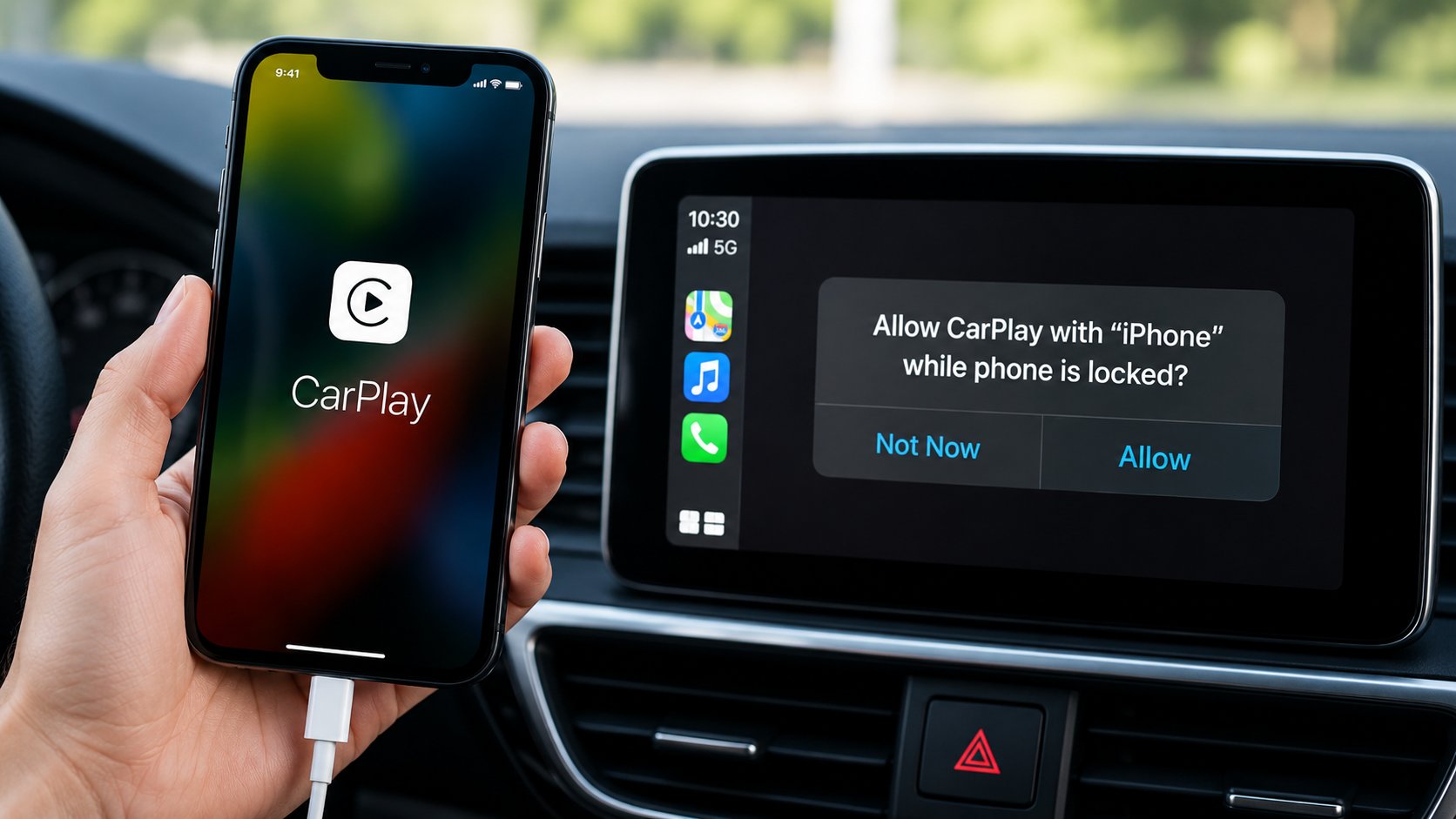
Kabelgebundenes CarPlay erfordert, dass Ihr iPhone physisch mit dem Fahrzeug verbunden ist, normalerweise über einen USB-A- oder USB-C-Anschluss.
In einer typischen kabelgebundenen CarPlay-Einrichtung:
- Starten Sie Ihr Fahrzeug.
- Verbinden Sie Ihr iPhone mit dem CarPlay-kompatiblen USB-Anschluss des Autos.
- Entsperren Sie Ihr iPhone, falls nötig.
- Wählen Sie Apple CarPlay auf dem Infotainment-Bildschirm aus.
-
CarPlay startet auf dem Display.
Wenn CarPlay nicht mehr funktioniert, wenn Sie Ihr iPhone ausstecken, verwendet Ihr Fahrzeug höchstwahrscheinlich kabelgebundenes CarPlay.
Häufige Anzeichen für kabelgebundenes CarPlay
- Ihr iPhone muss mit einem USB-Kabel verbunden sein.
- CarPlay startet, nachdem Sie Ihr Telefon an einen bestimmten USB-Anschluss angeschlossen haben.
- Das Trennen des Telefons unterbricht die CarPlay-Verbindung.
- Ihr Auto verfügt möglicherweise über einen USB-Anschluss, der mit einem Smartphone- oder CarPlay-bezogenen Symbol gekennzeichnet ist.
- Bluetooth allein startet CarPlay nicht.
Was ist kabelloses Apple CarPlay?
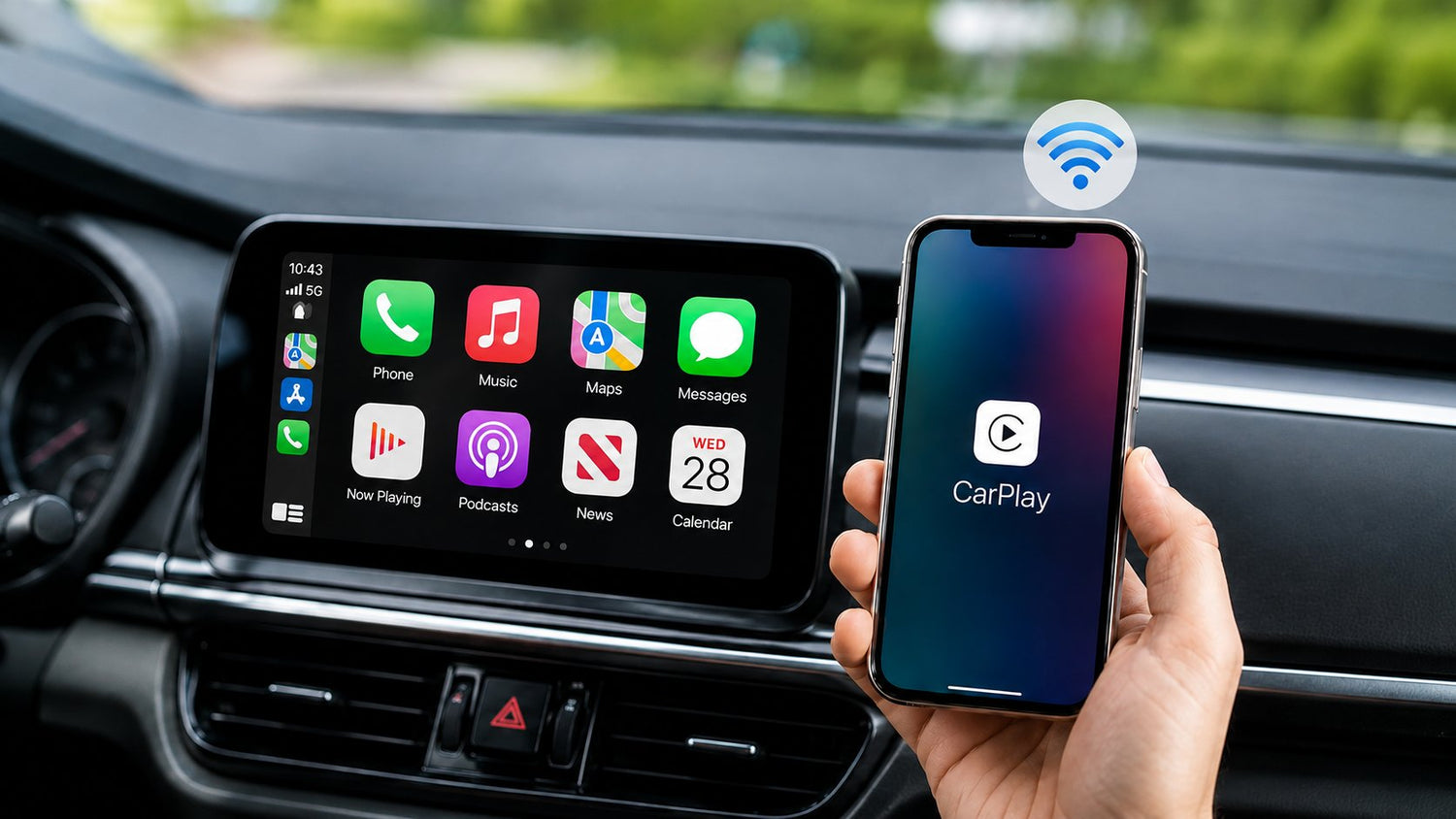
Kabelloses CarPlay ermöglicht es Ihrem iPhone, sich mit dem Fahrzeug zu verbinden, ohne es an einen USB-Anschluss angeschlossen zu lassen.
Anstatt sich für die CarPlay-Verbindung auf ein Kabel zu verlassen, verwenden kompatible Fahrzeuge typischerweise Bluetooth während des anfänglichen Verbindungsprozesses und Wi-Fi für die CarPlay-Sitzung.
Sobald Ihr Telefon gekoppelt wurde, kann CarPlay automatisch wieder eine Verbindung herstellen, wenn Sie das Fahrzeug starten.
Häufige Anzeichen für kabelloses CarPlay
- CarPlay funktioniert ohne USB-Kabel.
- Ihr iPhone verbindet sich automatisch, nachdem Sie das Fahrzeug gestartet haben.
- Ihr Fahrzeug bietet eine Option zum Koppeln eines Telefons für Apple CarPlay an.
- CarPlay funktioniert weiterhin, wenn Ihr Telefon nicht angeschlossen ist.
- Bluetooth und Wi-Fi sind auf Ihrem iPhone in der Regel aktiviert.

5 einfache Möglichkeiten, um zu überprüfen, ob Ihr Auto kabelgebundenes oder kabelloses CarPlay hat
Wenn Sie unsicher sind, welche Version Ihr Fahrzeug unterstützt, versuchen Sie die folgenden Methoden.
Methode 1: CarPlay ohne USB-Kabel ausprobieren
Dies ist normalerweise der einfachste Test.
Trennen Sie zuerst Ihr iPhone vom Fahrzeug.
Stellen Sie sicher, dass Bluetooth und Wi-Fi auf Ihrem iPhone aktiviert sind, starten Sie dann Ihr Auto und warten Sie, bis sich das Infotainment-System verbindet.
Wenn Apple CarPlay startet und funktioniert, ohne dass das Telefon per Kabel verbunden ist, unterstützt Ihr Fahrzeug kabelloses CarPlay.
Wenn CarPlay nur nach dem Anschließen Ihres iPhones an USB erscheint, haben Sie höchstwahrscheinlich kabelgebundenes CarPlay.
Methode 2: Verbinden Sie Ihr iPhone über USB
Wenn kabelloses CarPlay nicht automatisch startet, versuchen Sie, Ihr iPhone mit einem kompatiblen USB-Kabel zu verbinden.
Suchen Sie den Daten-fähigen USB-Anschluss des Fahrzeugs. Je nach Fahrzeug kann dies ein USB-A- oder USB-C-Anschluss sein.
Verbinden Sie Ihr iPhone und überprüfen Sie den Infotainment-Bildschirm.
Wenn CarPlay nach der USB-Verbindung startet und sich trennt, wenn Sie das Kabel entfernen, ist das ein starkes Indiz dafür, dass Ihr Fahrzeug kabelgebundenes CarPlay verwendet.
Tipp: Nicht jeder USB-Anschluss in einem Fahrzeug unterstützt CarPlay. Einige Anschlüsse sind nur zum Laden gedacht, versuchen Sie also den USB-Anschluss, der in Ihrem Handbuch für die Smartphone-Konnektivität angegeben ist.

Methode 3: Überprüfen Sie die Infotainment-Einstellungen Ihres Autos
Viele neuere Fahrzeuge zeigen ihre CarPlay-Verbindungsoptionen direkt im Infotainment-System an.
Je nach Hersteller suchen Sie unter Menüs wie:
Einstellungen → Verbindungen → Smartphone → Apple CarPlay
oder:
Einstellungen → Telefon → Geräte-Manager → Apple CarPlay
Wenn das System Ihnen die Möglichkeit bietet, Ihr iPhone mit Apple CarPlay zu verbinden oder zu koppeln, ohne es anzuschließen, unterstützt Ihr Fahrzeug möglicherweise kabelloses CarPlay.
Die Menünamen variieren je nach Fahrzeughersteller und Infotainment-System.
Methode 4: Überprüfen Sie das Handbuch Ihres Fahrzeugs
Ihr Benutzerhandbuch ist eine der zuverlässigsten Quellen, um genau zu bestimmen, wie Apple CarPlay in Ihrem Fahrzeug funktioniert.
Suchen Sie im Handbuch nach:
- Apple CarPlay
- Smartphone-Integration
- Telefon-Projektion
- USB-Verbindung
- Kabelloses CarPlay
- Kabellose Smartphone-Projektion
Das Handbuch sollte erklären, ob CarPlay eine USB-Verbindung benötigt oder kabellos betrieben werden kann.
Stellen Sie sicher, dass Sie die Informationen für Ihr genaues Modelljahr und Infotainment-System überprüfen, da die CarPlay-Fähigkeiten zwischen den Ausstattungsvarianten variieren können.

Methode 5: Überprüfen Sie Ihr genaues Fahrzeugmodell, Baujahr und Ausstattungsvariante
Die Kenntnis, dass ein bestimmtes Modell „CarPlay unterstützt“, ist nicht immer ausreichend.
Zum Beispiel kann dasselbe Fahrzeugmodell haben:
- Kabelgebundenes CarPlay in einem früheren Modelljahr
- Kabelloses CarPlay in einem neueren Modelljahr
- Unterschiedliche CarPlay-Funktionen je nach Ausstattungsvariante
- Unterschiedliche Infotainment-Systeme je nach Ausstattungspaket
Halten Sie daher beim Online-Prüfen der Kompatibilität oder beim Kontaktieren des Herstellers oder Händlers die folgenden Informationen bereit:
Jahr + Marke + Modell + Ausstattung
Zum Beispiel:
2023 Toyota Camry XSE
Dies ist viel nützlicher, als einfach zu überprüfen, ob „Toyota Camry CarPlay unterstützt“.
Schnelltest für kabelgebundenes vs. kabelloses CarPlay
| Test | Kabelgebundenes CarPlay | Kabelloses CarPlay |
|---|---|---|
| Benötigt USB-Kabel | Ja | Nein |
| Funktioniert nach dem Ausstecken des iPhones | Nein | Ja |
| Kann sich nach dem Start automatisch verbinden | Meistens Nein | Ja |
| Verwendet Wi-Fi für die CarPlay-Verbindung | Nein | Ja |
| CarPlay startet nach USB-Verbindung | Ja | Kann auch USB unterstützen |
| Telefon kann in der Tasche bleiben | Nein | Ja |
Die einfachste Regel
Wenn Sie sich nur an eine Sache erinnern, dann an diese:
Wenn CarPlay nur funktioniert, während Ihr iPhone über USB mit dem Fahrzeug verbunden ist, haben Sie kabelgebundenes CarPlay.
Wenn CarPlay funktioniert, während Ihr iPhone vollständig ausgesteckt ist, unterstützt Ihr Fahrzeug kabelloses CarPlay.

Was, wenn mein Auto sowohl kabelgebundenes als auch kabelloses CarPlay unterstützt?
Einige neuere Fahrzeuge unterstützen sowohl kabelgebundenes als auch kabelloses Apple CarPlay.
In diesem Fall können Sie Ihr iPhone möglicherweise kabellos für den täglichen Gebrauch verbinden, haben aber immer noch die Möglichkeit, eine kabelgebundene Verbindung zu verwenden.
Deshalb bedeutet das bloße Vorhandensein eines USB-Anschlusses nicht automatisch, dass Ihr Fahrzeug nur kabelgebundenes CarPlay hat.
Der beste Test ist, das Kabel vollständig zu trennen und zu sehen, ob CarPlay sich immer noch verbinden kann.
Verwechseln Sie Bluetooth nicht mit kabellosem CarPlay
Dies ist eine der häufigsten Quellen für Verwirrung.
Dass Ihr Auto Bluetooth hat, bedeutet nicht unbedingt, dass es kabelloses CarPlay hat.
Viele Fahrzeuge ermöglichen es Fahrern, Anrufe zu tätigen und Musik über Bluetooth abzuspielen, benötigen aber immer noch ein USB-Kabel, um Apple CarPlay zu starten.
Wenn Spotify zum Beispiel über Bluetooth abgespielt werden kann, aber die vollständige CarPlay-Oberfläche erst erscheint, nachdem Sie Ihr iPhone angeschlossen haben, verwendet Ihr Fahrzeug immer noch kabelgebundenes CarPlay.
Kabelloses CarPlay ist eine separate Funktion.
Warum ist es wichtig, ob Ihr Auto kabelgebundenes oder kabelloses CarPlay hat?
Die Kenntnis des Verbindungstyps Ihres Fahrzeugs für CarPlay wird besonders wichtig, wenn Sie einen kabellosen CarPlay-Adapter, eine CarPlay AI-Box oder anderes Infotainment-Zubehör kaufen.
Viele Adapter sind speziell dafür konzipiert, eine bestehende werksseitige kabelgebundene CarPlay-Verbindung in ein kabelloses Erlebnis umzuwandeln.
Das bedeutet, die Kompatibilität wird nicht nur durch Marke und Modell Ihres Autos bestimmt. Sie müssen auch verstehen, welche Art von CarPlay-System bereits installiert ist.
Vor dem Kauf eines Adapters prüfen Sie:
- Ob Ihr Fahrzeug werkseitiges Apple CarPlay hat
- Ob CarPlay kabelgebunden oder kabellos ist
- Ob der Infotainment-Bildschirm die vom Adapter benötigten Funktionen unterstützt
- Welcher USB-Anschluss für CarPlay verwendet wird
- Alle fahrzeugspezifischen Kompatibilitätseinschränkungen
Diese Details kurz zu überprüfen, kann spätere Kompatibilitätsprobleme verhindern.
Was, wenn mein Auto überhaupt kein Apple CarPlay hat?
Wenn Ihr Fahrzeug kein werksseitiges CarPlay hat, kann ein Standard-Wireless-CarPlay-Adapter CarPlay in der Regel nicht von Grund auf hinzufügen.
Diese Adapter funktionieren typischerweise, indem sie ein vorhandenes kompatibles CarPlay-System von kabelgebunden auf kabellos umwandeln.
Wenn Ihr Fahrzeug kein integriertes CarPlay hat, ist eine weitere Option ein tragbares CarPlay-Display, das einen dedizierten CarPlay-Bildschirm hinzufügen kann, ohne die werkseitige Haupteinheit zu ersetzen.
Dies kann besonders nützlich für ältere Fahrzeuge sein.

Vor dem Kauf eines CarPlay-Adapters: Ein 60-Sekunden-Kompatibilitätscheck
Bevor Sie einen CarPlay-Adapter bestellen, führen Sie diesen schnellen Test durch:
Schritt 1: Starten Sie Ihr Fahrzeug.
Schritt 2: Verbinden Sie Ihr iPhone mit dem CarPlay-USB-Anschluss des Fahrzeugs.
Schritt 3: Bestätigen Sie, dass Apple CarPlay auf dem originalen Infotainment-Bildschirm erscheint.
Schritt 4: Trennen Sie das USB-Kabel.
Schritt 5: Prüfen Sie, ob CarPlay verfügbar bleibt oder sich kabellos wieder verbindet.
Wenn CarPlay jedes Mal die USB-Verbindung benötigt, verfügt Ihr Fahrzeug über werksseitiges kabelgebundenes CarPlay.
Wenn CarPlay ohne Kabel funktioniert, unterstützt Ihr Fahrzeug kabelloses CarPlay.
Wenn CarPlay so oder so nicht funktioniert, konsultieren Sie vor dem Kauf eines Adapters Ihr Fahrzeughandbuch.
Fazit
Sie müssen kein Autoexperte sein, um festzustellen, ob Ihr Fahrzeug kabelgebundenes oder kabelloses Apple CarPlay hat.
Für die meisten Fahrer ist der schnellste Weg einfach zu fragen:
Funktioniert CarPlay, wenn mein iPhone komplett ausgesteckt ist?
Wenn die Antwort nein ist, haben Sie höchstwahrscheinlich kabelgebundenes CarPlay.
Wenn die Antwort ja ist, unterstützt Ihr Fahrzeug kabelloses CarPlay.
Sobald Sie Ihren Verbindungstyp kennen, ist es viel einfacher, das richtige CarPlay-Zubehör für Ihr Fahrzeug auszuwählen und Kompatibilitätsprobleme zu vermeiden.
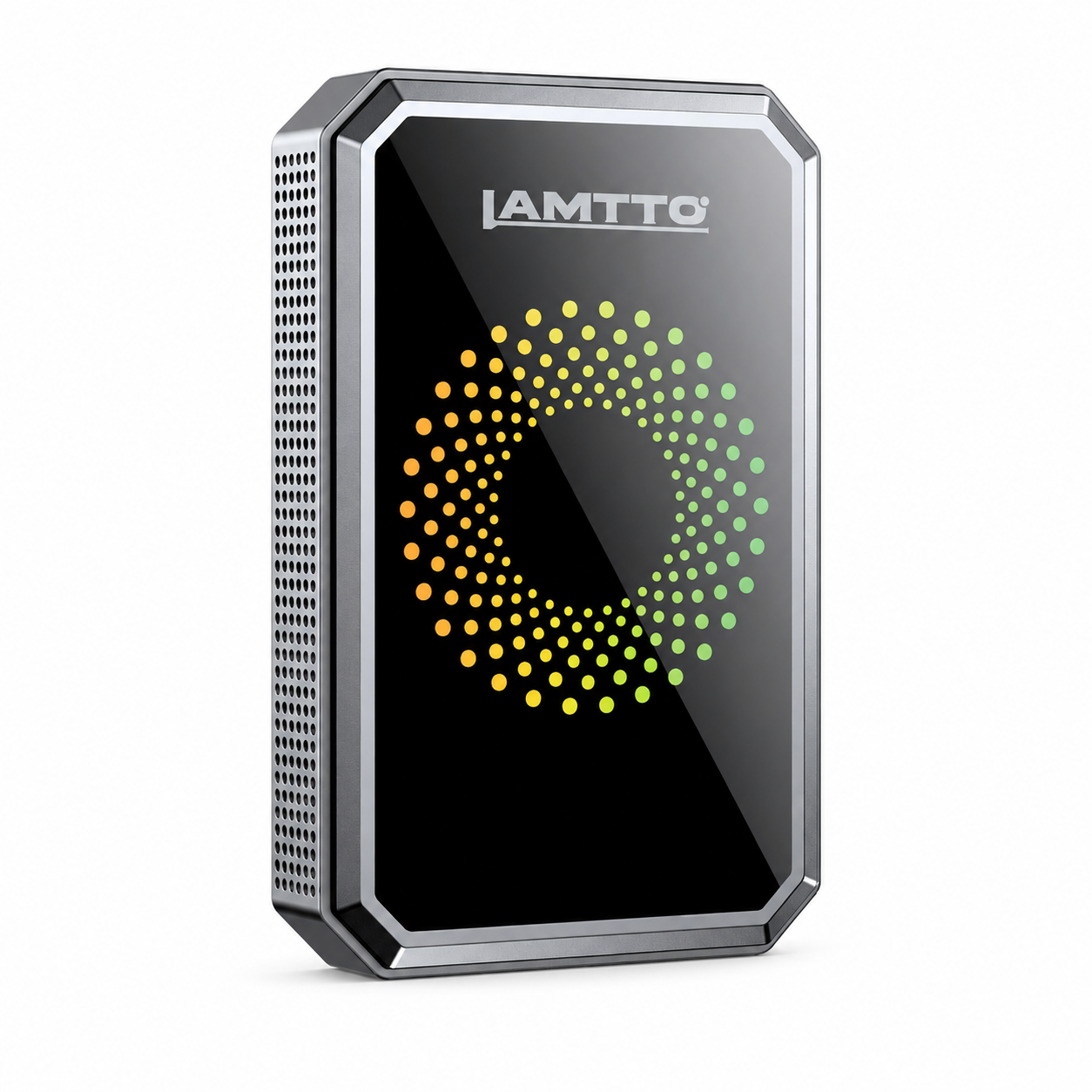
Wenn Ihr Fahrzeug über werksseitiges kabelgebundenes CarPlay verfügt und Sie das Kabel eliminieren möchten, können Sie LAMTTO CarPlay-Adapter erkunden, die entwickelt wurden, um die tägliche Konnektivität im Auto bequemer zu gestalten.


Hinterlasse einen Kommentar
Alle Kommentare werden vor der Veröffentlichung geprüft.
Diese Website ist durch hCaptcha geschützt und es gelten die allgemeinen Geschäftsbedingungen und Datenschutzbestimmungen von hCaptcha.