




Apple CarPlay est devenu l'une des fonctionnalités les plus utiles des véhicules modernes, offrant aux conducteurs un moyen plus facile d'accéder à la navigation, à la musique, aux appels, aux messages et à d'autres applications iPhone compatibles depuis l'écran de la voiture.
Mais si vous avez récemment acheté une voiture d'occasion — ou si vous n'avez tout simplement jamais prêté beaucoup d'attention à votre système d'infodivertissement — vous vous demandez peut-être :
Ma voiture prend-elle réellement en charge Apple CarPlay ?
Voici quelques moyens simples de le savoir.
Qu'est-ce qu'Apple CarPlay ?
Apple CarPlay connecte votre iPhone au système d'infodivertissement de votre véhicule et affiche une interface simplifiée, adaptée à la conduite, sur l'écran de la voiture.
Selon votre véhicule, CarPlay peut fonctionner via :
- CarPlay filaire — connectez votre iPhone à l'aide d'un câble USB.
- CarPlay sans fil — connectez-vous via Bluetooth et Wi-Fi sans brancher votre téléphone.
Certains véhicules ne prennent en charge que le CarPlay filaire, tandis que les modèles plus récents peuvent prendre en charge les deux.

1. Cherchez l'icône CarPlay
Démarrez votre véhicule et vérifiez le système d'infodivertissement.
Recherchez dans le menu principal, les applications, la connectivité ou les paramètres du smartphone une option intitulée :
Apple CarPlay, CarPlay, Intégration Smartphone ou Projection Téléphone.
Si Apple CarPlay apparaît dans le menu, votre véhicule le prend très probablement en charge.
2. Connectez votre iPhone avec un câble USB
C'est l'un des moyens les plus simples de vérifier.
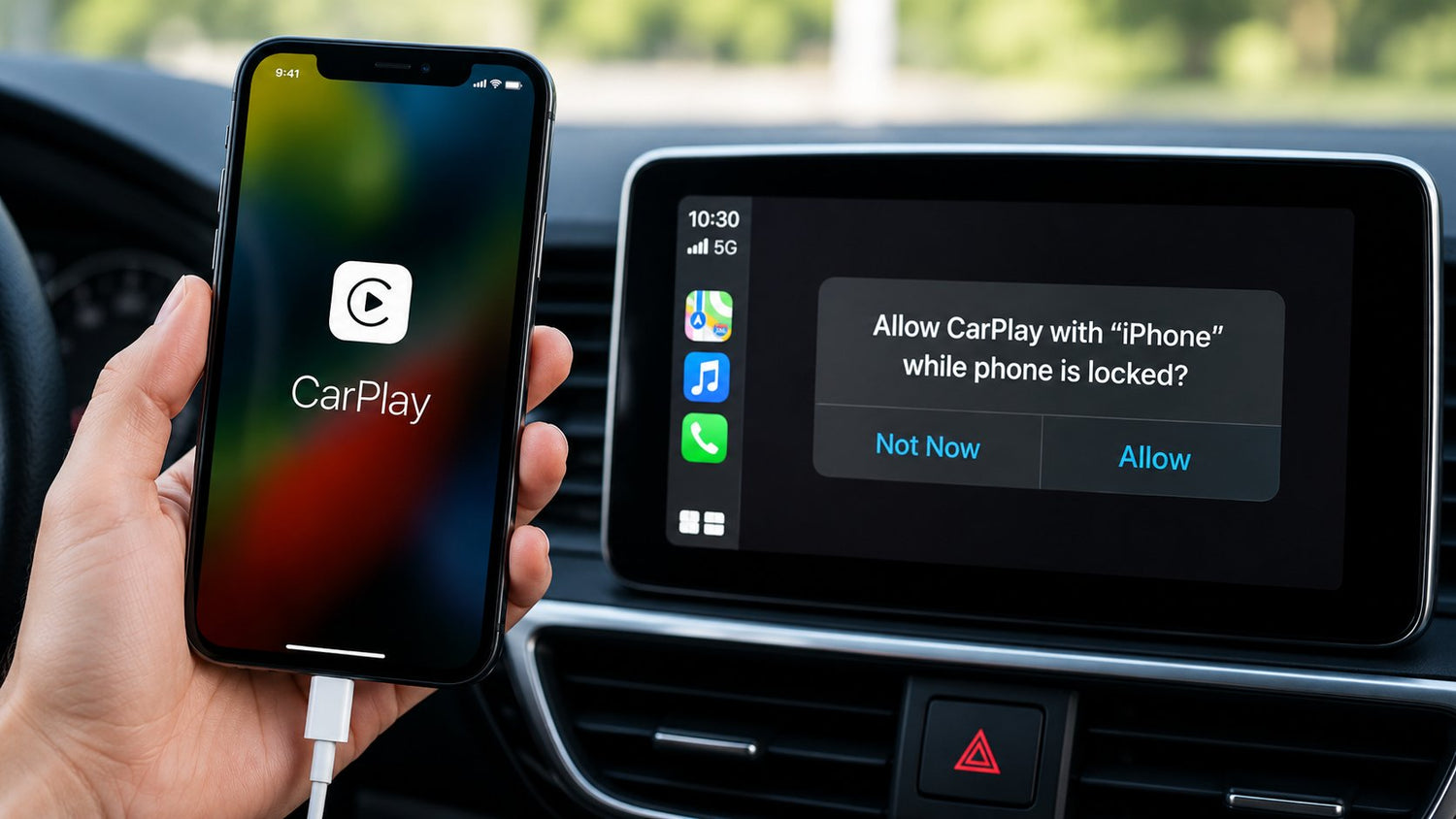
Déverrouillez votre iPhone et connectez-le au port USB du véhicule à l'aide d'un câble compatible.
Si votre voiture prend en charge le CarPlay filaire, un message peut apparaître vous demandant si vous souhaitez activer Apple CarPlay. Acceptez la requête, et l'interface CarPlay devrait apparaître sur l'écran du véhicule.
Tous les ports USB d'un véhicule ne prennent pas en charge CarPlay.
Certains ports sont conçus uniquement pour le chargement. Recherchez un port USB marqué d'un symbole de téléphone, de smartphone, de CarPlay ou de données.
Si rien ne se passe, essayez un autre port USB avant de supposer que votre véhicule ne prend pas en charge CarPlay.
3. Vérifiez le CarPlay sans fil
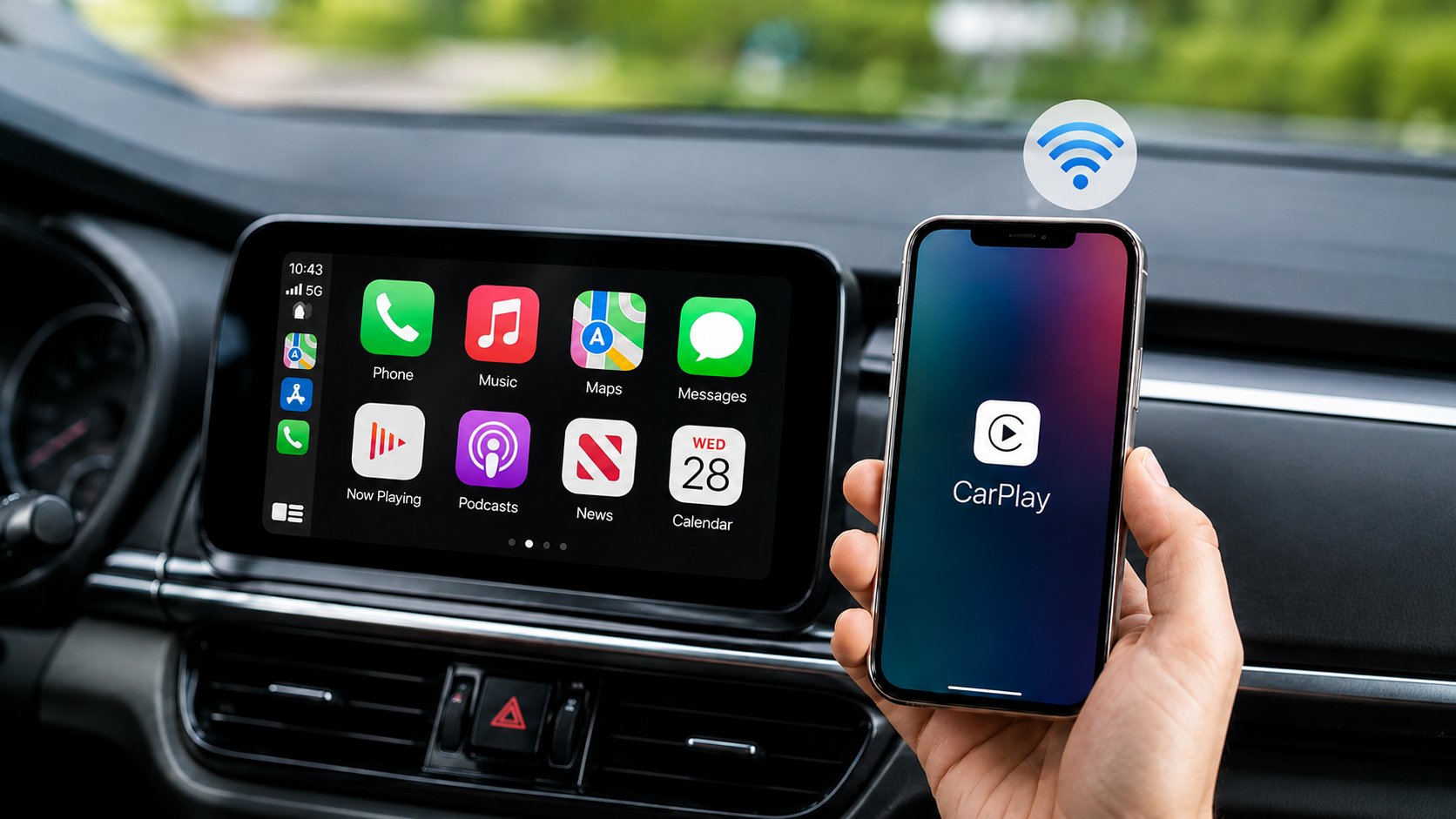
Si votre véhicule prend en charge le CarPlay sans fil, vous pourrez peut-être vous connecter sans câble USB.
Sur votre iPhone, allez dans :
Réglages → Général → CarPlay
Vous pouvez également vérifier le menu de connexion Bluetooth ou smartphone de votre véhicule et suivre les instructions de jumelage.
Si le véhicule apparaît comme une connexion CarPlay disponible, il peut prendre en charge le CarPlay sans fil.
4. Vérifiez votre manuel du propriétaire
Le manuel du propriétaire de votre véhicule est une autre source fiable.
Recherchez dans le manuel numérique ou imprimé des termes tels que :
Apple CarPlay, CarPlay, intégration smartphone ou projection de téléphone.
Gardez à l'esprit que la disponibilité de CarPlay peut parfois dépendre du niveau de finition du véhicule ou du système d'infodivertissement plutôt que simplement de l'année modèle.
5. Recherchez par année, marque et modèle
Vous pouvez également consulter les informations officielles de compatibilité CarPlay d'Apple ou le site web du fabricant de votre véhicule.
Vous aurez généralement besoin de trois informations :
Année + Marque + Modèle
Par exemple :
Toyota Camry 2020
Cependant, trouver votre modèle sur une liste de compatibilité ne garantit pas toujours que votre véhicule spécifique dispose de CarPlay. Différentes finitions, régions et options d'infodivertissement d'usine peuvent varier.

CarPlay filaire vs sans fil : pourquoi est-ce important ?
Savoir que votre voiture prend en charge CarPlay n'est que la première étape.
Vous devriez également déterminer quel type de CarPlay votre véhicule possède.
| Votre configuration actuelle | Ce que cela signifie |
|---|---|
| Branchez votre iPhone et CarPlay démarre | CarPlay filaire |
| CarPlay démarre sans connecter de câble | CarPlay sans fil |
| Les deux méthodes fonctionnent | CarPlay filaire + sans fil |
| CarPlay n'apparaît jamais | CarPlay peut ne pas être pris en charge |
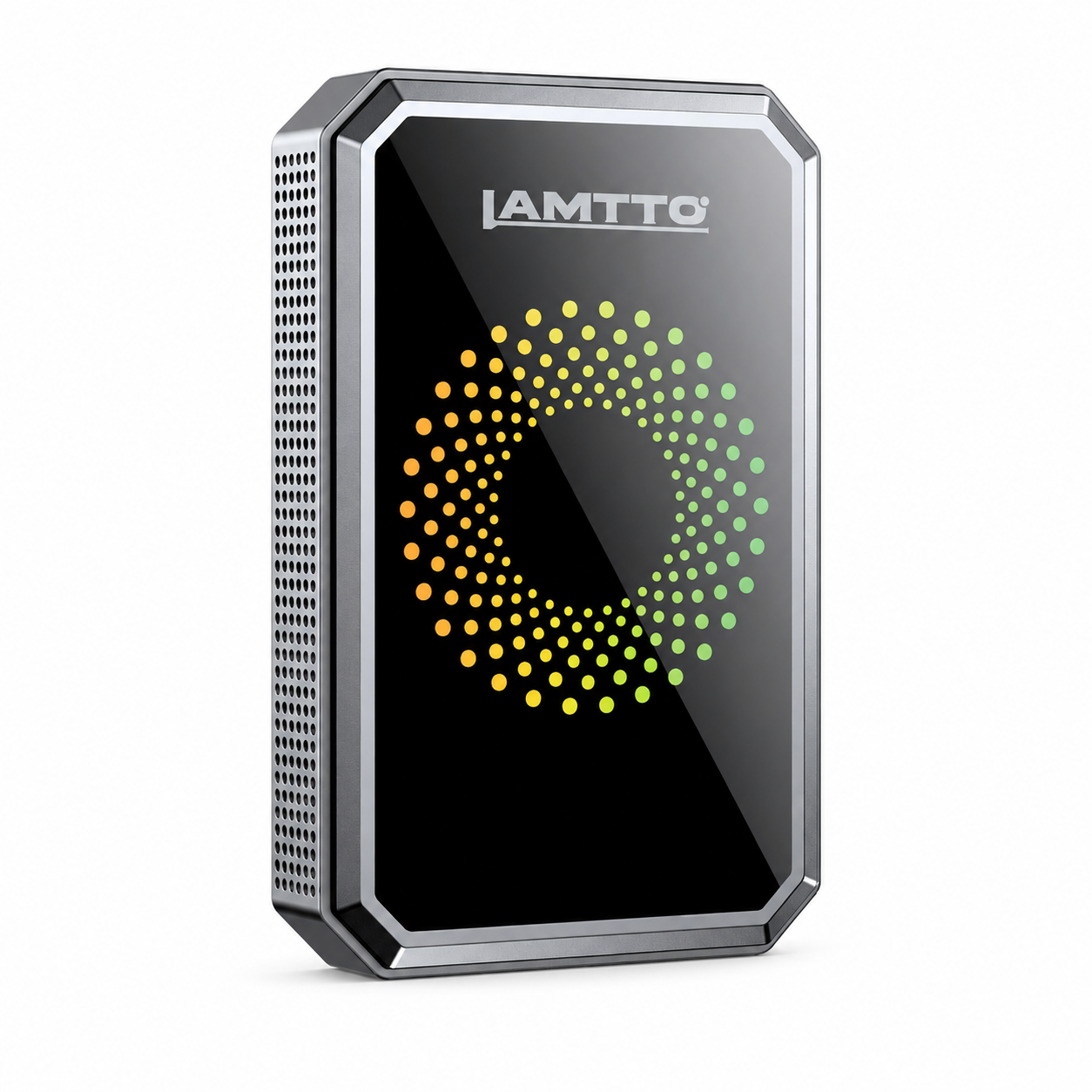
Ceci devient particulièrement important lors du choix d'un adaptateur CarPlay ou d'une box AI, car les différents produits ont des exigences de compatibilité différentes.
Que faire si ma voiture dispose de CarPlay filaire ?
Si votre véhicule dispose déjà d'un CarPlay filaire d'usine, vous n'aurez peut-être pas besoin de remplacer l'autoradio juste pour ajouter plus de fonctionnalités.
Selon votre véhicule et l'appareil que vous choisissez, un adaptateur peut potentiellement convertir le système existant en CarPlay sans fil, tandis que les boîtiers IA CarPlay plus avancés peuvent ajouter des fonctionnalités intelligentes supplémentaires.
La clé est de vérifier la compatibilité avant d'acheter plutôt que de supposer que chaque accessoire CarPlay fonctionne avec chaque véhicule.

Que faire si ma voiture n'a pas de CarPlay ?
Une solution traditionnelle consiste à remplacer l'autoradio d'usine par une unité principale CarPlay de rechange. Cependant, cela peut impliquer des travaux d'installation et peut ne pas convenir à tous les véhicules.
Une autre option est un écran CarPlay portable. Ces appareils ajoutent un écran tactile séparé au tableau de bord, permettant aux véhicules plus anciens de bénéficier d'une navigation moderne, d'appels, de musique et d'une connectivité smartphone sans remplacer l'autoradio d'origine.
Liste de contrôle rapide de la compatibilité CarPlay
Avant d'acheter un accessoire CarPlay, répondez à ces quatre questions :
- Quelle est l'année, la marque et le modèle de mon véhicule ?
- Mon écran d'usine prend-il déjà en charge Apple CarPlay ?
- Le CarPlay existant est-il filaire, sans fil ou les deux ?
- Mon écran d'infodivertissement prend-il en charge le contrôle tactile ?
Avec ces réponses, il devient beaucoup plus facile de choisir la bonne mise à niveau CarPlay – et d'éviter d'acheter un appareil incompatible avec votre véhicule.
Dernières réflexions
Commencez par vérifier le menu de votre système d'infodivertissement, connectez votre iPhone via le port de données USB du véhicule, testez le jumelage sans fil et vérifiez les spécifications de votre véhicule exact.
Plus important encore, ne vous arrêtez pas à « Ma voiture a CarPlay. »
Découvrez si elle a CarPlay filaire ou sans fil, car cette distinction peut déterminer quels adaptateurs, boîtiers IA et autres mises à niveau CarPlay fonctionneront réellement avec votre véhicule.


Laisser un commentaire
Tous les commentaires sont modérés avant d'être publiés.
Ce site est protégé par hCaptcha, et la Politique de confidentialité et les Conditions de service de hCaptcha s’appliquent.