


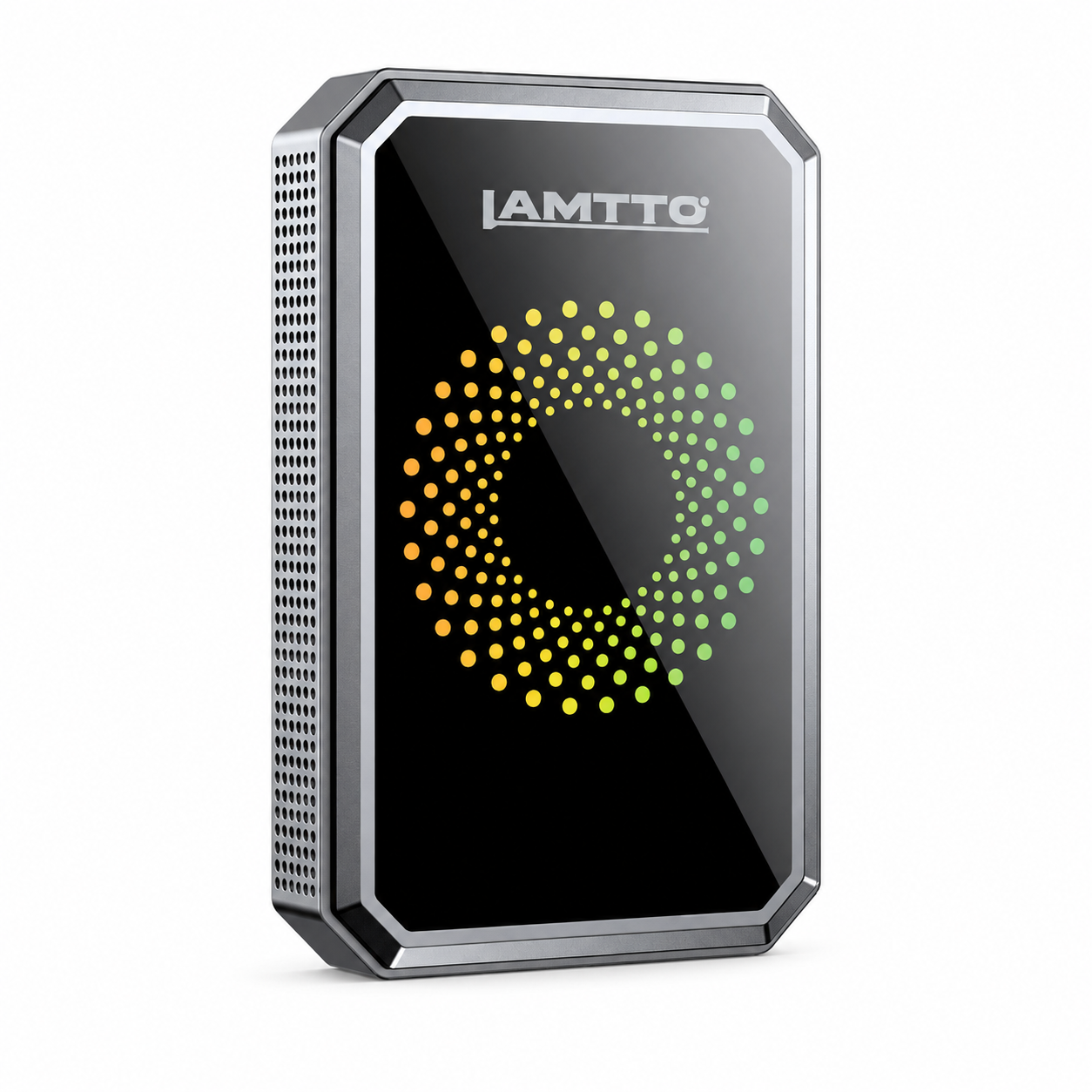


What happens to your dash cam after you turn off the engine? Will it keep recording while your car is parked? And how can you check your vehicle when you’re away?
The LAMTTO DC22A, an upgraded version of the DC22, combines driving recording with parking monitoring and remote access through the UBoxPro app. Understanding how its power, recording modes, SIM card, and storage work can help you get the most out of your camera.
In this guide, we’ll walk through the DC22A’s everyday operation, from recording on the road to checking an alert after you park.
Quick Answer: How Does the DC22A Monitor Your Car?
The LAMTTO DC22A records the road ahead and the vehicle cabin while you drive.
After you turn off the engine, the camera can continue monitoring your parked vehicle when it receives power through a compatible OBD-II connection.
Depending on the situation and your setup, the DC22A can help you:
- Record driving footage to a compatible microSD card.
- Monitor activity around your parked vehicle.
- Receive supported event alerts through UBoxPro.
- Check available camera views remotely using 4G.
- View your vehicle’s location when GPS reception is available.
- Store eligible event videos in the cloud with an active cloud service.
Important: Parking monitoring requires power after the engine is off. Remote features also require an active 4G connection.
1. What Does the DC22A Record While You Drive?
The DC22A has two camera views designed to cover the road and the interior of your vehicle.
- Front camera: Records the road ahead through the windshield.
- Cabin camera: Records the vehicle interior.
Driving recordings can be saved locally to a compatible microSD card. Loop recording allows the camera to replace older, unlocked files as storage fills up.
If the G-sensor detects a qualifying impact, the camera can lock the associated recording. You can also use the lock button to protect an important clip when it’s safe to do so.
Does the DC22A Include a Memory Card?
Package contents can vary by version and purchase channel.
The version described in this guide does not include a microSD card, so you’ll need to insert a compatible card to save local driving and parking footage.
Before using the card, check the instructions for your specific DC22A package. Back up any existing files before formatting it.
Tip: After installation, make a short test recording and play it back to confirm that the card is working.
2. What Happens When You Turn Off the Engine?
Once you park and turn off the engine, the DC22A continues normal recording for approximately five minutes, provided that it still has power.
After that transition, it enters AOV parking recording mode.
AOV uses a lower recording frame rate while the vehicle is parked. When you play back this footage, movement may appear less smooth than it does in normal driving video.
The five-minute transition is normal recording. It does not automatically create an event alert or a cloud event upload.
How to Check Parking Power
- Connect the OBD-II power cable securely.
- Start the vehicle and confirm that the camera powers on.
- Turn off the engine.
- Check whether the camera remains powered after the vehicle is parked.
- Review a sample recording to confirm that parking mode is working.
If the camera turns off after you park, check the OBD connection, the cable switch, and your vehicle’s power behavior.
3. How Does AOV Parking Monitoring Work?
AOV parking mode helps the camera monitor the vehicle while using a lower frame rate during periods without a detected event.
When you review AOV footage, you may notice that the video skips forward or looks like a time-lapse. This is expected behavior for low-frame-rate parking recording.
When the camera detects a supported event, it can create an event recording. Available clips depend on the camera’s power, detection settings, storage, and connection.
What Happens If I Turn On Camera Wi-Fi While Parked?
When Camera Wi-Fi is turned on while the vehicle is parked, the camera temporarily switches to normal recording. It returns to AOV after Camera Wi-Fi turns off.
This is useful when you’re near the vehicle and want to check the camera or access available local files.

4. What Can Trigger a Parking Alert?
The DC22A uses detection features to help identify activity or impacts while the vehicle is parked.
Depending on your settings and the conditions around the vehicle, an event may be triggered by:
- Radar detection when activity is detected within the sensor’s coverage area.
- G-sensor detection when the vehicle experiences an impact or vibration.
For example, someone approaching the vehicle may trigger an alert. A bump in a parking lot may also trigger an event, depending on the impact and sensitivity settings.
Detection results can vary with the camera’s installation position, the vehicle, nearby objects, and the surrounding environment.
Can the Radar Record Video Behind the Car?
Radar detects activity. The video itself comes from the camera lenses.
The DC22A records through its front-facing and cabin-facing cameras. If activity is detected behind the vehicle, the event clip will show only what those lenses can see.
For example, the cabin camera may capture part of the view through the rear window, depending on the vehicle and camera position.
Tip: Preview both camera views after installation so you know which areas are visible.

5. How Does 4G Remote Access Work?
The DC22A connects to the UBoxPro app using an active 4G data connection.
When the camera is powered, online, and bound to your account, you can use supported remote features such as:
- Live view.
- Event notifications.
- GPS location.
- Two-way audio.
- Access to eligible cloud event videos.
Remote performance depends on the camera’s 4G signal. A weak signal in an underground garage or remote area may delay alerts or make live view difficult to load.
GPS location also requires satellite reception.
Can I Use My Own SIM Card?
Yes. You can insert an activated, compatible SIM card with an available 4G data plan.
For U.S. use, check compatibility with Verizon, AT&T, or T-Mobile before activation. Carrier and plan requirements can vary.
For the version described in this guide, a compatible physical SIM is used first when inserted.
When Does the 7-Day Free 4G Trial Begin?
For the version that includes a 7-day trial, the trial begins after the camera is successfully bound in UBoxPro with working 4G coverage.
Turning on the camera alone does not start the trial.
After the trial, an active data plan is required to continue using the included 4G service for remote features. Check the current plan terms and pricing in UBoxPro.
6. What Is the Difference Between 4G Data and Cloud Storage?
The DC22A uses 4G data and cloud storage for different parts of the remote experience.
| Service | What it does | What you need |
|---|---|---|
| 4G data | Connects the camera for remote live view, alerts, GPS, and supported online functions | An active compatible data plan and cellular coverage |
| Cloud storage | Stores eligible event clips online for cloud playback | Working 4G and an eligible cloud service |
| microSD storage | Saves supported local recordings on the camera | A compatible microSD card |
Cloud storage is a separate service. Review its price, renewal terms, and video retention period in UBoxPro before subscribing.
Eligible cloud event uploads may work without a microSD card when the camera has working 4G and an active eligible cloud service. A compatible card is needed to save local recordings.
7. How Does the OBD-II Power Connection Work?
The DC22A connects to a compatible vehicle’s OBD-II port using its power cable.
The camera needs a continued power supply after the engine is off for parking monitoring. Some vehicles behave differently after shutdown, so it’s important to test your own vehicle.
Parking runtime depends on factors such as:
- Vehicle power behavior.
- Vehicle battery condition.
- Cable settings.
- Parking duration.
- How frequently the camera is active.
If the power setup cuts off, the camera stops recording, detecting activity, and sending new alerts until power returns.
Before a long trip: Test the camera during an overnight parking session and check the saved footage afterward. Follow the instructions for your specific OBD cable and vehicle.

8. How Can You View DC22A Recordings?
There are several ways to check available footage.
View Nearby With Camera Wi-Fi
When you’re near the vehicle, Camera Wi-Fi can provide a local connection between your phone and the camera.
- Short-press the left Wi-Fi button on the camera.
- Open your phone’s Wi-Fi settings.
- Connect to the camera’s Wi-Fi network.
- Return to UBoxPro to preview available views or access local files.
If no device connects within five minutes, the hotspot turns off automatically. Short-press the left Wi-Fi button to turn it on again.
Remember: Camera Wi-Fi is designed for nearby access. Remote access requires the camera to be bound in UBoxPro and connected through 4G.
View Local Files From the microSD Card
With a compatible microSD card installed, supported recordings can be saved locally.
You can access available files through the camera’s local connection or use a compatible card reader to check the card on a computer.
View Eligible Cloud Events
Cloud event videos can be viewed through UBoxPro when they have been successfully uploaded under an eligible cloud service.
If a remote live view appears blurry or delayed, check the local recording when one is available.
Why Can’t I Play My DC22A Videos on My Computer?
DC22A recordings are saved as MP4 files using H.265/HEVC video encoding. Some computer media players may not support this format or may not display every video track correctly.
If a recording won’t open, shows a black screen, or only displays one camera view, please try the steps below.
Step 1: Copy the Video to Your Computer
- Turn off the DC22A and remove the microSD card.
- Insert the card into your computer using a compatible card reader.
- Find the video you want to watch.
- Copy the original MP4 file to your computer.
- Check that the copied file has the same file size as the original.
Keep the original file on the card while troubleshooting.
Step 2: Open the Video With VLC
VLC is a free media player that supports H.265/HEVC playback.
- Download and install VLC from the official website.
- Open VLC.
- Select Media → Open File.
- Choose the MP4 file you copied to your computer.
- Check whether the video and audio play correctly.
Official VLC download: https://www.videolan.org/vlc/
Step 3: Switch Between Camera Views
If the video plays but you can see only one camera view, check the available video tracks in VLC.
- Start playing the video in VLC.
- Select Video from the top menu.
- Select Video Track.
- Choose Track 1 or Track 2, if available.
- Check the picture and sound after switching tracks.
The menu names and available tracks may vary slightly by VLC version and video file. VLC Desktop User Documentation 3.0 documentation
Step 4: Check the Audio
If the picture plays but you cannot hear sound:
- Check that your computer and VLC are not muted.
- Check the selected audio track in VLC.
- Try another recording to see whether the same issue occurs.
Still Having Trouble?
Please contact our support team at support@lamtto.com and include:
- Your computer system, such as Windows or macOS.
- The player you used.
- Whether the file will not open, shows a black screen, has no sound, or shows only one camera view.
- A screenshot or short video of the problem.
- Whether another recording plays correctly.
- A copy of the original MP4 file, if possible.
Our team can check the file and help identify the next step.
How Much Power Does the DC22A Use in AOV Mode?
In the documented DC22A test conditions, the camera draws approximately 0.08 W at its 5 V device input in the default AOV mode, with one frame captured every three seconds.
During normal or event recording with 4G active, the documented device-side power is approximately 2.75 W.
| DC22A Operating State | Approximate Device-Side Power | What It Means |
|---|---|---|
| Default AOV | 0.08 W at 5 V | Low-frame-rate parking recording between events |
| Normal or event recording with 4G | 2.75 W at 5 V | Power increases while the camera records at a normal frame rate |
| Recording with cabin infrared night vision | 3.15 W at 5 V | Night-vision use can increase the camera’s power draw |
In these documented conditions, default AOV uses approximately 97% less device-side power than the same DC22A in normal recording mode.
The comparison is between two operating modes of the DC22A. Actual power drawn from the vehicle battery also depends on OBD power conversion, how often events occur, night vision, Wi-Fi use, and other conditions.
DC22A Setup Checklist
| What to Check | What You Should Confirm |
|---|---|
| Power | The OBD-II cable is connected and the camera stays powered after parking |
| Camera views | The front and cabin lenses show the areas you want to monitor |
| microSD card | A compatible card is installed if you want local recordings |
| UBoxPro | The camera has been added and bound to your account |
| 4G data | The SIM is active and the camera has coverage for remote functions |
| Cloud storage | An eligible service is active if you want cloud event uploads |
| Notifications | UBoxPro notifications are enabled on your phone |
Frequently Asked Questions About the LAMTTO DC22A
Why won’t my DC22A power on?
Check the OBD power cable, vehicle compatibility, and the camera’s power indicator. Make sure the cable is connected securely and check any physical switch on the cable.
Parking monitoring also requires the vehicle to supply power after the engine is off.
Why can’t I use 4G live view or GPS tracking?
Check that the camera has power, an active data plan, and 4G coverage. Confirm that the camera is bound to your UBoxPro account and that your phone has an internet connection.
For GPS location and routes, the camera also needs satellite reception.
Can I use my own SIM card?
Yes. Insert an activated, compatible SIM with available 4G data. For U.S. use, check compatibility with Verizon, AT&T, or T-Mobile.
For the version described in this guide, the camera uses a compatible inserted physical SIM first.
Why does UBoxPro say “Memory card not detected”?
Check whether a compatible microSD card is installed and inserted correctly.
The version described in this guide does not include a microSD card. Insert your own compatible card to save local video.
Live view and eligible cloud event uploads may still work without a card when the camera has the required connection and services.
Why can’t I find continuous parking video?
First, check that the camera remains powered after the engine is off and that a compatible microSD card is installed.
The camera records normally for approximately five minutes after engine-off, then enters low-frame-rate AOV parking recording. Check the available local recordings and their timestamps in UBoxPro or on the card.
Should I get an alert during the first five minutes after turning off the engine?
The five-minute transition is normal recording. That transition alone does not create an abnormal-event alert or upload a cloud event.
A separate supported event may still trigger an alert when the required detection, power, and connection conditions are met.
Why is my DC22A gone from the app after Wi-Fi closes?
Nearby Camera Wi-Fi viewing is temporary. For continued remote access, add and bind the camera to your UBoxPro account through the 4G setup process.
Also check that the camera remains powered and has an active 4G connection.
When does the 7-day free 4G trial begin?
For a version that includes the trial, it begins after the camera is successfully bound in UBoxPro with working 4G coverage.
Simply powering on the camera does not start the trial. Check your device’s trial and plan details in the app.
What if the hotspot disappears after five minutes?
This can happen when no device connects to Camera Wi-Fi within five minutes.
Short-press the left Wi-Fi button to turn the hotspot on again, then reconnect your phone.
What do T, D, and V mean in my recordings?
- T = Full-time.
- D = Driving.
- V = AOV.
These labels help identify the type of recording.
What do C, B, P, and G mean in my recordings?
- C = Start.
- B = Parking power-on.
- P = Activity.
- G = Impact.
Use the label and recording time together to find the clip you need.
Can the rear radar record video behind my car?
Radar detects activity. Video comes from the front and cabin camera lenses.
A rear event may trigger recording, but the recorded view depends on what the lenses can see.
Why can’t I open an MP4 file or see both camera views?
The files use H.265/HEVC video. Try a compatible player such as VLC.
If only one view appears, check Video → Video Track for another available track.
What Does “AP” Mean in UBoxPro?
You may see a blue AP label in UBoxPro when your phone is connected to Camera Wi-Fi.
AP identifies the camera’s nearby Wi-Fi hotspot connection. It lets your phone connect to the camera when you are close to the vehicle.
Depending on what is available on your camera, you can use this connection to:
- Preview the front and cabin camera views.
- Access available recordings saved on the microSD card.
- Check the camera when you are near your vehicle.
A nearby AP preview does not complete the camera’s 4G account binding. To use supported remote features away from the vehicle, add and bind the DC22A in UBoxPro and make sure it has an active 4G connection.

What If UBoxPro Says “Memory Card Not Detected”?
The live camera preview may still work without a microSD card.
To save ordinary local driving and AOV recordings, insert your own compatible microSD card and confirm that the camera recognizes it.
Eligible cloud event uploads may still work without a card when working 4G and an active eligible cloud service are available.
Need Help With Your DC22A?
If you need help with installation, 4G setup, parking monitoring, or recordings, have your product model, order number, and a description of the issue ready when contacting LAMTTO support.


Laisser un commentaire
Tous les commentaires sont modérés avant d'être publiés.
Ce site est protégé par hCaptcha, et la Politique de confidentialité et les Conditions de service de hCaptcha s’appliquent.