


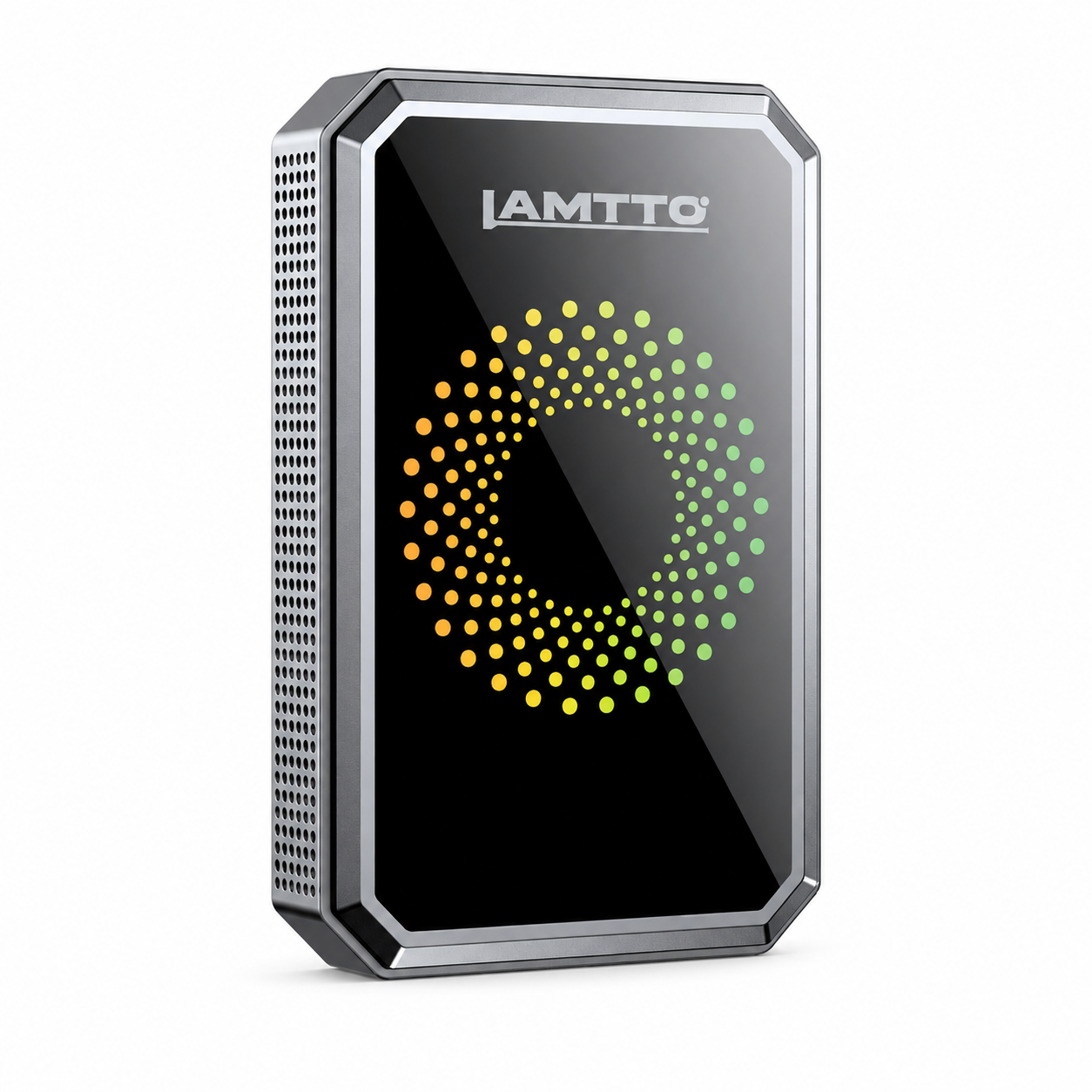


CarPlay dapter RC34A FAQ

Here is essential information about this product, including video tutorials, user manuals, FAQs, and etc
User Manual


FAQs
☟ How can I mirror my phone?
For iOS Devices (AirPlay):
1. Enable the AirPlay function.
2. Ensure your iPhone's Wi-Fi is turned on.
3. Open your iPhone's Control Center, tap Screen Mirroring, and select the device named WirelessDongle-xxxx. Enter the password:12345678
4. Screen mirroring will start automatically.
For Android Devices (Miracast)
1. Enable the Miracast function.
2. Ensure your Android phone's Wi-Fi is turned on.
3. Open your phone's Control Center(or Quick Settings panel), tap Screen Mirroring, and select the device named WirelessDongle-xxxx. Enter the password: 12345678
4. Screen mirroring will start automatically.
☟ The Apple CarPlay/Android Auto disconnects frequently. How can I fix this issue?
Please try the following suggestions:
1. Plug in the USB data port (not the power port), and the socket must not be loose.
2. The car itself must be able to support a wired connection.
3. Please upgrade the software online.
Upgrade method(Android Phones):
1). Connect the smart box to the car multimedia data interface, turn off the Bluetooth and WiFi switches of the mobile phone,
then turn on the WiFi switch, find the WIFI name, enter the password "88888888" Open Google Chrome,
and enter 192.168.1.101 in the address bar. Click Switch P2P, and it will prompt switch P2P OK!!!
2). Open the mobile phone WIFI-Wi-Fi Direct-Select the display name of the box and connect.
Open Google Chrome, enter 192.168.1.101 in the address bar, click Update to start the upgrade, and after the upgrade is completed.
After unplugging and plugging the device, re-pair successfully, and it can be used normally.
Upgrade method(iPhone):
Connect the smart box to the car multimedia data interface, turn on the WiFi switch, find the WIFI name, enter the password "88888888",
open the Safari browser, enter in the address bar: 192.168.1.101, press Enter, scroll down and click the upgrade button. After the upgrade is completed, unplug and re-pair the device successfully and it can be used normally.
Here are the videos for your refrence:
▶ How to update the CarPlay Adapter (iPhone)
▶ How to update the CarPlay Adapter (Android)
☟ How to connect and is a password required?
Please note that no password is required for connection.
☟ How do I know if it needs an update or has the latest firmware, and how to upgrade it?
Upgrade method(Android Phones):
1). Connect the smart box to the car multimedia data interface, turn off the Bluetooth and WiFi switches of the mobile phone,
then turn on the WiFi switch, find the WIFI name, enter the password "88888888" Open Google Chrome,
and enter 192.168.1.101 in the address bar. Click Switch P2P, and it will prompt switch P2P OK!!!
2). Open the mobile phone WIFI-Wi-Fi Direct-Select the display name of the box and connect.
Open Google Chrome, enter 192.168.1.101 in the address bar, click Update to start the upgrade, and after the upgrade is completed.
After unplugging and plugging the device, re-pair successfully, and it can be used normally.
Upgrade method(iPhone):
Connect the smart box to the car multimedia data interface, turn on the WiFi switch, find the WIFI name, enter the password "12345678",
open the Safari browser, enter in the address bar: 192.168.1.101, press Enter, scroll down and click the upgrade button. After the upgrade is completed, unplug and re-pair the device successfully and it can be used normally.
Here are the videos for your refrence:
▶ How to update the CarPlay Adapter (iPhone)
▶ How to update the CarPlay Adapter (Android)
☟ How do I know if it will work on my car?
Regarding Apple CarPlay:
This wireless CarPlay adapter is compatible with 98% of cars that support wired CarPlay. Heads up: BMW and Tesla models aren't supported yet.
If your car currently supports CarPlay via a wired connection with your mobile phone, you can use this adapter to enable wireless CarPlay functionality.
Ensure your iPhone is also compatible with CarPlay. For best results, we recommend using iOS 7.1 or later Version.
Regarding Android Auto:
This wireless adapter for Android Auto is compatible with 98% of cars that support wired CarPlay, except BMW models.
If your car currently supports Android Auto via a wired connection with your mobile phone, you can use this adapter to enable wireless Android Auto functionality.
For best performance, ensure your phone runs Android 11 or later.
Please note, that the adapter operates exclusively with a 5 GHz Wi-Fi connection.
☟ How do I know if it will work with my smartphone?
For iPhone, please use iOS 7.1 and above.
For Android phones, please use Android 11 and above.
Huawei smartphones are not supported.
☟ What if the connection fails?
Please try the following suggestions to troubleshoot:
Ensure your car device supports wired connections. If unsure, contact your car dealer for confirmation.
Make sure the adapter is plugged into the data port, not the power port.
Unplug and reinsert the adapter to ensure it's securely connected.
Update the adapter according to the instructions in the manual, then attempt to connect again.
☟ Why isn't my car recognizing the Smart Box?
Please make sure that your car's CarPlay supports a wired connection. Heads up: BMW and Tesla models aren't supported yet.
In other words, if you can connect your phone and car via a cable to use CarPlay or Android Auto features, you can use this wireless adapter.
If you are not sure, you can consult the car dealership.
If you use Android Smart Phone.
Since most vehicles default to Apple CarPlay, please first ensure your car's system is set to Android Auto before connecting.
To help the Smart Box recognize the current mode, pair a phone with the corresponding system (Android) to the smart box via Bluetooth first,
this will let you move to the next step, allowing you to connect the Android Auto.
By the way, if you want to switch the car setting from