


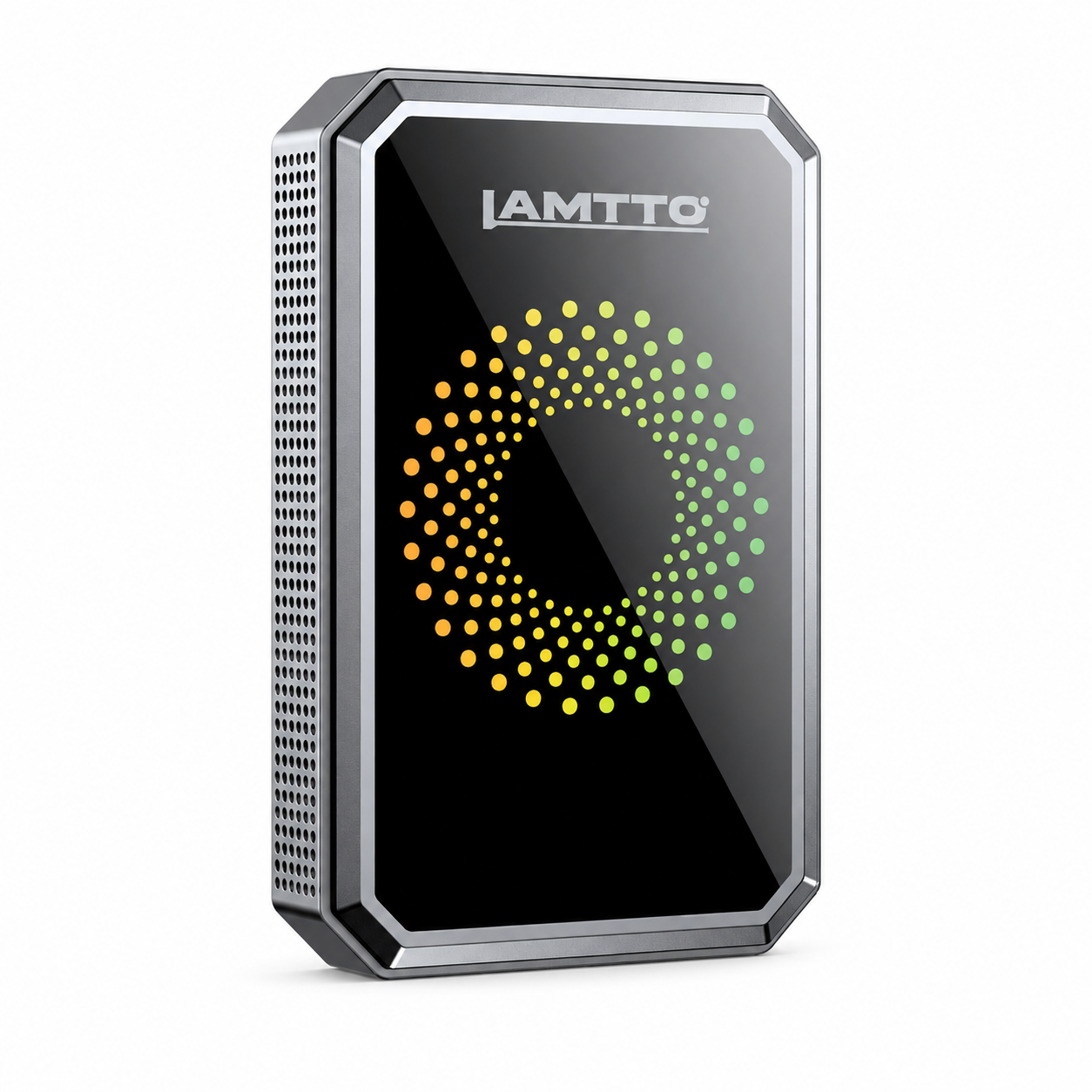


Lamtto RC14 Carplay Screen Support: Video Tutorials & FAQs
CarPlay RC14
Here is essential information about this product, including video tutorials and answers to frequently asked questions.
🎥 Reference Video
▶️ How to connect the Android phone
▶️ How to install suction cup bracket
▶️ How to install dashboard bracket
▶️ How to install the rear camera
(Only for reference)
❓ Frequently Asked Questions
🖼️ How to change the startup/opening screen?
To change the startup screen, please make sure that the image is in JPG format. Prepare a 1600×600 JPG image (what you want) first and name it boot_logo.
P.S.: You don’t need to add .jpg when naming the image, and the image size is best kept within 120KB.
Update steps:
- A TF card and a card reader are needed.
- Format the card on your PC and copy the correct image to the SD card.
- Insert the TF card after starting the device.
-
The update will be completed after the boot LOGO is recognized.
📺 Video for reference: ▶ Operation Video for reference
🔄 How do I know if my CarPlay needs an update or has the latest firmware?
In most cases, the CarPlay does not require a firmware upgrade unless there are specific issues. If you’re experiencing any problems or indeed wish to update the firmware, please follow these steps:
- Access your CarPlay settings.
- Locate the “Configuration” under “Firmware Version”.
- Take a photo of this information and send it to us.
-
Also send us the Order Number of the CarPlay.
Once we confirm your CarPlay has an available firmware update, we will provide a link to download the update instruction file. This file includes:
- Download links for the reference video
- Card software installation files
-
Firmware update package
Four steps to update:
- Prepare a 16–64GB SD card, SD card software, and firmware file (download from links).
- Burn the SD card with the PhoenixCard software (simply add the files as shown in the instructions and reference video, then click the button to finish burning the card with the firmware files).
- Insert the SD card into CarPlay to update the CarPlay firmware.
-
Restore the card using the software.
📧 Our email: DC@yooomail.com
📱 When I try to Mirror my iPhone screen to this display it does not support? (AirPlay function)
For Apple’s iOS 17.2 or later versions, compatibility with third-party products has been challenging, and we share your frustration. As electronic product sellers, we are actively working with Apple to address and consider these compatibility issues in future iOS updates. We apologize for any inconvenience this may have caused and appreciate your patience and understanding.
We have developed a firmware update to address compatibility problems caused by the recent iOS version update. Please provide the following information to our customer service team. We will check if your device requires a software update. If necessary, we will send you the firmware file along with the instructions. If not necessary, we will provide troubleshooting solutions.
Order Number
Go into the settings and locate the “Configuration” information from the “Firmware Version” for the CarPlay. Send us a photo of this information.
🤖 How to connect the CarPlay to an Android smartphone?
- First click Android Auto.
- Turn on Bluetooth and WiFi on your phone, and use Bluetooth to pair with the CarPlay screen.
-
Wait 5–10 seconds for the connection to complete.
Note: Android system 11 or above is required, and the mobile phone must support 5GHz WiFi.
🍏 How does Apple CarPlay connect to iPhone?
- First click on Apple CarPlay.
- Turn on Bluetooth and WiFi on your phone, and use Bluetooth to pair with the CarPlay screen.
- Confirm CarPlay.
-
Wait 5–10 seconds for the connection to complete.
Note: Requires iOS 7 or above, and the mobile phone must support 5GHz WiFi.
🔌 What should I do if the connection to the car screen is intermittent?
- Turn off Bluetooth and WiFi. Restart the phone and device to reconnect.
- Clear the phone’s memory and reconnect.
- Check whether the power supply is plugged in tightly. Please use the original charging cable.
🔊 How to avoid noise?
Please use Bluetooth to connect to the car audio.
🎧 Why is there noise when connecting AUX to the car’s audio system?
If there is noise when connecting AUX to the car’s audio system, it is usually caused by ground loops or electromagnetic interference.
Ground Loop: A ground loop occurs when two or more devices are connected to the same ground point through different paths, and there is a potential difference between these paths. This can cause unwanted currents to flow through the connecting cables, leading to noise.
Electromagnetic Interference: Modern vehicles are filled with electronic devices, which can generate electromagnetic interference (EMI), interfering with audio signals.
Using a filter can help resolve these issues:
- Ground Loop Isolation: Some audio filters (such as ground loop isolators) break the ground loop by inserting an isolation transformer into the signal line. This prevents buzzing noise and other disturbances.
-
High-Frequency Filtering: Some audio filters contain components that filter out electromagnetic interference in a specific frequency range, reducing static or unwanted signals.
Thus, if there is noise in an AUX-connected audio system, using an appropriate filter might be an effective solution.
⚙️ What should I do if the CarPlay screen cannot be used after multiple restarts?
- Please check whether the power supply is plugged in tightly. Ensure you use the original charging cable.
- Please do not use a 2‑in‑1 car charger.
If you have any further questions, please feel free to contact us.