


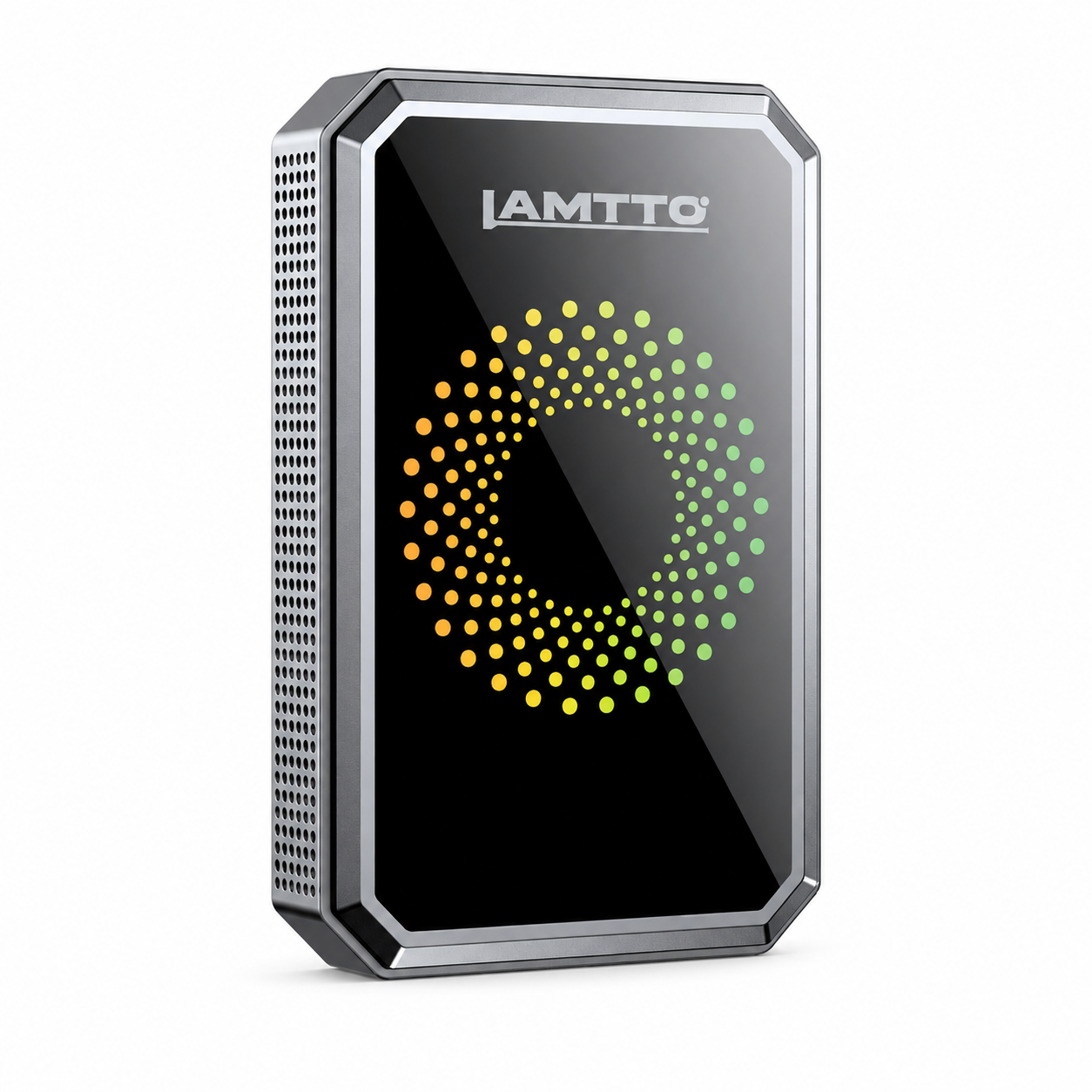


Lamtto RC22 Carplay Adapter User Guide & FAQ
CarPlay Adapter RC22 – Setup & Troubleshooting Guide
Welcome to the RC22 support page. Here's everything you need to get your wireless adapter working smoothly, from connection basics to firmware updates.
🎥 Reference Video
Watch our step-by-step video tutorials for installation and troubleshooting.
▶️How to connect the CarPlay adapter with your Android Phone
▶️How to connect the CarPlay adapter with your iPhone
❓ Frequently Asked Questions
🔌 The Apple CarPlay or Android Auto disconnects frequently. How can I fix this?
Please try these suggestions:
Plug the adapter into a USB data port, not a power port. The socket must be firm and not loose.
Your car must support a wired CarPlay or Android Auto connection.
Update the adapter firmware using the steps below.
🔄 How do I update the firmware, and how can I tell if a new version is available?
For Android phones:
Connect the smart box to your car's data interface.
Turn off Bluetooth and WiFi on your phone, then turn WiFi back on.
Find the adapter's WiFi name and connect using the password 88888888.
Open Google Chrome and enter 192.168.1.101 in the address bar.
Click "Switch P2P" – you should see a confirmation message.
Open your phone's WiFi settings, go to Wi-Fi Direct, and select the box's name.
Return to Chrome, enter 192.168.1.101 again, and click "Update" to start the upgrade.
Once complete, unplug and reconnect the device. It should pair successfully.
For iPhone:
Connect the smart box to your car's data interface.
Turn on WiFi, find the adapter's WiFi name, and connect using the password 88888888.
Open Safari and enter 192.168.1.101 in the address bar.
Scroll down and click the upgrade button.
After the upgrade finishes, unplug and reconnect the device. It should pair normally.
🔑 Is a password required for connection?
No password is needed for normal connection. The password 88888888 is only used for firmware updates via WiFi.
🚘 How do I know if it will work on my car?
For Apple CarPlay:
This adapter works with 98% of cars that support wired CarPlay. BMW and Tesla models are not supported yet.
If you can connect your iPhone to your car with a cable to use CarPlay, this adapter will make it wireless.
For best results, use iOS 7.1 or later.
For Android Auto:
This adapter works with 98% of cars that support wired Android Auto, except BMW models.
If you can connect your Android phone with a cable to use Android Auto, this adapter will enable wireless.
For best performance, use Android 11 or later.
Note: The adapter operates exclusively with a 5 GHz WiFi connection.
📱 How do I know if it will work with my smartphone?
For iPhone: iOS 7.1 and above.
For Android phones: Android 11 and above.
Huawei smartphones are not supported.
⚠️ What if the connection fails?
Try these steps:
Confirm your car supports wired connections (check with your dealer if unsure).
Make sure the adapter is plugged into a data port, not a power port.
Unplug and reconnect the adapter to ensure a secure connection.
Update the adapter to the latest firmware, then try again.
🔍 Why isn't my car recognizing the adapter?
First, confirm your car supports wired CarPlay or Android Auto. BMW and Tesla are not supported.
If you can use CarPlay or Android Auto with a cable, the wireless adapter should work.
For Android users:
Most cars default to Apple CarPlay. Before connecting, make sure your car's system is set to Android Auto.
Pair an Android phone to the adapter via Bluetooth first. This helps the adapter recognize the correct mode.
Switching from Android Auto to Apple CarPlay:
Unplug the adapter.
Go to your car settings and enable Apple CarPlay.
Plug the adapter back in.
Pair an iPhone to the adapter via Bluetooth first to complete the connection.
📞 Need More Help?
Our support team is ready to assist. Please email us with your order number and a clear description of the issue. We'll help you get back on the road with wireless freedom.