


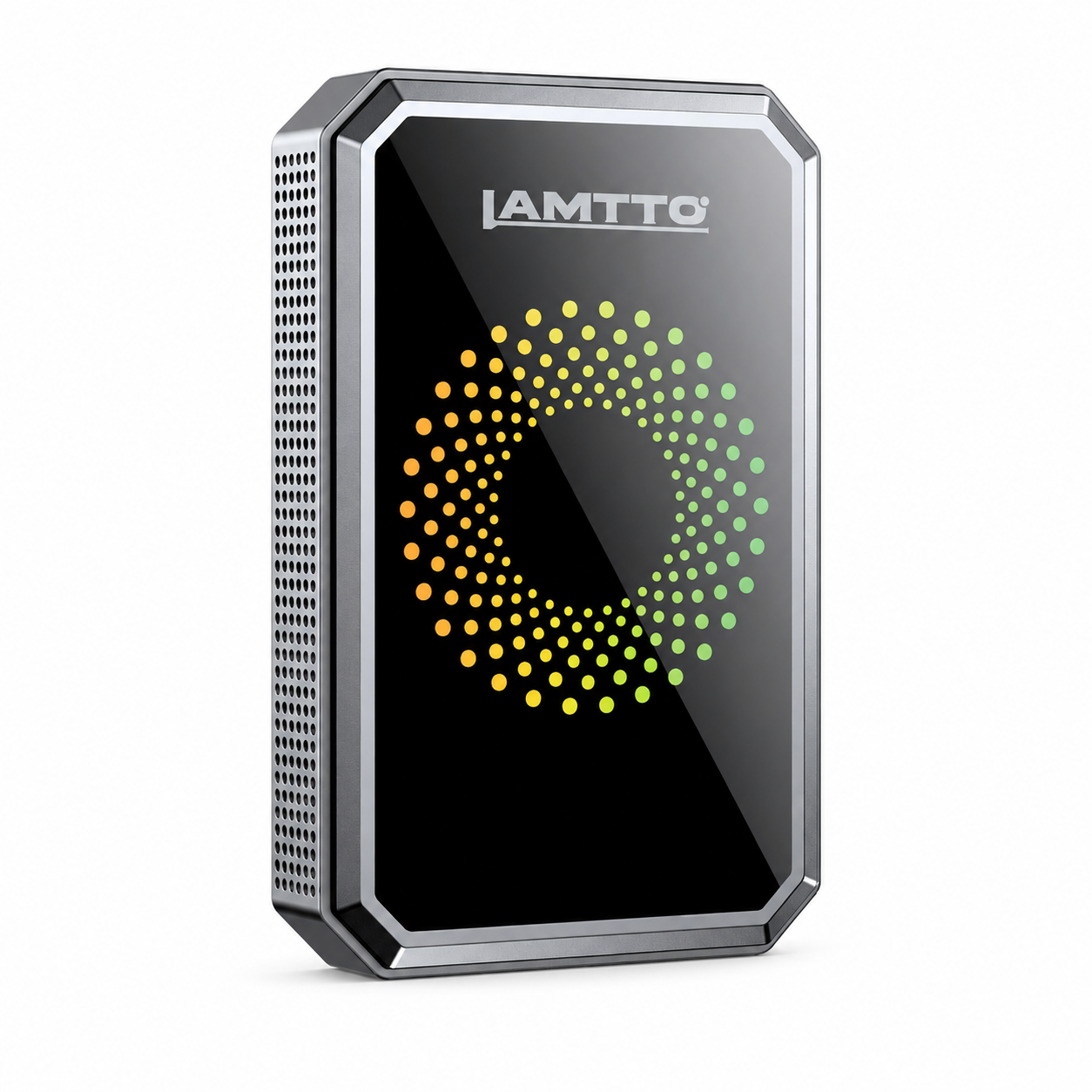


LAMTTO RC23 AI Carplay BOX
Impartance Notice About RC23 :
- Your car must have a factory wired CarPlay or Android Auto system.
- Check your car settings to ensure "Apple CarPlay" is enabled before plugging in the box.
- Use the included pin to switch the LED to blue if your car is an Android Auto-only system.
- Not compatible with BMW or Tesla Vehicles.
Product Specifications
| Connectivity Technology | Bluetooth, USB/Type-C, Wi-Fi |
|---|---|
| Supported Internet Services | Netflix/Youtube/TikTok/Disney+/ Prime Video |
| Compatibility | Resolution |
| Controller Type | Button Control, Voice Control |
| Form Factor | Convert wired CarPlay to Wireless CarPlay Adapter,For wired CarPlay touchscreen 2016+ cars, this is not compatible with built-in wireless CarPlay or BMW/Tesla vehicles. |
| Compatible Devices | For Android 13+, For iPhone 6+ and IOS 10+, For wired CarPlay touchscreen 2016+ cars, this is not compatible with built-in wireless CarPlay or BMW/Tesla vehicles. |
| Resolution | 1080p |
| Video Output Resolution | 3840 Pixels |
| Video Code | H.264, H.265/HEVC, VP9 |
Support CarPlay & Android Auto
Mode Switching
The RC23 has two operating modes, and an LED indicator that tells you exactly what’s happening.

Popular Topic About RC23

RC23 CarPlay Box Compatibility Guide
Does Your Car Work With RC23?Find out if your vehicle supports the LAMTTO RC23 CarPlay Box. Explore 50+ compatible cars and learn how to upgrade your factory screen with streaming apps.

Lamtto RC23 vs RC24 vs RC25
By aligning each adapter’svalue propositionwith your driving habits—streaming, simple wireless CarPlay, or HDMI-enabled entertainment—you’ll secure the best return on your investment and elevate every mile on the road.

CarPlay Adapter vs. CarPlay AI Box
Two popular plug-in devices are taking center stage: CarPlay adapters and CarPlay AI boxes. Let’s break down the key differences, including what’s hot in the U.S. auto tech world and how to pick the right option for your vehicle.

Support Videos

How to connect and features guide introduction

Netflix/Youtube Videos In Screen Mirroring
FAQ
More Question ?Feel free to contact us Pre-Sales :support@lamtto.com
After-sales:DC@yooomail.com
The Apple CarPlay/Android Auto disconnects frequently. How can I fix this issue?
Please try the following suggestions:1. Plug in the USB data port (not the power port), and the socket must not be loose.2. The car itself must be able to support a wired connection.3. Please upgrade the software online.Steps for the system update of the device(as enclosed picture):1. Locate the "All App" Option:Once the box is properly connected, navigate to find the "All App" section on the interface.2. Open the "System Update" APP:Among the available apps in the "All App" list, search for the "System Update" application and click on it.3. Check for and Download the New Firmware:If there is a new firmware version available, the screen will display information such as "new version: xxxx".At this point, click on the "Resume Download" button. This will start the download process of the new firmware to your device.4. Install the Downloaded Software:After the software has been successfully downloaded, click on the "Update now" option. This will begin the installation of the new firmware on your device.Important Precautions During the Update:It is crucial to note that during the update process, the screen will turnblack or display the car screen interface.The entire process of uploading the new software and syncing it will take approximately10 minutes.During this time, pleaseDO NOTperform any other operations on the device or unplug the box.Wait patientlyuntil the CarPlay adapter is reconnected completely, indicating that the update process has been successfully completed.
How to connect and is a password required?
Please note that no password is required for connection.
How do I know if it needs an update or has the latest firmware, and how to upgrade it?
Steps for the system update of the Smart AI Box(as in the below picture):1. Locate the "All App" Option:Once the Smart AI Box is properly connected, navigate to find the "All App" section on the interface.2. Open the "System Update" APP:Among the available apps in the "All App" list, search for the "System Update" application and click on it.3. Check for and Download the New Firmware:If there is a new firmware version available, the screen will display information such as "new version: xxxx".At this point, click on the "Resume Download" button. This will start the download process of the new firmware to your device.4. Install the Downloaded Software:After the software has been successfully downloaded, click on the "Update now" option. This will begin the installation of the new firmware on your device.Important Precautions During the Update:It is crucial to note that during the update process, the screen will turnblack or display the car screen interface.The process of uploading new software and auto-reconnecting the Smart AI Box will takeabout 5 to 8 minutes, during which only a black or car screen will be shown.During this time, pleaseDO NOTperform any other operations on the device or unplug the Smart AI Box.Wait patientlyuntil the CarPlay adapter is reconnected completely, indicating that the update process has been successfully completed.If there is an issue with using the item even after you have verified that the AI Box has been successfully updated to the latest version by clicking the "System update" option in the APP again, you can reset the AI-box to its factory settings. After the reset is complete, please attempt to reconnect the AI Box, and this will help resolve the issue.
How can I send the working log to the manufacturer to analyze the problem?
Steps for the system update of the Smart AI Box(as in the below picture):1. Locate the "All App" Option:Once the Smart AI Box is properly connected, navigate to find the "All App" section on the interface.2. Open the "System Update" APP:Among the available apps in the "All App" list, search for the "System Update" application and click on it.3. Check for and Download the New Firmware:If there is a new firmware version available, the screen will display information such as "new version: xxxx".At this point, click on the "Resume Download" button. This will start the download process of the new firmware to your device.4. Install the Downloaded Software:After the software has been successfully downloaded, click on the "Update now" option. This will begin the installation of the new firmware on your device.Important Precautions During the Update:It is crucial to note that during the update process, the screen will turnblack or display the car screen interface.The process of uploading new software and auto-reconnecting the Smart AI Box will takeabout 5 to 8 minutes, during which only a black or car screen will be shown.During this time, pleaseDO NOTperform any other operations on the device or unplug the Smart AI Box.Wait patientlyuntil the CarPlay adapter is reconnected completely, indicating that the update process has been successfully completed.If there is an issue with using the item even after you have verified that the AI Box has been successfully updated to the latest version by clicking the "System update" option in the APP again, you can reset the AI-box to its factory settings. After the reset is complete, please attempt to reconnect the AI Box, and this will help resolve the issue.
How do I know if it will work on my car?
Regarding Apple CarPlay:This wireless CarPlay adapter is compatible with 98% of cars that support wired CarPlay. Heads up: BMW and Tesla models aren't supported yet.If your car currently supports CarPlay via a wired connection with your mobile phone, you can use this adapter to enable wireless CarPlay functionality.Ensure your iPhone is also compatible with CarPlay. For best results, we recommend using iOS 7.1 or later Version.Regarding Android Auto:This wireless adapter for Android Auto is compatible with 98% of cars that support wired CarPlay, except BMW models.If your car currently supports Android Auto via a wired connection with your mobile phone, you can use this adapter to enable wireless Android Auto functionality.For best performance, ensure your phone runs Android 11 or later.Please note, that the adapter operates exclusively with a 5 GHz Wi-Fi connection.
How do I know if it will work with my smartphone?
For iPhone, please use iOS 7.1 and above.For Android phones, please use Android 11 and above.Huawei smartphones are not supported.
What if the connection fails?
Please try the following suggestions to troubleshoot:Ensure your car device supports wired connections. If unsure, contact your car dealer for confirmation.Make sure the adapter is plugged into the data port, not the power port.Unplug and reinsert the adapter to ensure it's securely connected.Update the adapter according to the instructions in the manual, then attempt to connect again.
Why isn't my car recognizing the Smart Box?
Please make sure that your car's CarPlay supports a wired connection. Heads up: BMW and Tesla models aren't supported yet.In other words, if you can connect your phone and car via a cable to use CarPlay or Android Auto features, you can use this wireless adapter.If you are not sure, you can consult the car dealership.If you use Android Smart Phone.Since most vehicles default to Apple CarPlay, please first ensure your car's system is set to Android Auto before connecting.To help the Smart Box recognize the current mode, pair a phone with the corresponding system (Android) to the smart box via Bluetooth first,this will let you move to the next step, allowing you to connect the Android Auto.By the way, if you want to switch the car setting from Android Auto to Apple CarPlay:First, you need to unplug the Smart BoxThen, go to the car settings to enable Apple CarPlayNext, plug the Smart Box into the CarNote, at this time, you also have to pair a phone with the corresponding system (iPhone) to the Smart Box via Bluetooth firstFinally, it will allow you to connect the Apple CarPlay