


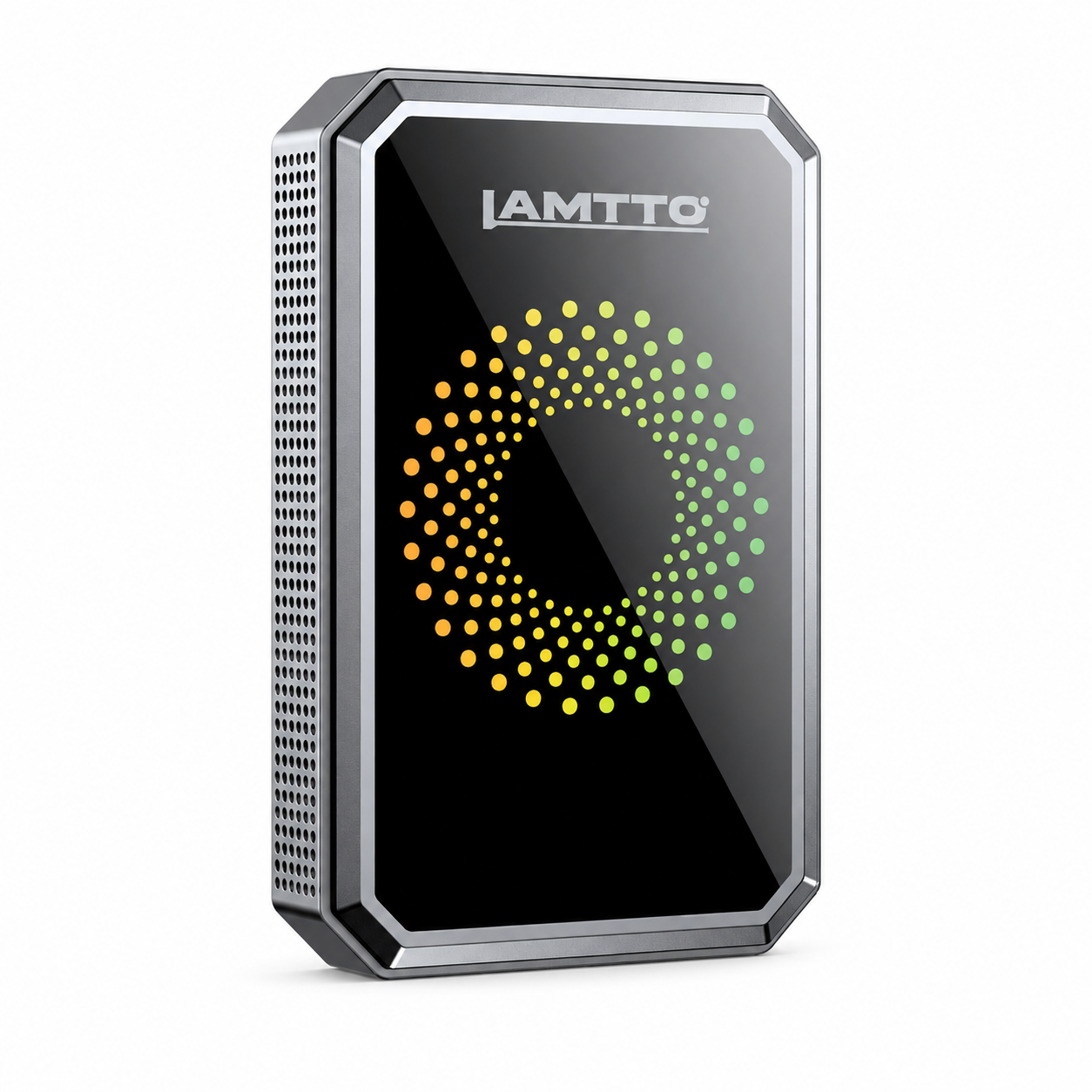


Lamtto RC26 CarPlay AI Box Setup & Troubleshooting
Everything you need to get set up — from unboxing to daily use. Bookmark this page so you always have a quick reference handy.
📦 Quick Start
🔌 How to Connect
- Plug the RC26 into your car's wired CarPlay or Android Auto USB port. Use the cable that came in the box — aftermarket cables may cause connection drops.
- Turn on your car's ignition. The adapter will power up and display a welcome screen on your car's infotainment display.
- On your phone, go to Settings → Bluetooth and pair with the adapter. Once paired, the connection will happen automatically on future drives.
- Accept any permission prompts on your phone (contacts, notifications, etc.) to enable the full feature set.
✅ Compatibility
| What You Need | Requirement |
|---|---|
| Your Vehicle | Any car with factory wired CarPlay or wired Android Auto |
| iPhone | iPhone 6 or newer · iOS 10.0+ |
| Android Phone | Android 11.0 or newer |
🛠 Troubleshooting
Connection Issues
- Multiple phones: The adapter can only maintain a stable connection with one phone at a time. If a second phone tries to pair, it may kick the first one off. Disconnect unused devices.
- Outdated OS: Make sure your phone is running the latest version of iOS or Android. Older system versions sometimes break the handshake.
- USB port: Try a different USB port in your car if available. Some ports are charge-only and don't carry data.
This almost always points to the physical USB connection. Check that:
- The cable is fully seated at both ends (adapter side and car side)
- The car's USB port isn't loose or worn
- You're using the original cable — third-party cables can have intermittent contact
Not every app on your phone is approved for use while driving. CarPlay and Android Auto each maintain their own list of allowed apps. The adapter mirrors whatever the platform permits — it can't bypass those restrictions.
📋 Apple CarPlay supported apps | 📋 Android Auto supported apps
Performance Issues
- Too many apps open: Close background apps on the adapter (not your phone). Running navigation, music streaming, and a messaging app all at once can strain the processor.
- Overheating: Make sure the adapter has airflow around it. Don't bury it in a closed glovebox or under a pile of cables. Heat buildup will cause the system to throttle performance.
- Cache buildup: Periodically clear the adapter's cache through its settings menu to keep things snappy.
- Check whether the WiFi signal is weak — the adapter relies on a stable connection for streaming.
- Run a speed test to confirm your network can handle the resolution you're playing. If not, drop to a lower resolution (e.g., 720p instead of 1080p).
- If you're using a mobile hotspot, move the phone closer to the adapter.
Other Common Questions
The RC26 doesn't have an internal battery, so it can't hold the time when it loses power. Don't worry — it syncs automatically as soon as it connects to the internet. Just give it a few seconds after startup.
Yes. As long as the adapter is connected to the internet, you can download and install additional applications through its built-in app store or via APK (Android-based system).
📋 Tips for Daily Use
- Give it a moment. After starting the car, the adapter needs about 15–30 seconds to boot and reconnect. Don't unplug and replug it impatiently — that just resets the process.
- Keep it ventilated. Place the adapter somewhere with airflow. Tucking it inside a closed center console may cause it to overheat on long drives.
- One phone at a time. If multiple people in the car have paired before, turn off Bluetooth on the phones you're not using to prevent connection conflicts.
- Restart occasionally. Like any smart device, a restart every few weeks clears temporary glitches. Simply unplug it, wait 10 seconds, and plug it back in.
-
Keep firmware updated. Check the settings menu periodically for over-the-air updates that improve stability and add features.
Still Need Help?
If the steps above didn't resolve your issue, our support team is ready to help.