


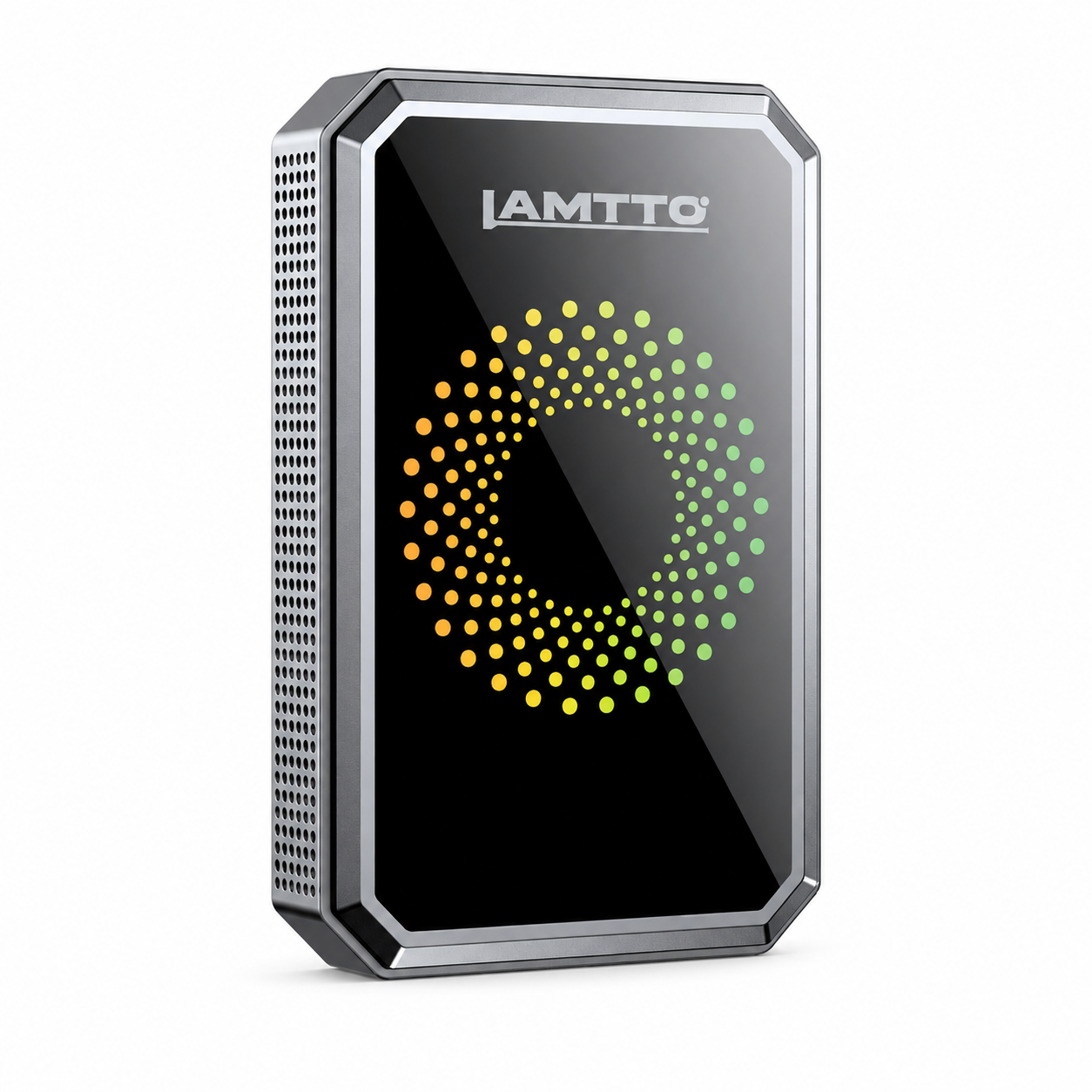


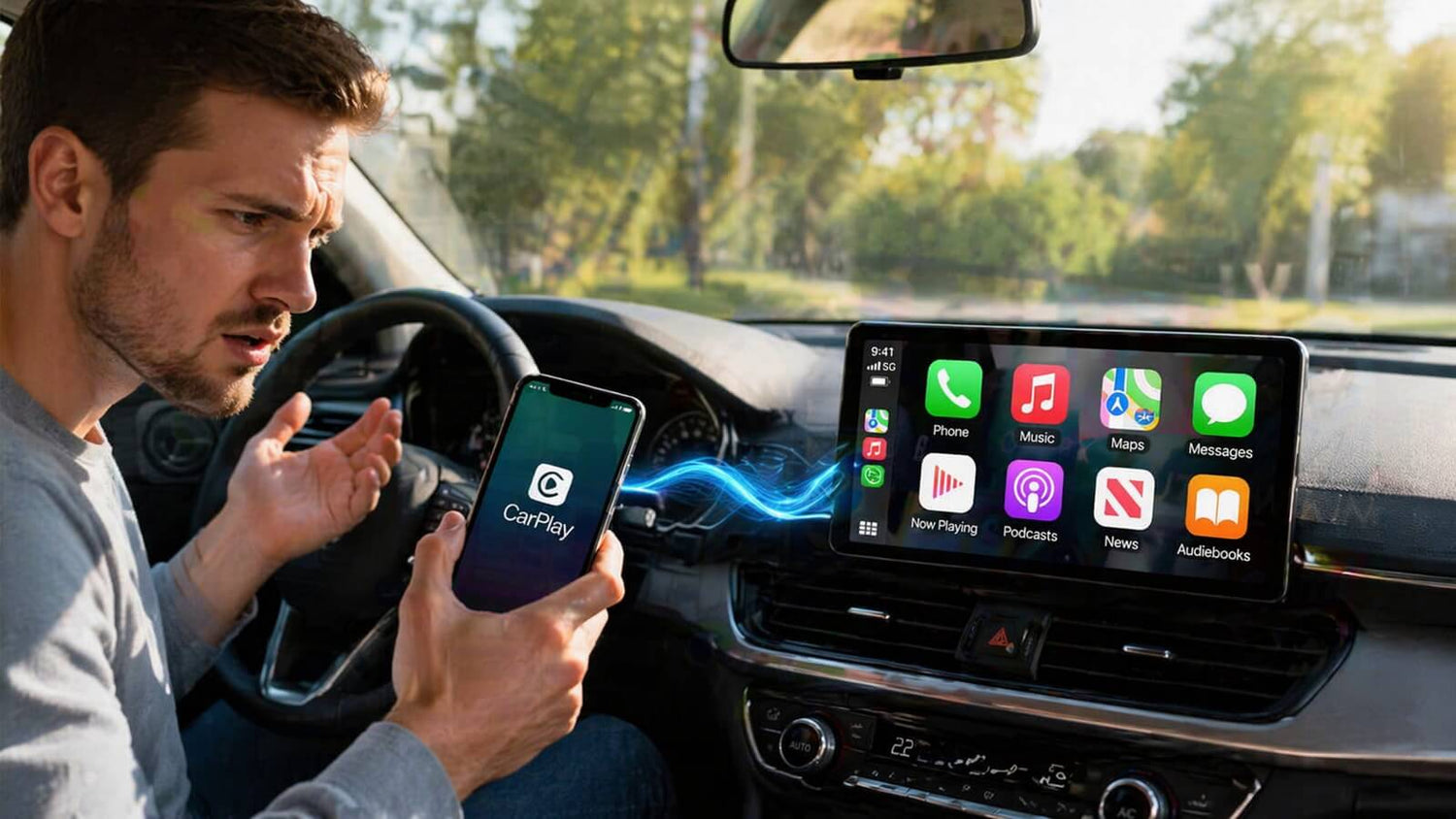
If you’re using a Lamtto smart car display and notice that Siri is not responding, don’t worry — this is a common issue and usually not a hardware problem.
In most cases, it’s related to phone settings, connection status, or system conflicts, and can be fixed in just a few minutes.
This guide will walk you through simple, effective solutions to get Siri working again.
1. Restart Your iPhone and Re-enable Siri
The first and most important step is to refresh your phone system.
Sometimes Siri may stop responding due to:
- Temporary system glitches
- Background app conflicts
- Voice recognition issues
What to do:
- Restart your iPhone
- Go to Settings → Siri & Search
- Turn OFF and then ON:
- “Listen for ‘Hey Siri’”
- “Press Side Button for Siri”
This helps reset Siri’s voice recognition and connection with your car display.
2. Test Siri Directly on Your Phone
Before checking the car screen, you should confirm whether Siri works normally on your phone itself.
Try this:
👉 Say “Hey Siri” without connecting to the Lamtto device
If Siri does not respond on your phone, the issue is:
- Not related to the Lamtto screen
- Likely caused by iOS settings or microphone issues
If Siri works fine on your phone, then continue to the next step.
3. Check CarPlay Connection Status
Siri relies on a stable connection between your iPhone and the Lamtto display.
Make sure:
- Your phone is properly connected via CarPlay Display (wired or wireless)
- Bluetooth and WiFi are both enabled (for wireless CarPlay)
- No other devices are interfering with the connection
Sometimes, reconnecting the device can fix the issue instantly.
4. Reset the Lamtto Device
If everything on your phone is working correctly but Siri still doesn’t respond, try resetting the device.
Steps:
👉 Go to device settings
👉 Restore factory settings
This will:
- Clear connection cache
- Fix potential system conflicts
- Rebuild the connection with your phone
5. Try Another iPhone
To rule out compatibility issues, testing with another phone is highly recommended.
If Siri works with a different phone:
👉 The issue is likely related to your original device
If it still doesn’t work:
👉 It may be a setup or connection issue on the display side
6. Common Reasons Why Siri Doesn’t Work
Here are the most common causes:
- Siri is disabled on your iPhone
- Microphone access is restricted
- Bluetooth/WiFi connection is unstable
- System needs a restart
- Device cache conflict
Final Thoughts
If Siri is not responding on your Lamtto smart screen, it’s usually not a defect — just a small setup or connection issue.
By following the steps above, most users can fix the problem in just a few minutes.
If you’ve tried everything and still have issues, feel free to contact Lamtto support — we’re here to help you get the best experience from your device.
Bonus Tip
For a smoother voice control experience, always:
- Keep your iPhone updated to the latest iOS version
- Maintain a stable wireless connection
- Avoid running too many background apps


Leave a comment
All comments are moderated before being published.
This site is protected by hCaptcha and the hCaptcha Privacy Policy and Terms of Service apply.